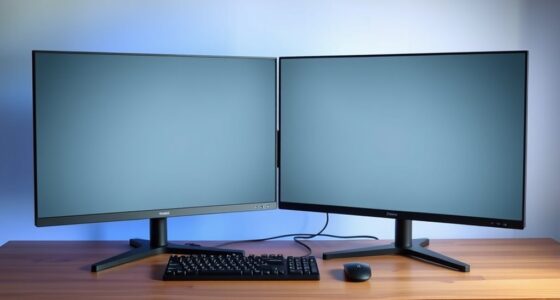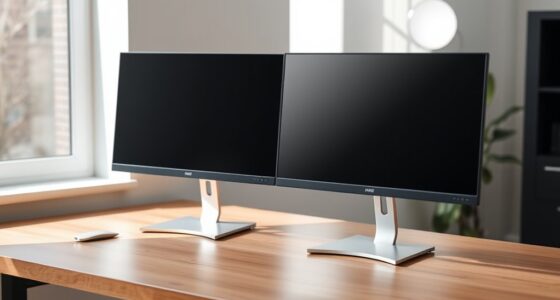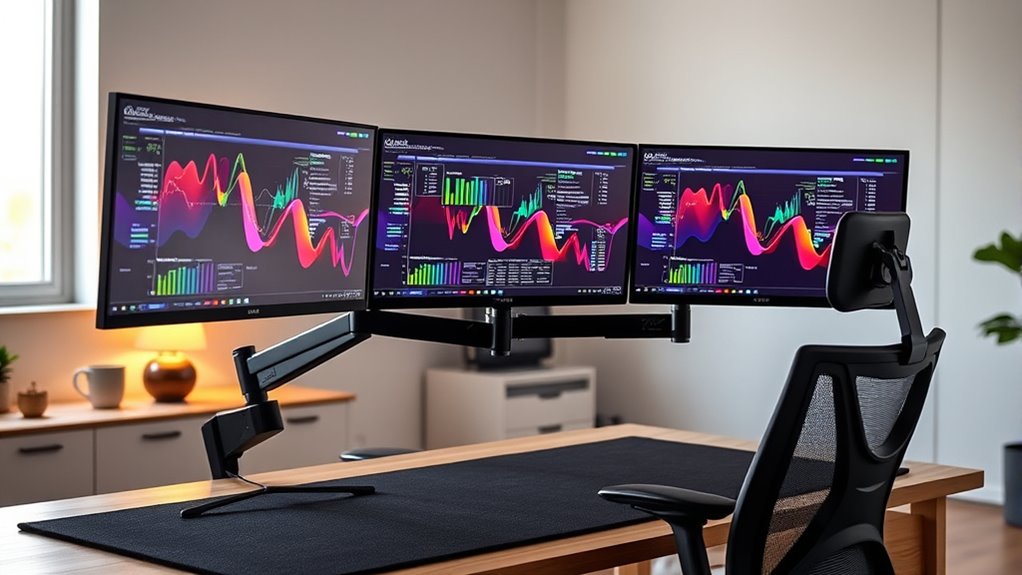
To create a comfortable multi-monitor setup, position your main monitor at eye level and use adjustable arms for precise angles. Place side screens slightly angled inward for easy viewing, minimizing neck strain and excessive head movement. Elevate monitors to free desk space and keep cables organized for safety. Using versatile accessories allows quick repositioning to suit your tasks, promoting better posture during long hours. Keep exploring to discover more ways to optimize your workspace for maximum comfort.
Key Takeaways
- Position main monitor at eye level with a curved or ultra-wide display for comprehensive viewing.
- Place secondary monitors on adjustable arms, angled inward to reduce neck movement.
- Use flexible mounting accessories to switch between portrait and landscape orientations easily.
- Elevate monitors to free desk space, promoting a tidy, clutter-free workspace.
- Incorporate cable management features to keep cords organized and ensure a safe, efficient setup.

Setting up multiple monitors can considerably boost your productivity and create a more immersive workspace. When you opt for multi-monitor mounting, you’re making a smart move toward a more efficient and comfortable environment. One of the key advantages is the ergonomic benefits it offers. Properly positioned screens reduce neck strain, minimize eye fatigue, and promote better posture. Instead of craning your neck or constantly adjusting your head, you can align your monitors at eye level, allowing your neck and shoulders to relax naturally. To achieve this, mounting accessories come into play, giving you the flexibility to adjust height, tilt, and orientation easily. These accessories, such as adjustable arms and multi-monitor stands, make it simple to customize your setup to fit your body and work style.
When choosing a configuration, start by considering your primary tasks. If you’re doing intensive data analysis or graphic design, a curved or ultra-wide monitor as your main display can help you keep everything in view without excessive head movement. Secondary monitors can be placed on either side, angled inward for easy viewing. This arrangement minimizes eye strain and keeps your focus centered. Mounting accessories make this setup seamless, allowing you to position each screen at the ideal height and angle. With adjustable arms, you can easily switch between portrait and landscape orientations or adjust the screens during long work sessions, maintaining comfort throughout the day.
Another ergonomic benefit of multi-monitor mounting is increased desk space. By elevating monitors off the desk surface, you free up room for other essentials and keep your workspace tidy. This reduces clutter and allows for a more open, breathable environment, which can contribute to better focus and less physical stress. Furthermore, mounting accessories often feature cable management options. These help keep cords organized and out of the way, preventing accidental tugs or tripping hazards, which further enhances safety and comfort.
Ultimately, your goal should be a setup that promotes ease of use and reduces strain. Take advantage of mounting accessories to fine-tune your monitor positions, ensuring they’re aligned with your natural line of sight. With a well-thought-out configuration, you’ll enjoy improved productivity, better posture, and fewer discomforts during long work hours. Remember, investing in quality mounts and accessories pays off by providing stability, adjustability, and ergonomic support, making your multi-monitor setup a true extension of your workspace comfort.
Top picks for "multi monitor mount"
Open Amazon search results for this keyword.
As an affiliate, we earn on qualifying purchases.
Frequently Asked Questions
How Do I Choose the Right Monitor Size for Multi-Mount Setups?
You should choose monitor sizes that match your workspace and ergonomic needs, typically 24 to 32 inches for comfort and efficiency. Smaller monitors may cause eye strain, while larger ones can overwhelm your desk. Consider aesthetic factors like uniformity and style, ensuring your setup looks cohesive. Balancing ergonomic benefits with aesthetic considerations helps you create a multi-mount setup that’s both comfortable and visually pleasing.
Can Multi-Monitor Mounts Support Curved or Ultrawide Monitors?
Yes, many multi-monitor mounts support curved monitors and ultrawide monitors. Look for mounts with adjustable arms and VESA compatibility for curved monitor compatibility and ultrawide monitor support. Confirm the mount can handle the weight and size of your screens. Adjustable tension and flexible positioning help you achieve a comfortable setup. Always check the specifications for compatibility before purchasing to ensure it fits your curved or ultrawide monitors perfectly.
What Safety Precautions Should I Consider When Installing Multiple Monitors?
When installing multiple monitors, you should prioritize ergonomics considerations to prevent strain and guarantee comfort. Make sure your mounts are securely attached to avoid accidents, and check for electrical safety by using grounded outlets and avoiding overloaded circuits. Keep cables organized to prevent tripping hazards, and double-check weight limits. Regularly inspect mounts and connections, and follow manufacturer instructions carefully to maintain a safe, ergonomic workspace.
Are There Specific Desk Types Best Suited for Multi-Monitor Mounting?
Sure, because only a golden throne will do, right? In reality, you want a sturdy desk with ample space for ideal desk ergonomics and monitor placement. L-shaped or large rectangular desks work best, providing stability and room to arrange screens comfortably. Avoid tiny or flimsy surfaces that wobble, as they’ll turn your multi-monitor setup into a shaky nightmare. Pick a desk that supports your workflow and keeps your neck happy.
How Do I Cable Manage Effectively With Multi-Monitor Configurations?
To cable manage effectively with a multi-monitor setup, start with cable concealment by running cables behind your desk or using raceways. Use cable management tools like clips, sleeves, or Velcro straps to keep cords organized and prevent tangling. Make sure cables are long enough to reach ports comfortably without tension. Regularly check and adjust your cable routes to maintain a clean, clutter-free workspace and improve overall comfort and efficiency.
Conclusion
By choosing the right multi-monitor setup, you can profoundly boost your productivity and comfort. For example, imagine a graphic designer who arranges their monitors in an ergonomic L-shape, reducing neck strain and allowing seamless workflow between design tools. Experiment with different configurations to find what works best for you. Remember, the key is prioritizing your comfort and creating a workspace that encourages focus and efficiency. Your ideal setup is within reach—just tailor it to your needs.