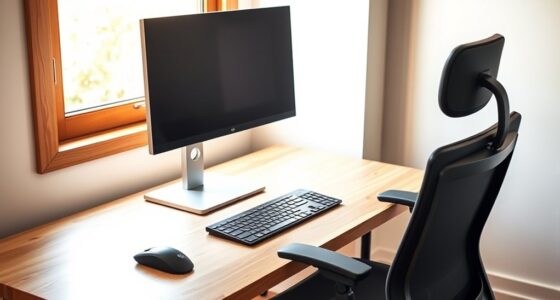
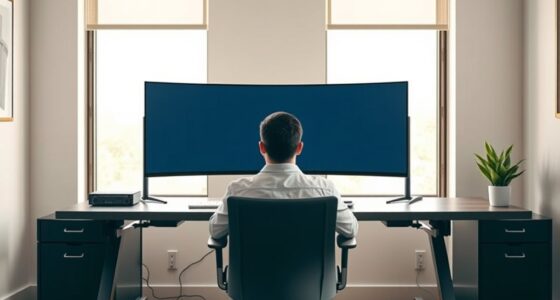
To position dual monitors without straining your neck, start by placing them at your eye level using adjustable stands or mounts, so you avoid looking up or down. Keep them close together within your natural line of sight to minimize side-to-side movement. Tilt the screens slightly and ensure they’re at an arm’s length away for comfort. Proper lighting reduces glare, and ergonomic accessories can offer extra support; more tips await if you continue.
Key Takeaways
- Position both monitors at eye level to prevent neck tilting and promote a neutral head posture.
- Keep monitors side by side within your natural line of sight to minimize head turning.
- Adjust monitor height and tilt for optimal viewing angle and reduced glare.
- Maintain an arm’s length distance from each monitor to lessen eye and neck strain.
- Use ergonomic stands or mounts to easily customize monitor placement for comfort.

HUANUO FlowLift™ Dual Monitor Stand, Fully Adjustable Gaming Monitor Desk Mount for 13–32″ Computer Screens, Full Motion VESA 75×75/100×100 with C-Clamp & Grommet Base, Each Arm Holds 4.4 to 19.8 lbs
- Monitor Compatibility: Supports 13-32 inch, 4.4-19.8 lbs, VESA 75×75/100×100
- Desk Compatibility: Fits wooden desks 0.59-3.54 inches thick
- Secure Mounting: Dual C-clamp and grommet options for stability
As an affiliate, we earn on qualifying purchases.
As an affiliate, we earn on qualifying purchases.
Adjust the Height and Angle of Your Monitors

To reduce neck strain and improve your viewing comfort, you should start by adjusting the height and angle of your monitors. Proper monitor tilt helps you find the ideal viewing angle, preventing glare and eye strain. Position the monitor so the top of the screen is roughly at your eye level, which minimizes the need to tilt your head up or down. Keep the monitor distance about an arm’s length away to reduce eye fatigue and ensure clear visibility. Adjust the tilt to create a slight angle, making it easier to view the screen without craning your neck or straining your eyes. Small adjustments in height and angle can make a significant difference in how comfortable and strain-free your workspace feels throughout the day. Ergonomic adjustments can further enhance your comfort and reduce fatigue during long periods of computer use.

ErGear Single Monitor Arm, Fully Adjustable Monitor Mount for 13–34 Inch Screens, Fast Install Computer Monitor Stand with Tool-Free VESA Mount, Cable Management, Holds 19.8 lbs, Max VESA 100x100mm
- Compatibility: Fits 13–34 inch monitors up to 19.8 lbs
- VESA Compatibility: Supports 75x75mm and 100x100mm patterns
- Durable Construction: Tested over 20,000 cycles for longevity
As an affiliate, we earn on qualifying purchases.
As an affiliate, we earn on qualifying purchases.
Position Your Monitors at Eye Level

Positioning your monitors at eye level is key to maintaining good neck and eye health. Proper monitor placement reduces strain and prevents discomfort during long work hours. Use ergonomic accessories like adjustable stands or monitor mounts to achieve the correct height effortlessly. When your monitors sit at eye level, you’ll experience less neck tilt and minimized eye strain. Keep these in mind:
Proper monitor height reduces neck strain and eye fatigue for a healthier workspace.
- Feel confident knowing your setup promotes comfort and productivity
- Enjoy the freedom to adjust your monitors easily with ergonomic accessories
- Reduce fatigue by aligning your screens perfectly with your line of sight
- Ensure your setup supports proper ergonomics for long-term comfort
Prioritize monitor placement that aligns with your eye level, and invest in the right accessories to create a healthier, more comfortable workspace. Your neck and eyes will thank you.
HUANUO FlowLift™ Dual Monitor Stand, Fully Adjustable Gaming Monitor Desk Mount for 13–32″ Computer Screens, Full Motion VESA 75×75/100×100 with C-Clamp & Grommet Base, Each Arm Holds 4.4 to 19.8 lbs
- Monitor Compatibility: Supports 13-32 inch, 4.4-19.8 lbs, VESA 75×75/100×100
- Desk Compatibility: Fits wooden desks 0.59-3.54 inches thick
- Secure Mounting: Dual C-clamp and grommet options for stability
As an affiliate, we earn on qualifying purchases.
As an affiliate, we earn on qualifying purchases.
Keep the Monitors Close to Reduce Neck Movement

Keeping your monitors close minimizes the need for your neck to turn or stretch repeatedly, which can cause unnecessary strain. Proper monitor placement ensures that both screens are within your natural line of sight, reducing the effort needed to view different areas. To achieve this, organize your desk so the monitors sit side by side, aligned at a comfortable distance—about an arm’s length away. Good desk organization helps keep cables tidy and prevents clutter that might force you to lean forward or sideways. When monitors are positioned close and well-organized, you minimize head and neck movement, decreasing fatigue and discomfort. Additionally, understanding ergonomic principles can help you optimize your workspace for long-term comfort and health during extended work sessions.

MOUNTUP Single Monitor Stands, Freestanding VESA Monitor Desk Mount fits 13'' to 32'' Computer Screen with Height Adjustable, Swivel, Tilt, Rotation, 17.6 lbs Load, For Home Office, VESA 75×75/100×100
- Ergonomic Adjustable Design: Reduces neck, shoulder, and eye strain
- Flexible Screen Positioning: Tilt, swivel, rotate, and height adjustable
- Supports Portrait or Landscape: Move monitor horizontally and vertically
As an affiliate, we earn on qualifying purchases.
As an affiliate, we earn on qualifying purchases.
Use Proper Lighting to Minimize Glare and Strain

Proper lighting is essential to reduce glare on your monitors, which can cause eye strain and headaches. To achieve this, focus on creating a balanced environment with ambient lighting that minimizes harsh contrasts. Proper ambient lighting can make a significant difference in glare reduction and overall comfort. Incorporating essential oils for eye comfort, such as lavender or eucalyptus, may also promote relaxation and ease visual fatigue. Consider these tips: – Use soft, diffused lights to avoid direct glare on screens – Position light sources away from your monitors to prevent reflections – Adjust your room’s brightness to match your screen, reducing eye fatigue
Incorporate Ergonomic Accessories for Better Support

Adding ergonomic accessories to your workspace can considerably improve comfort and reduce strain during long hours at your monitors. Using monitor stands elevates your screens to eye level, preventing neck tilt and promoting good posture. Ergonomic cushions support your lower back or wrists, easing pressure and enhancing overall comfort. These accessories help maintain proper alignment and reduce fatigue. It is also helpful to consider trusted custodians for secure storage of your equipment, ensuring a safe and organized workspace.
Frequently Asked Questions
How Do I Determine the Optimal Distance Between Monitors?
To determine the ideal distance between monitors, focus on monitor spacing and monitor alignment. You should position your monitors so they’re close enough for easy viewing without stretching your neck. Keep the monitors at eye level, with about an arm’s length apart, and guarantee they’re aligned directly in front of you. Adjust the spacing until your neck feels relaxed, and your viewing comfort improves, reducing strain.
What Are the Best Types of Ergonomic Monitor Stands?
When choosing ergonomic monitor stands, consider various monitor stand styles that suit your workspace. Look for stands offering monitor height adjustment to align screens with your eye level, reducing neck strain. Adjustable stands, like gas spring or multi-tier designs, allow you to customize monitor positioning easily. This flexibility helps you maintain a comfortable posture throughout your workday, ensuring your dual monitors support your productivity without causing discomfort.
Can Adjustable Arm Mounts Improve Monitor Positioning?
Adjustable arm mounts can considerably improve your ergonomic desk setup by allowing you to easily position your monitors at eye level, reducing neck strain. They offer flexibility for ideal monitor calibration tips, ensuring each screen is perfectly aligned for comfort. With these mounts, you can quickly adjust angles and heights, making your workspace more ergonomic and comfortable, ultimately helping you maintain better posture and reduce fatigue during long work sessions.
How Does Screen Brightness Affect Neck Strain?
Your screen brightness can feel like a blinding spotlight, impacting your comfort. When screens are too bright, you’ll notice more screen glare, which causes eye fatigue and can make neck strain worse as you squint or adjust your posture. To prevent this, set your monitors to a comfortable brightness level that matches your environment, and use anti-glare screens if needed. This helps keep your eyes relaxed and your neck in a healthy position.
What Exercises Can Help Reduce Neck Tension From Dual Monitors?
To reduce neck tension from dual monitors, you should regularly do neck stretches like gentle head turns and chin tucks to loosen tight muscles. Incorporate posture tips, such as keeping your monitor at eye level and sitting upright, to prevent strain. These exercises and adjustments help maintain good neck health and ease discomfort during long screen sessions, keeping you comfortable and preventing long-term issues.
Conclusion
By following these simple tips, you’ll turn your workspace into a haven where your neck feels relaxed, not strained. Think of your monitors as trusted companions on your desk—positioned just right, they’ll support your comfort and boost your productivity. When you tune your setup like a finely crafted instrument, you’ll find your posture naturally aligning, making neck pain a thing of the past. Your workspace can be a cozy retreat, not a battlefield—so start tweaking today!