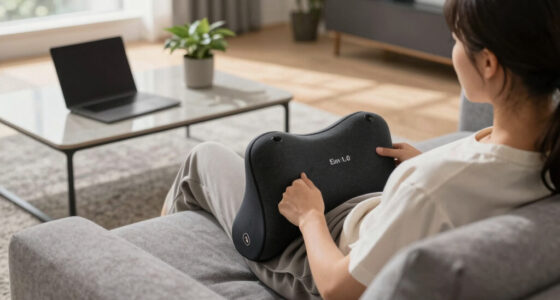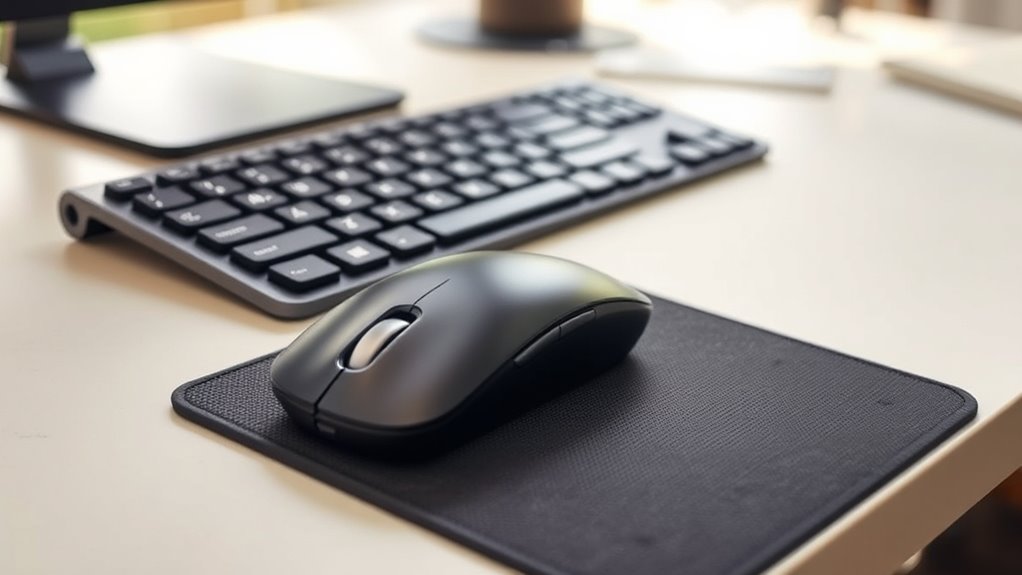

To set up your keyboard and mouse for comfort, start by adjusting your chair and desk height so your elbows stay close to your body at a 90° angle, with wrists in a neutral position. Keep your keyboard slightly tilted with the front edge higher, and position your mouse within easy reach at the same level as your keyboard. Use ergonomic accessories like wrist rests and organize your workspace to minimize unnecessary movement. Small tweaks can make a big difference—exploring more tips will help you maximize relief.

Get comfort and recovery gear delivered free with Prime
- Fast, free delivery on millions of items
- Prime Video, Amazon Music and more included
- Member-only deals all year
Key Takeaways
- Keep wrists in a neutral, straight position using wrist rests and proper mouse placement.
- Adjust keyboard tilt, height, and distance to elbows for a relaxed, ergonomic typing posture.
- Position the mouse close to your body at mouse level to reduce reaching and strain.
- Set monitor at eye level to prevent neck discomfort and promote better alignment.
- Take regular breaks and perform stretches to alleviate tension and improve circulation.
As an affiliate, we earn on qualifying purchases.
Adjust Your Chair and Desk Height for Proper Alignment

To make certain of comfort and prevent strain, you should adjust your chair and desk height so that your feet rest flat on the floor and your knees are at a 90-degree angle. Proper chair ergonomics guarantees your hips are level with your knees, promoting good posture. Adjust the chair height so your thighs are parallel to the floor, avoiding pressure on your lower back. Your desk height should be set so that your elbows are close to your body and form a 90-degree angle when your arms rest on the surface. This setup minimizes unnecessary shoulder and neck strain. Ensuring your chair and desk are correctly aligned helps maintain proper ergonomics, reducing fatigue and improving your overall comfort during long periods of work. Attention plays a crucial role in optimizing your ergonomic setup and maintaining focus during extended tasks.
As an affiliate, we earn on qualifying purchases.
Position Your Keyboard for Optimal Wrist Comfort

Positioning your keyboard correctly is essential for maintaining comfortable wrists and preventing strain. Proper wrist alignment reduces fatigue and minimizes the risk of repetitive strain injuries. To achieve this, consider these adjustments:
Proper keyboard positioning supports comfortable wrists and prevents strain.
- Keep your wrists in a neutral position, avoiding bending up or down.
- Adjust the keyboard tilt so that the front edge is slightly higher than the back, promoting a natural wrist angle.
- Ensure the keyboard is centered in front of you, preventing awkward twisting.
- Use a wrist rest if needed, but only as a gentle support, not a prop for your wrists.
- Incorporating ergonomic principles into your workspace setup can further enhance comfort and reduce strain.
As an affiliate, we earn on qualifying purchases.
Find the Right Mouse Placement and Distance

Placing your mouse correctly helps keep your wrist in a comfortable, natural position and reduces strain during extended use. Start by positioning the mouse close enough so you don’t have to reach, which minimizes unnecessary hand movement. Your hand positioning should allow your wrist to remain straight, avoiding bending or twisting. Focus on your mouse grip—whether you prefer a palm, claw, or fingertip grip—ensuring it feels relaxed and controlled. The mouse should be at a height where your elbow stays close to your body and your forearm is parallel to the desk. Adjust the distance so your arm and hand work together smoothly, reducing tension. Proper placement encourages better hand positioning and long-term comfort during prolonged computer use. Additionally, paying attention to ergonomic design features can further enhance comfort and reduce the risk of strain.
As an affiliate, we earn on qualifying purchases.
Use Ergonomic Accessories to Support Your Hands and Wrists

Using ergonomic accessories can make a big difference in how comfortable your hands and wrists feel during long periods of work. Choose supports that fit your hand size and adjust your setup to the proper height to prevent strain. Wrist rest aids can provide extra comfort and help maintain a healthy posture. Incorporating ergonomic design principles into your workspace setup can further enhance comfort and reduce the risk of repetitive strain injuries.
Choose Ergonomic Supports
Choosing the right ergonomic supports can make a significant difference in reducing strain and preventing discomfort during long hours at your keyboard and mouse. Proper supports help maintain a natural wrist position, promoting comfort and efficiency. When selecting ergonomic accessories, consider:
- Wrist rests that align with your keyboard layout, ensuring your wrists stay neutral.
- Adjustable mouse pads with cushioned support to reduce pressure on your wrists.
- Supports that accommodate your mouse sensitivity preferences, allowing smooth, controlled movements.
- Ergonomic keyboard trays that position your hands correctly, minimizing strain from awkward angles.
- Incorporating ergonomic accessories can also help improve overall posture and reduce fatigue during extended use.
These supports not only improve comfort but also help you maintain proper posture, preventing fatigue and injury over time. Prioritize customization and adjustability to match your unique setup and working style.
Adjust for Proper Height
To guarantee your hands and wrists stay comfortable during extended typing sessions, it’s essential to adjust your keyboard and mouse to the proper height. Set your keyboard height so your forearms are parallel to the ground, avoiding shoulders hunching or wrists bending upward. Your mouse should be positioned at mouse level, allowing your arm to remain relaxed and your wrist straight. If your desk or chair doesn’t support this positioning, consider ergonomic accessories like adjustable keyboard trays or monitor stands to help achieve the right height. Proper alignment reduces strain and prevents discomfort. Remember, small adjustments to keyboard height and mouse level can make a significant difference in maintaining comfort and reducing fatigue during long work hours. Additionally, ergonomic workspace setup can further enhance comfort and prevent musculoskeletal issues.
Use Wrist Rest Aids
An ergonomic wrist rest can provide essential support during long typing sessions, helping to keep your wrists in a neutral, pain-free position. Using wrist support aids, like ergonomic cushions, reduces strain and prevents discomfort. To maximize benefits, consider these tips:
- Choose a wrist rest that aligns with your keyboard height for ideal wrist support.
- Ensure the cushion is soft yet firm enough to maintain support without discomfort.
- Position the wrist rest so your wrists rest lightly on it, avoiding excessive pressure.
- Use a wrist rest consistently, especially during extended work periods, to promote proper wrist alignment.
- Regularly inspect your air quality to ensure your workspace remains healthy and free from irritants that could contribute to discomfort or fatigue.
Incorporating ergonomic cushions as wrist support aids can notably improve comfort and reduce fatigue, making your workspace healthier and more ergonomic.
Maintain Neutral Wrist and Arm Postures Throughout the Day

To keep your wrists and arms in a neutral position, make sure your desk height supports proper alignment. Use armrests or supports to reduce strain, and keep your hands in a natural, comfortable position while typing or clicking. Paying attention to these details helps prevent fatigue and injury all day long. Incorporating wall organization systems can also help create a clutter-free workspace, further promoting ergonomic comfort.
Proper Desk Height
Ensuring your desk is at the right height is essential for maintaining neutral wrist and arm postures during work. Proper desk height adjustments help keep your keyboard positioning comfortable and reduce strain. To achieve this:
- Position your desk so your elbows are bent at about 90 degrees when typing.
- Adjust the desk height so your forearms are parallel to the ground.
- Ensure your keyboard is at the same level as your elbows, preventing downward or upward wrist bending.
- Use a height-adjustable desk if possible, to fine-tune for your body and workspace.
- Regularly monitor your posture to prevent discomfort and promote ergonomic health.
Correct Arm Support
Maintaining correct arm support is essential for preventing strain and promoting comfort during extended periods of typing. Confirm your arm positioning keeps your elbows close to your body and at a 90 to 110-degree angle. Your wrists should be in a neutral alignment, not bent up or down, to avoid unnecessary stress. Use an adjustable chair and desk height to support this posture, keeping your forearms parallel to the floor. Support your arms with armrests if available, but avoid resting elbows on hard surfaces for long periods. Regularly check your arm positioning throughout the day to maintain proper wrist alignment and avoid tension. Proper arm support reduces fatigue and helps prevent musculoskeletal issues, making your work sessions more comfortable and productive. Incorporating ergonomic principles can further enhance your comfort and reduce strain during long typing sessions.
Ergonomic Hand Position
Keeping your wrists in a neutral position is key to preventing strain and discomfort during long hours at the keyboard. Proper hand positioning supports good typing posture and reduces fatigue. To achieve this, focus on:
- Keeping your wrists straight and not bent up or down.
- Positioning your keyboard and mouse at a height that allows your elbows to stay close to your body.
- Using wrist rests to support your wrists when not typing or mousing.
- Ensuring your hands hover comfortably above the keyboard, avoiding unnecessary tension.
Maintaining these ergonomic practices promotes a natural, relaxed hand position, minimizing the risk of repetitive strain injuries. Your goal is to keep your hand positioning aligned with your forearms, supporting a healthy, comfortable typing posture throughout the day.
Incorporate Regular Breaks and Stretches Into Your Routine

Taking regular breaks and stretching throughout your workday can considerably reduce strain on your hands and wrists. Incorporating simple stretching routines into your routine helps keep your muscles relaxed and prevents tension buildup. Aim to take a break every 30 to 60 minutes, during which you can perform quick stretches for your wrists, fingers, and shoulders. Maintaining an ergonomic mindset means being mindful of your posture and movement, which enhances the benefits of these breaks. Stretching routines don’t need to be complex—just gentle, deliberate movements that loosen tight muscles and promote circulation. Regularly monitoring your indoor air quality can also contribute to your overall comfort and well-being, especially in enclosed workspaces. Consistently practicing these habits not only relieves discomfort but also boosts your overall comfort and productivity. Small, regular adjustments make a big difference in preventing long-term strain.
Customize Your Setup to Reduce Strain and Improve Efficiency

To reduce strain and boost efficiency, you should customize your workspace setup to fit your body and work habits. Adjust your keyboard height so your elbows stay close to your sides and your wrists remain neutral. Fine-tune your mouse sensitivity to respond comfortably without excessive movement. Incorporate keyboard shortcuts into your routine to minimize repetitive motions. Consider positioning your mouse within easy reach to prevent overextension. Additionally, set your monitor at eye level to reduce neck strain. By personalizing these elements, you’ll work more comfortably and efficiently. Focus on alignment and responsiveness to prevent discomfort, ensuring your setup supports natural movements. Small adjustments like these make a significant difference in maintaining comfort and boosting productivity throughout your workday.
Keep Your Workspace Organized to Minimize Reach and Movement

Organizing your workspace efficiently reduces unnecessary reaching and movement, helping you work more comfortably and productively. Keep your keyboard placement directly in front of you at a height that allows your elbows to stay close to your sides and your wrists straight. Position your mouse close to your keyboard, within easy reach, to avoid stretching or twisting your arm. Arrange frequently used items within arm’s reach to minimize unnecessary movement. Clear clutter from your desk to maintain focus and reduce the need to reach for objects. Regularly reevaluate your setup to ensure everything remains within comfortable reach. Proper keyboard placement and mouse positioning are key to preventing strain and maintaining a natural, relaxed posture during long work sessions. Incorporating vertical storage solutions can further optimize your workspace and keep it organized.
Frequently Asked Questions
How Often Should I Adjust My Keyboard and Mouse Positions?
You should adjust your keyboard alignment and mouse positioning whenever you notice discomfort or strain. Typically, it’s best to check your setup every few hours during long work sessions, ensuring your wrists stay straight and your elbows stay close to your body. Regular adjustments help prevent strain, so listen to your body and make small changes as needed to keep your workspace comfortable and ergonomic throughout the day.
What Are Signs of Improper Ergonomic Setup?
If you notice discomfort or strain, it might be a sign of an improper ergonomic setup. You may experience neck pain if your monitor height isn’t correct, or wrist pain from poor keyboard positioning. An ergonomic chair that doesn’t support your back can cause fatigue. Pay attention to these signs, and guarantee your monitor is at eye level and your keyboard and mouse are positioned so your wrists stay straight and relaxed.
Can Ergonomic Accessories Prevent Repetitive Strain Injuries?
Ergonomic accessories can considerably help prevent repetitive strain injuries by supporting proper posture and reducing strain during prolonged computer use. When you invest in items like ergonomic keyboards, mice, or wrist supports, you actively promote injury prevention. These accessories encourage healthier movement patterns, minimize discomfort, and help you maintain comfort throughout the day. Incorporating ergonomic accessories into your workspace is a proactive step toward avoiding long-term musculoskeletal issues.
How Do I Know if My Wrist Posture Is Correct?
You can tell if your wrist posture is correct by checking your wrist alignment during work. Your wrists should be in a neutral position, not bent up or down, and your ergonomic wrist supports should help maintain this alignment. If you feel strain or discomfort, adjust your keyboard and mouse height, and make sure your wrists are straight and supported. Regularly monitor your posture to prevent strain and keep your wrists healthy.
Are There Specific Recommendations for Different Body Types?
When considering body type considerations for ergonomic setup, you should focus on customizing your keyboard and mouse positioning, adjusting height, and supporting your wrists. Everyone’s body is different, so prioritize comfort, proper alignment, and ease of movement. For taller users, raise your desk height; for shorter users, lower it. Use ergonomic accessories tailored to your needs, and continually fine-tune your setup to maintain healthy posture and reduce strain.
Conclusion
Think of your workspace as a well-tuned instrument—small adjustments can turn discomfort into harmony. I once tweaked my chair height by just a finger’s width, and suddenly, my wrist pain vanished. Remember, comfort isn’t a luxury; it’s the foundation for productivity and well-being. By fine-tuning your setup, you’ll not only prevent strain but also play your best work every day. Small changes today lead to a pain-free future—so start tuning your workspace now.
Halloween Picks
halloween
As an affiliate, we earn on qualifying purchases.