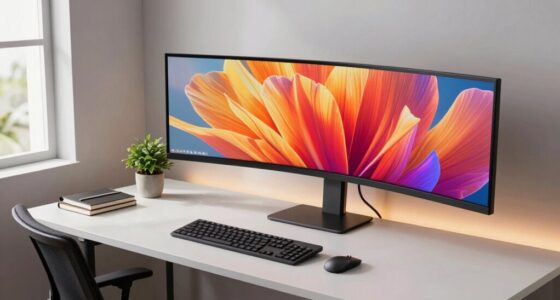
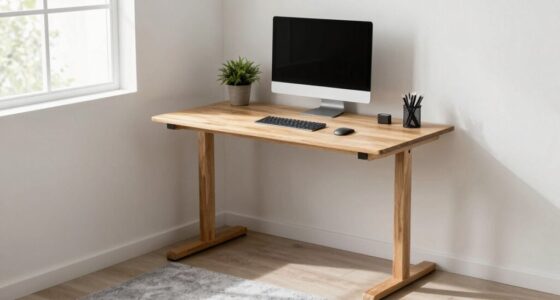
Your desk placement can seriously wreck your webcam angle and hurt your professional image. If your workspace is too low or cluttered, your camera may end up tilted or showing an unflattering view. Placing your desk at eye level helps maintain direct eye contact, boosting confidence and engagement. Proper positioning also improves lighting and background visibility. Keep these tips in mind, and you’ll discover simple ways to perfect your virtual presence and make a stronger impression.

Get comfort and recovery gear delivered free with Prime
- Fast, free delivery on millions of items
- Prime Video, Amazon Music and more included
- Member-only deals all year
Key Takeaways
- Position your desk so the webcam is at eye level to avoid awkward angles and promote direct eye contact.
- Place your desk facing natural light sources, like windows, to prevent shadows and ensure proper illumination.
- Keep clutter out of view by arranging your workspace and framing your shot carefully.
- Elevate laptops or webcams using stands or books to achieve the correct camera height.
- Avoid placing your desk too far from the camera, which can cause distortion or unflattering angles.

Your desk placement and webcam angle play an essential role in how you present yourself during video calls. When you set up your workspace, it’s easy to overlook how these factors influence your overall appearance and professionalism. The right lighting setup is crucial—you want your face to be clearly visible without harsh shadows or overexposure. Position your desk so that natural light from a window illuminates your face evenly, but avoid having the window directly behind you, which can cause backlighting and make you appear shadowed. If natural light isn’t enough, invest in soft, diffused artificial lighting that can be adjusted to complement your environment. Proper lighting not only enhances your visibility but also helps you look more engaged and approachable on camera.
Ensure your lighting is even and natural to look approachable and professional on camera.
Your background clutter can significantly distract your viewers and undermine your professional image. When your desk is cluttered with papers, gadgets, or personal items, it shifts focus away from what you’re saying and onto your messy surroundings. To maintain a clean, organized appearance, clear your workspace before calls and keep only essential items within view. A tidy background creates a sense of order and helps you appear more competent and confident. If you can’t eliminate all clutter, consider using a virtual background or positioning your camera to frame a blank wall or a neat bookshelf behind you. This ensures your viewers focus on you rather than what’s happening behind your head. Additionally, proper desk placement can help minimize distractions and improve your overall camera angle. Ensuring your workspace is ergonomically optimized can also contribute to better posture and a more natural appearance during calls. Being mindful of content organization in your background can further reinforce your professionalism and attention to detail.
The angle of your webcam is just as important as where you place your desk. Ideally, your camera should be at eye level to foster direct eye contact, which makes your interactions more natural and engaging. Avoid placing your webcam too high, which can give you a downward view, or too low, which can make you look unprofessional. Adjust your desk height or use a stack of books to elevate your laptop or webcam to the correct position. Proper alignment allows you to maintain good posture and project confidence. Remember, if your camera is tilted or positioned at awkward angles, it can distort your appearance and make you seem distracted or disinterested. Paying attention to camera positioning can significantly boost your virtual presence and professionalism.
As an affiliate, we earn on qualifying purchases.
Frequently Asked Questions
How Can I Test My Webcam Angle Easily?
To test your webcam angle easily, sit at your desk and position your camera at your preferred height. Open a video call or camera app, then look at yourself on the screen. Adjust the camera’s tilt or height until your face is centered and well-framed. Make sure your desk setup allows for a natural, flattering angle, avoiding awkward shots from too high or low. This quick test helps optimize your webcam view effortlessly.
Does Desk Material Affect Webcam Quality?
Your desk surface can influence webcam quality, especially through reflections. Smooth, glossy surfaces might cause glare or reflections that interfere with your camera’s focus, leading to a distorted image. Conversely, matte desk materials reduce reflections, providing a clearer view. Investigating this reveals that switching to a matte surface can improve your webcam’s clarity, while shiny surfaces may introduce unwanted glare or reflections that hinder overall image quality.
Should I Use a Laptop or External Webcam?
Use an external webcam for better image quality and flexible webcam placement tips. It helps improve your workspace ergonomics by allowing you to position the camera at eye level, preventing neck strain. An external webcam also offers adjustable angles, so you can find the best webcam placement tips for a clear, professional look. Your laptop’s built-in camera often limits your options, so investing in an external one enhances your overall video call experience.
How Often Should I Adjust My Webcam Angle?
They say, “A stitch in time saves nine,” and that’s true for your webcam angle. You should adjust your camera positioning regularly, ideally every few days or whenever you change your ergonomic setup. Keep your webcam at eye level to avoid strain and awkward angles. Regular adjustments guarantee a professional appearance and comfort during long calls, preventing you from hunching or tilting your head.
Can Lighting Impact My Webcam’s Performance?
Yes, lighting can substantially impact your webcam’s performance. Poor lighting conditions or uneven ambient brightness can make your video appear grainy or dark. To improve your webcam quality, make sure there’s ample, even lighting in your space. Avoid harsh backlighting or shadows, and consider using soft, diffused light sources. Good lighting helps your webcam capture clearer images and reduces noise, making your video look more professional and engaging.
As an affiliate, we earn on qualifying purchases.
Conclusion
So, step back and scrutinize your setup. Simple shifts in your desk’s position can considerably improve your webcam’s view and your virtual presence. Don’t settle for a shaky, skewed shot—seek a space that’s stable, straight, and suited to your stature. By balancing your desk and boosting your background, you’re not just improving your image—you’re increasing your impact. Make minor moves today for a more professional, polished, and powerful presence tomorrow!
ring light for video conferencing
As an affiliate, we earn on qualifying purchases.
As an affiliate, we earn on qualifying purchases.
virtual background for video calls
As an affiliate, we earn on qualifying purchases.
As an affiliate, we earn on qualifying purchases.
Halloween Picks
halloween
As an affiliate, we earn on qualifying purchases.