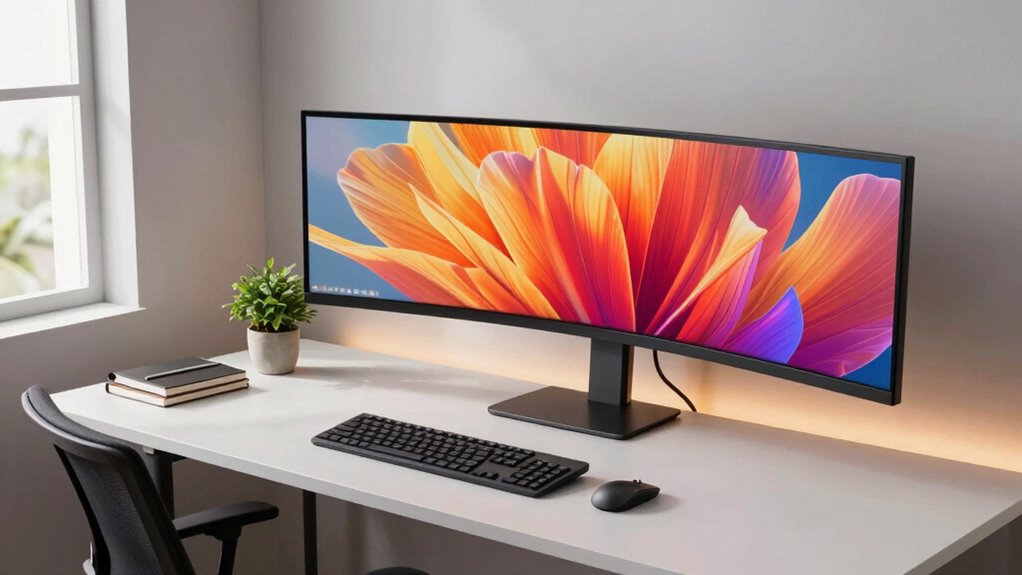

To get the most out of your ultrawide monitor, your desk needs more than just extra width. You should adjust your monitor to eye level using a monitor arm and keep it at an arm’s length to prevent neck strain. Organize cables neatly and keep essentials within reach to boost efficiency. A spacious, sturdy desk surface helps support your setup and reduces clutter. Keep in mind, proper ergonomic adjustments and organization can considerably improve your comfort and productivity—all key factors you’ll discover if you continue exploring.
Key Takeaways
- Ensure your monitor is ergonomically positioned at eye level to prevent neck strain.
- Organize cables neatly to reduce clutter and enhance safety on your spacious desk.
- Keep essential items within arm’s reach for efficiency and streamlined workflow.
- Use ergonomic accessories like wrist rests and monitor arms for comfort during extended use.
- Maintain adequate desk space to support larger monitors and additional equipment comfortably.

If you’ve invested in an ultrawide monitor, you know it demands a carefully thought-out workspace. The extra screen real estate enhances productivity and immersion, but it also requires your desk to adapt to these new demands. You need more than just a large surface—you must consider ergonomic adjustments to guarantee comfort during long hours and effective cable management to keep your setup tidy and functional.
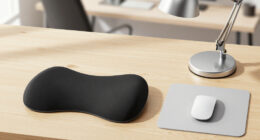
First, think about ergonomic adjustments. Your ultrawide monitor should be positioned at eye level to prevent neck strain. A monitor arm can help you achieve precise height and tilt adjustments, making it easier to find that perfect viewing angle. The monitor’s distance from your eyes should be about an arm’s length away, ensuring you don’t strain your eyes or neck. Additionally, your chair height and desk height should align to keep your wrists straight and your feet flat on the floor. An adjustable chair with lumbar support helps maintain proper posture, especially since the wider screen encourages longer, more focused work sessions. Incorporate a keyboard and mouse placement that allows your elbows to stay close to your body, avoiding unnecessary tension. Using ergonomic accessories such as wrist rests can further improve comfort for extended use. It’s also important to consider digital workspace organization strategies to maximize your productivity and keep your setup clutter-free. Proper workspace ergonomics can significantly reduce fatigue and discomfort, especially during extended work periods. Additionally, considering filter sizing and flow can help ensure your workspace remains comfortable and free from glare or reflections that may cause eye strain. Proper cable management becomes more critical with an ultrawide monitor because of the increased number of cables involved—power, display, USB hubs, and peripherals. Without proper organization, your desk can quickly turn into a tangled mess, disrupting your workflow and creating hazards. Invest in cable clips, sleeves, or under-desk trays to route cables neatly along the edges and underneath your desk. This not only improves aesthetics but also makes it easier to clean and troubleshoot. Labeling cables can save you time when disconnecting or rearranging devices, and consider using wireless peripherals when possible to reduce clutter further. Proper cable management also minimizes the risk of accidental disconnections or damage and keeps your workspace safe and efficient.
Position your ultrawide monitor at eye level with adjustable arm for comfort and proper posture.
Beyond just size, your desk needs to accommodate this larger monitor by providing enough space for accessories, documents, or other equipment you use regularly. A sturdy, spacious desk surface ensures stability and prevents your ultrawide monitor from feeling cramped. Keep frequently used items within arm’s reach to streamline your workflow and reduce unnecessary movements. Remember, a well-organized workspace tailored to your ultrawide monitor setup not only boosts productivity but also enhances comfort and minimizes physical strain. Your investment in such a monitor is worth it when your desk supports your work ergonomically and remains tidy, so you can focus on what matters most without distraction. For optimal setup, consider monitor accessories that can help enhance your ergonomic experience and overall desk organization.
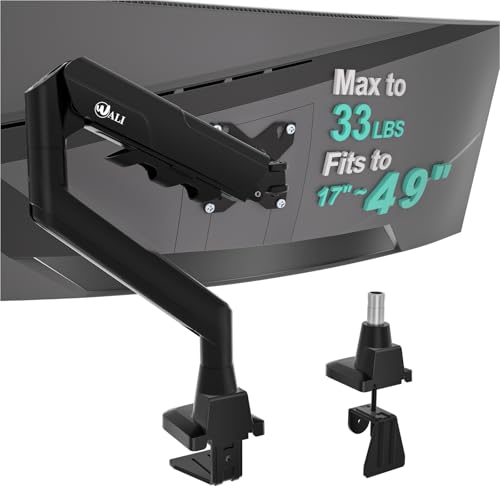
WALI Ultrawide Single Monitor Arm for 17-49 inch Curved Screen, up to 33lbs
- Desk Space Optimization: Lifts monitor to free up workspace
- Cable Management: Guides wires for a tidy desk
- Wide Compatibility: Fits most 17-49 inch screens
As an affiliate, we earn on qualifying purchases.
As an affiliate, we earn on qualifying purchases.
Frequently Asked Questions
How Should I Organize Cables on an Ultrawide Monitor Desk?
To organize cables on your ultrawide monitor desk, use cable management solutions like clips, sleeves, or trays to keep cords tidy and prevent clutter. Route cables behind your desk and secure them along edges to maintain a clean workspace. Regularly check and adjust your cable management to guarantee everything stays neat. Good cable management enhances desk organization, improves aesthetics, and makes it easier to access your devices without tangling cords.
What Lighting Options Reduce Glare on Ultrawide Screens?
Think of your ultrawide screen as a window, and glare as unwanted sunlight. To reduce it, use ambient lighting that’s soft and indirect—like moonlight illuminating a room. Add anti-glare films to your monitor to create a barrier against reflections. These options work together, transforming your workspace into a calm, glare-free haven, so you can focus on your work without squinting or discomfort.
Are There Ergonomic Accessories Suited for Ultrawide Monitor Setups?
Yes, ergonomic accessories like adjustable monitor arms help you optimize monitor positioning, reducing neck and eye strain on your ultrawide setup. Consider a curved monitor stand or riser to align the screen at eye level, enhancing comfort. These accessories not only improve ergonomics but also boost desk aesthetics by keeping your workspace organized and sleek. Proper monitor placement guarantees you work efficiently and comfortably, making your ultrawide monitor experience more enjoyable.
How Much Desk Space Is Optimal for Multiple Ultrawide Monitors?
You’ll want at least 60-80 inches of desk space for multiple ultrawide monitors, ensuring comfortable monitor placement and proper desk height. This space prevents clutter, reduces strain, and allows you to position each screen for ideal viewing angles. Don’t underestimate the importance of adjusting monitor placement and desk height, as ergonomic setup is key. A spacious desk enhances your workflow, keeps your posture healthy, and makes multitasking seamless.
Can I Incorporate a Standing Desk With an Ultrawide Monitor?
Yes, you can definitely incorporate a standing desk with an ultrawide monitor. Just make certain you prioritize ergonomic positioning to reduce strain and use cable management solutions to keep your workspace tidy. Adjust the monitor height so you’re looking straight ahead, and set the desk height for comfortable standing. This setup promotes better posture, minimizes clutter, and makes switching between sitting and standing seamless.
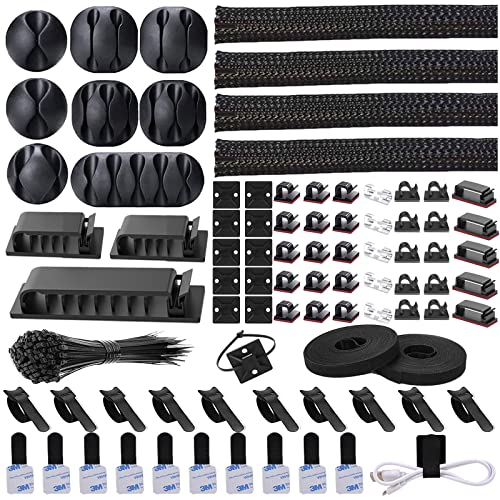
N NOROCME 192 PCS Cable Management Kit 4 Wire Organizer Sleeve
- Complete Cable Management Kit: Includes sleeves, ties, clips, and mounts
- Various Cable Clips: 6 types, eco-friendly, strong, multi-surface use
- Durable Materials: Sturdy, high-quality components for long-lasting organization
As an affiliate, we earn on qualifying purchases.
As an affiliate, we earn on qualifying purchases.
Conclusion
To truly make your ultrawide monitor a game-changer, your desk needs to be more than just wider—it needs to be a well-orchestrated symphony of space and organization. Think of it as creating a sanctuary where every device, accessory, and cable has its place, so your workspace flows as smoothly as your ideas. When your desk supports your monitor, you’re not just working—you’re crafting an environment that fuels your productivity and sparks inspiration.

Ergonomic Office Chair with Adjustable Lumbar Support, 3D Arms and Headrest, High Back Wide Desk Computer Chair with Wheels, for Home & Office, Black
- High-Density Foam Cushion: 4.3-inch supportive, shape-retaining foam
- Adjustable Lumbar Support: Customizable for optimal back comfort
- 3D Adjustable Headrest: Adjusts for personalized neck support
As an affiliate, we earn on qualifying purchases.
As an affiliate, we earn on qualifying purchases.

MOSISO Wrist Rest Support for Mouse Pad&Keyboard Set, Antique Green
- Keyboard Wrist Rest Size: 17.32 x 3.15 inches
- Mouse Pad Wrist Support Size: 9.65 x 8.66 inches
- Coaster Diameter: 3.9 inches
As an affiliate, we earn on qualifying purchases.
As an affiliate, we earn on qualifying purchases.