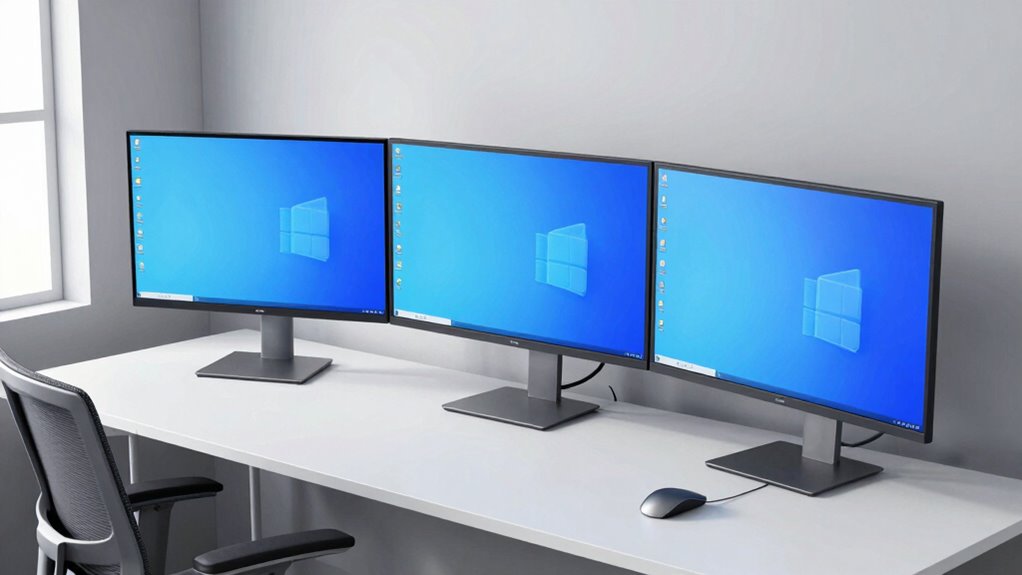

To avoid neck pain with three monitors, position them at eye level and align the top third of each screen with your gaze. Arrange the monitors in a slight curve around your line of sight for minimal head movement. Use adjustable stands for perfect height and tilt, and guarantee your workspace supports good posture, like a supportive chair and feet flat on the ground. Proper calibration and regular breaks help maintain comfort. Keep going for more tips on creating an ergonomic setup that works.

Get comfort and recovery gear delivered free — and shop member deals
- Fast, free delivery on millions of items
- Access to Prime Big Deal Days deals on October 6–7
- Prime Video, Amazon Music and more included
Key Takeaways
- Position monitors at eye level with the top third aligned to minimize neck tilting and encourage neutral posture.
- Arrange screens in a slight arc around your line of sight for natural viewing angles.
- Use adjustable mounts to fine-tune height, tilt, and distance for personalized comfort.
- Keep frequently used items within easy reach to reduce unnecessary twisting and stretching.
- Take regular breaks and stretch to prevent muscle stiffness and maintain optimal neck health.
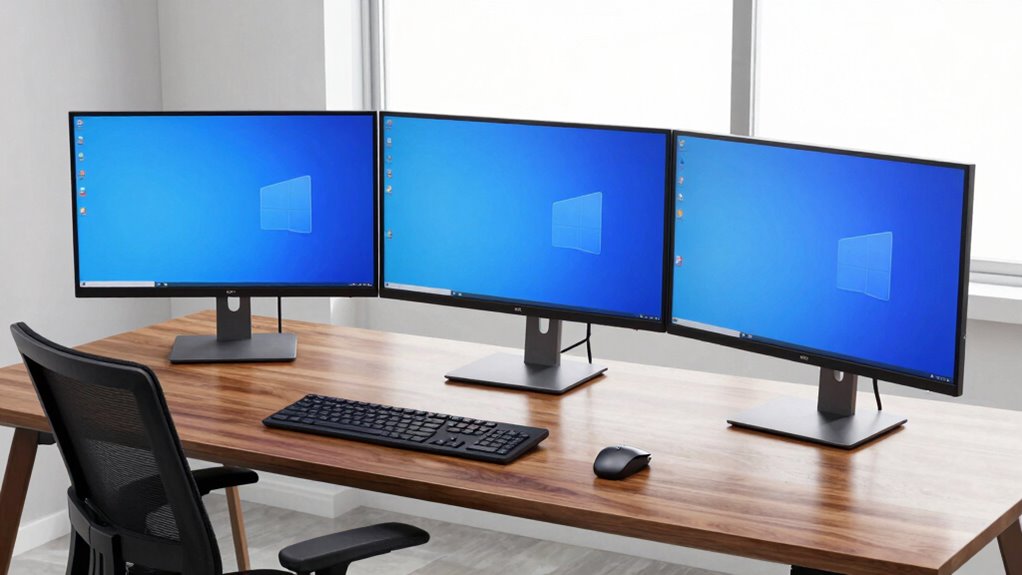
Using three monitors can considerably boost your productivity, but many people worry it’ll cause neck strain. The key to avoiding discomfort lies in proper ergonomic adjustments and monitor calibration. When you set up your workspace correctly, you can enjoy the benefits of multiple screens without sacrificing comfort. Start by positioning your monitors so that each screen is at eye level. This prevents you from tilting or craning your neck, which can lead to pain over time. Use adjustable stands or mounts that allow you to fine-tune the height and tilt of each monitor. It’s important that your eyes are aligned with the top third of each screen, minimizing strain on your neck and eyes.
Position monitors at eye level, aligning eyes with the top third to prevent neck and eye strain.
Next, consider the placement of your monitors relative to each other. Arrange them in a slight curve or a gentle arc around your line of sight. This setup reduces excessive head turning and promotes a more natural posture. When you’re working, your neck should remain in a neutral position, with minimal movement needed to view each screen. To ensure each monitor displays accurately and comfortably, calibrate them properly. Monitor calibration involves adjusting brightness, contrast, and color settings so that images appear clear and consistent across all screens. Proper calibration not only improves visual comfort but also reduces eye fatigue, which indirectly supports neck health by encouraging you to maintain good posture. Regularly monitor calibration ensures consistent display quality, which can lead to a more comfortable viewing experience over time.
Additionally, take regular breaks to stretch and reset your posture. Even with an ergonomic setup, staying in one position for too long can cause muscle stiffness. Incorporating stretching exercises into your routine can help alleviate tension and improve flexibility, making long work sessions more comfortable. Keep your workspace organized so that frequently used items are within easy reach, preventing you from twisting or stretching uncomfortably. Also, invest in a comfortable chair that offers lumbar support and encourages a proper seated posture. Your feet should rest flat on the ground, with knees at a 90-degree angle, to support your overall alignment. Paying attention to ergonomic principles can significantly improve your comfort and prevent pain during long work sessions.
Ultimately, the secret to enjoying three monitors without neck pain is paying attention to detail. Ergonomic adjustments make a significant difference, and monitor calibration ensures your screens are visually comfortable. When both are properly managed, the setup becomes seamless and efficient. Your neck remains relaxed, your eyes stay comfortable, and your productivity soars. With just a little effort, you can have a multi-monitor workspace that enhances your work experience without the usual aches and pains.
ergonomic adjustable monitor stand
As an affiliate, we earn on qualifying purchases.
As an affiliate, we earn on qualifying purchases.
Frequently Asked Questions
How Do I Adjust Monitor Height for Optimal Comfort?
To adjust your monitor height for ideal comfort, focus on proper monitor placement and eye level adjustment. First, raise or lower your monitor so the top of the screen is at or just below your eye level. This helps prevent neck strain. Use monitor stands or adjustable mounts if necessary. Make sure your eyes naturally gaze downward slightly, and keep a comfortable distance to reduce eye fatigue. Proper setup makes a big difference!
What Ergonomic Accessories Can Reduce Strain With Three Monitors?
Think of your workspace as a well-orchestrated symphony. To keep harmony, use ergonomic accessories like monitor calibration tools to align screens perfectly and cable management solutions to prevent clutter. These accessories reduce strain by maintaining proper monitor height and positioning, allowing your neck and eyes to stay relaxed. With everything in tune, you’ll work comfortably and efficiently, transforming your setup into a masterpiece of ergonomic design.
How Often Should I Take Breaks During Extended Monitor Use?
You should take a break every 20-30 minutes during extended monitor use to prevent eye strain and promote posture correction. During these breaks, look away from your screens, focus on something at a distance, and stretch your neck and shoulders. Incorporating short, frequent breaks helps reduce fatigue, keeps your eyes refreshed, and encourages better posture, making your multi-monitor setup more comfortable and sustainable over long periods.
Is There a Recommended Desk Setup for Three Monitors?
For a perfect desk setup, position your monitors in a curved arc, aligning the top of each screen at eye level to promote proper posture. Keep monitor positioning precise, with screens angled slightly inward for minimal neck movement. Prioritize desk ergonomics by using adjustable stands or mounts, creating a clutter-free workspace. This balanced layout reduces strain, boosts productivity, and guarantees comfortable, consistent viewing from all three monitors, preventing neck pain.
Can Specific Chair Adjustments Improve Neck Health?
Yes, specific chair adjustments can improve neck health. You should focus on posture awareness by adjusting your chair’s height so your feet rest flat and your knees are level. Use ergonomic cushions if needed to support your lower back and promote proper alignment. Keep your monitor at eye level to avoid straining your neck, and sit back fully in your chair to maintain good posture throughout your workday.
As an affiliate, we earn on qualifying purchases.
Conclusion
By setting up your three monitors correctly, you can enjoy a comfortable, pain-free workspace. The key is to position your main screen directly in front of you, with the side screens angled inward. This setup encourages natural movement and reduces strain, proving that the right layout truly makes a difference. When your monitors are arranged thoughtfully, you’ll stay productive and avoid neck pain—showing that good ergonomics isn’t just a theory, but a practical solution.
As an affiliate, we earn on qualifying purchases.
ergonomic office chair with lumbar support
As an affiliate, we earn on qualifying purchases.
As an affiliate, we earn on qualifying purchases.
Fall Picks
fall essentials
As an affiliate, we earn on qualifying purchases.