To combine multiple devices ergonomically, position your monitor directly in front at eye level, keeping the top at about an arm’s length away. Elevate your laptop with a stand so its screen aligns with your monitor, and place your tablet nearby at similar height for easy access. Maintain a natural posture with elbows at 90-100°, feet flat on the floor, and support your lower back. Small adjustments can boost comfort—continue to explore tips for a healthy workspace.
Key Takeaways
- Position your monitor at eye level directly in front to reduce neck strain.
- Elevate your laptop with stands or risers to align its screen with your eye level.
- Keep your tablet within easy reach and at a similar height to maintain a comfortable viewing angle.
- Arrange devices to form an ergonomic triangle, ensuring minimal stretching and optimal reach.
- Take regular breaks to readjust device placement and maintain proper posture for all devices.
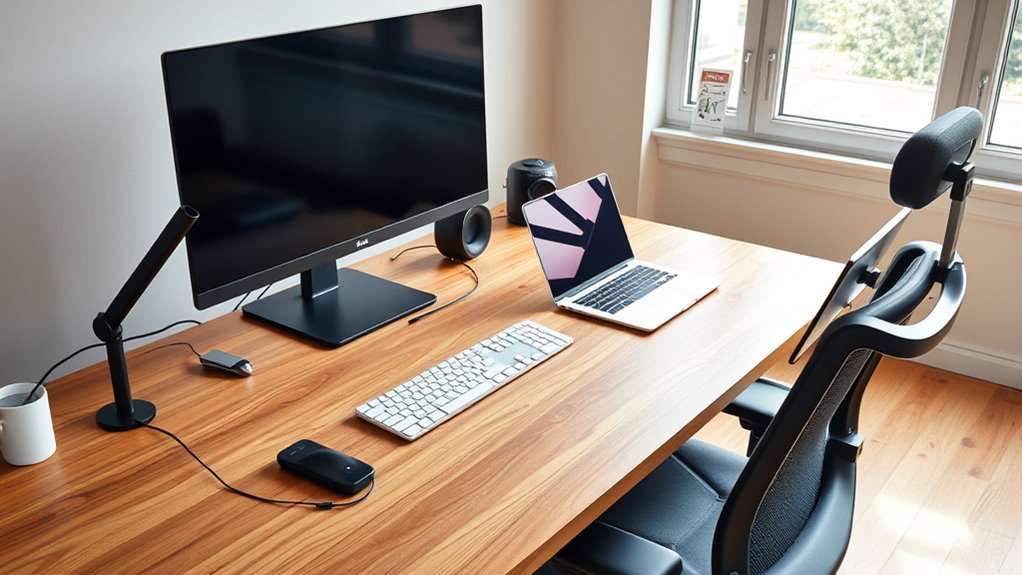
In today’s digital world, many people use multiple devices simultaneously, which can lead to discomfort and strain if not set up properly. The key to a comfortable and productive experience is paying close attention to device placement and maintaining proper posture alignment. When you’re juggling a laptop, tablet, and monitor, each device’s position influences your overall comfort and health.
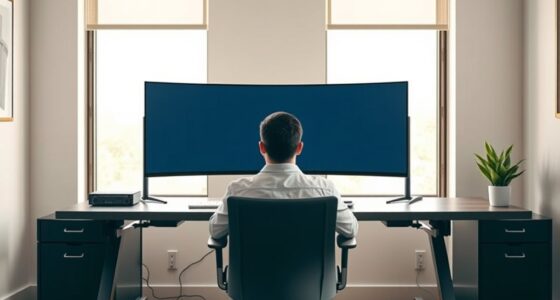
First, consider where each device sits on your desk. Your primary device, often your monitor or laptop, should be positioned directly in front of you at eye level. This minimizes the need to tilt your head up or down, reducing neck strain. The monitor’s top should be roughly at your eye level, with the screen about an arm’s length away. If you use a laptop as your main device, invest in a stand or riser to elevate it to eye level, and use an external keyboard and mouse to keep your posture aligned. The goal is to keep your head, neck, and spine in a neutral position, preventing any awkward angles that cause discomfort over time.
Your tablet should be placed within easy reach, ideally at a similar height to your laptop or monitor. Avoid craning your neck downward to look at it; instead, position it on a stand or dock it at a slight angle. This encourages you to keep your head in a natural, upright position. If you’re using the tablet for extended periods, consider attaching a stylus holder or a dedicated stand so you can switch between devices without constantly adjusting your posture.
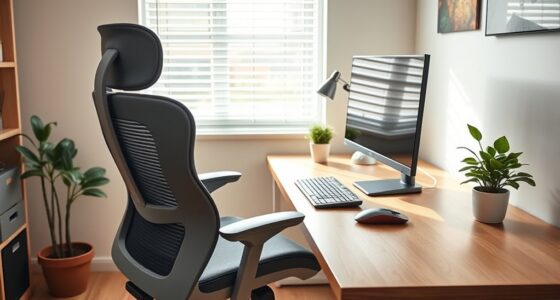
Proper device placement is also about spacing. Keep your devices close enough so you don’t have to stretch or lean forward, but spaced out enough to avoid clutter and awkward reaching. When you’re seated, your elbows should be at a 90- to 100-degree angle, with your forearms parallel to the ground. Your feet should rest flat on the floor, and your lower back should be supported by a chair that promotes good posture. Remember, the aim is to create an ergonomic triangle where your monitor, keyboard, and mouse form a comfortable workspace that supports your natural posture.
Finally, take regular breaks to stretch and readjust your device placement. Small shifts can prevent stiffness and reduce the risk of repetitive strain injuries. Incorporating ergonomic principles into your setup can significantly improve your comfort and prevent long-term health issues. By carefully considering device placement and ensuring your posture aligns with ergonomic principles, you’ll find working across multiple devices becomes more comfortable and less taxing on your body.
Top picks for "combin multiple devic"
Open Amazon search results for this keyword.
As an affiliate, we earn on qualifying purchases.
Frequently Asked Questions
How Do I Prevent Neck Strain When Using Multiple Devices?
To prevent neck strain when using multiple devices, focus on monitor placement and posture correction. Position your monitor at eye level to avoid looking down or up, and keep your tablet and laptop at comfortable heights. Maintain a neutral neck position, and take regular breaks to stretch. Adjust your seating to support good posture, ensuring your back is straight and shoulders relaxed. This helps reduce tension and keeps your neck healthy.
What Are the Best Ergonomic Accessories for a Multi-Device Setup?
You’re on the right track to keep your neck happy. Ergonomic accessories like adjustable stands, monitor risers, and laptop docks help you optimize device positioning. Use a tablet stand and ergonomic keyboard for comfort. These accessories guarantee your screens align at eye level and your devices stay in place, preventing strain. When you set things up correctly, you’ll find it’s smooth sailing, avoiding unnecessary aches and pains.
How Can I Manage Cable Clutter Effectively?
To manage cable clutter effectively, you should use cable management solutions like clips, sleeves, and under-desk trays. These tools help reduce clutter by organizing and securing your cables. Labeling cords also makes it easier to identify and disconnect when needed. Regularly inspecting and tidying your setup prevents tangles, ensuring a cleaner, more organized workspace. Implementing these strategies improves both safety and productivity in your multi-device environment.
What Lighting Considerations Improve Multi-Device Ergonomics?
Imagine your workspace transforming into a glare-free oasis! You should optimize ambient lighting to reduce screen glare and prevent eye strain. Use soft, indirect light instead of harsh overhead fixtures, and position your devices to avoid reflections. Dimming or adjusting your screen brightness also helps. Proper lighting creates a balanced environment, making multi-device use more comfortable and ergonomically sound, so you can work efficiently without squinting or discomfort.
How Often Should I Take Breaks When Working Across Devices?
You should take breaks every 20 to 30 minutes to maintain ergonomic timing and prevent strain. This break frequency helps you avoid fatigue from prolonged device use. During breaks, stretch your neck, shoulders, and eyes to reduce discomfort. Keep in mind, ergonomic timing isn’t just about breaks; it’s about listening to your body and adjusting your schedule to stay comfortable and productive while working across multiple devices.
Conclusion
By optimizing your workspace with an ergonomic setup that seamlessly integrates your laptop, tablet, and monitor, you’ll enhance comfort and productivity. Isn’t it worth investing a little effort now to prevent discomfort later? With the right positioning and accessories, you can create a balanced environment that supports your health and efficiency. So, why settle for a disorganized or uncomfortable workspace when you can make it truly ergonomic? Take charge and transform your setup today.