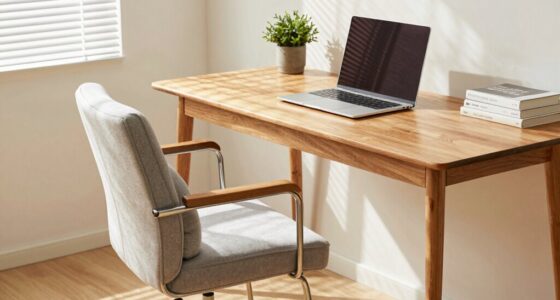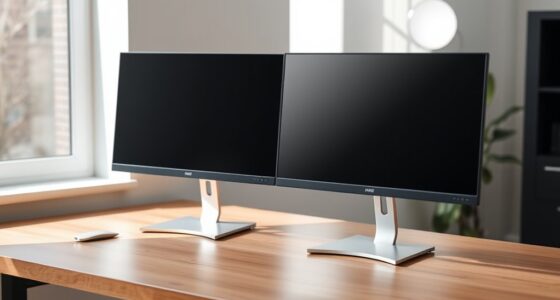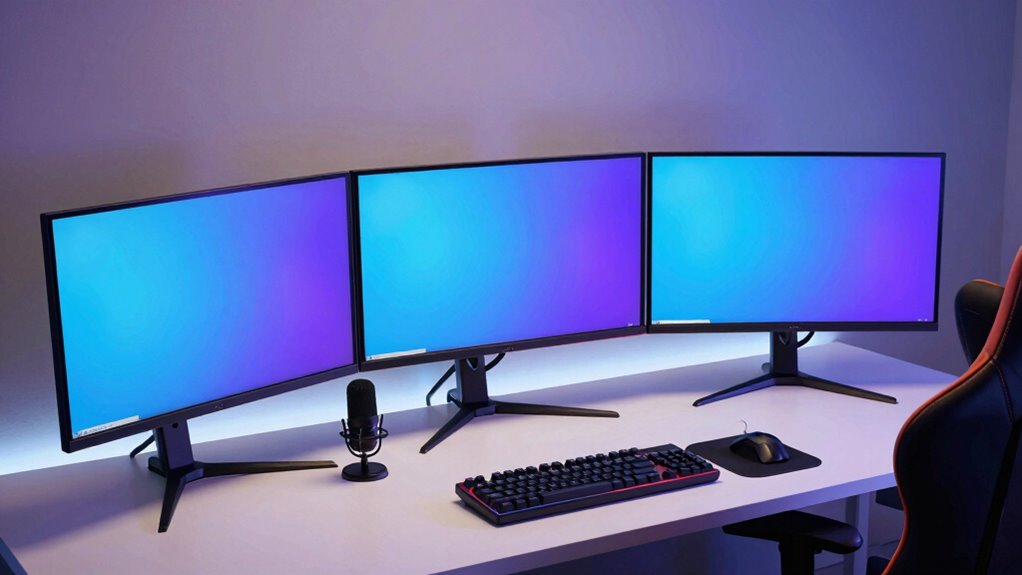
To safeguard your neck, position your center monitor directly in front at eye level, with side screens angled inward in a gentle curve. Use adjustable monitor arms and ergonomic accessories like keyboard and mouse supports to stay comfortable during long streams. Keep cables organized to avoid tension, and regularly adjust your setup as needed. This approach guarantees neutral neck posture and long-term comfort. If you keep exploring, you’ll discover more tips to optimize your streaming workspace.
Key Takeaways
- Position the center monitor directly in front at eye level to minimize neck twisting.
- Angle side monitors inward to create a gentle curve, reducing head rotation.
- Use adjustable monitor arms for precise height and tilt adjustments for optimal ergonomics.
- Ensure cables are organized with ties or clips to prevent tension and maintain a tidy workspace.
- Incorporate ergonomic accessories like footrests and lumbar supports to enhance overall comfort during extended streaming sessions.

Setting up a triple monitor streamer station can greatly enhance your gaming and streaming experience by providing more screen real estate and better immersion. But to truly protect your neck and guarantee comfort during long sessions, you need a smart layout combined with ergonomic accessories. Properly positioning your monitors is key. Keep the center monitor directly in front of you at eye level, while the side monitors should be slightly angled inward, forming a gentle curve. This setup minimizes neck twisting and strain, allowing you to glance at side screens without turning your head excessively.
Investing in ergonomic accessories makes a significant difference. Adjustable monitor arms are a game-changer—they let you fine-tune the height, tilt, and distance of each screen for maximum comfort. This flexibility ensures your neck remains in a neutral position and reduces fatigue over time. A sturdy, adjustable desk setup helps too, giving you a stable base to prevent wobbling or unwanted movement. Using an ergonomic keyboard and mouse setup complements your monitor arrangement, helping you maintain proper posture and reducing wrist and shoulder strain. Additionally, incorporating proper ergonomic accessories such as footrests or lumbar support can further enhance your overall comfort and support proper posture during extended sessions.
Adjustable monitor arms and ergonomic peripherals promote comfort, reduce fatigue, and support proper posture during long gaming or streaming sessions.
Cable management is another essential aspect of creating a functional, clutter-free station. When your cables are neatly organized and hidden away, you avoid unnecessary tension and pulling on your monitors, which can shift their position or cause discomfort. Use cable sleeves, clips, or ties to route your cables along the desk and behind your monitors. This not only keeps your workspace tidy but also prevents accidental disconnections or tripping hazards. Proper cable management also makes it easier to adjust or upgrade your setup in the future without dealing with tangled wires. Moreover, a well-organized workspace can contribute to better focus and reduce stress during long gaming or streaming marathons. Improving workspace ergonomics by arranging your equipment thoughtfully can make a noticeable difference in your comfort and efficiency.
In addition to positioning and accessories, consider taking regular breaks and adjusting your setup as needed. A well-designed layout isn’t static; it adapts to your evolving comfort levels and ergonomic needs. Ensuring your monitor setup includes ergonomic accessories can significantly improve your posture and overall comfort during extended gaming or streaming sessions. Remember, the goal is to create a setup that keeps your neck relaxed, minimizes strain, and allows you to focus on gaming or streaming without distraction. With the right ergonomic accessories, effective cable management, and thoughtful placement, you set yourself up for long-lasting comfort and maximum performance. Your gaming sessions become more enjoyable, and your body will thank you for prioritizing good posture in your triple monitor setup.
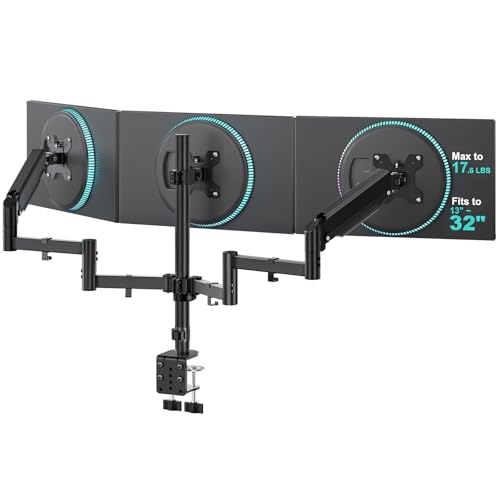
WALI Triple Monitor Mount for 13-32 inch Screens, up to 17.6 lbs per Arm
- Space-Saving Design: Lifts screens off your desk for more space
- Cable Management: Guides wires neatly along the arms
- Wide Compatibility: Fits most 13-32 inch screens up to 17.6 lbs
As an affiliate, we earn on qualifying purchases.
As an affiliate, we earn on qualifying purchases.
Frequently Asked Questions
What Are the Best Monitor Sizes for a Triple Setup?
For a triple monitor setup, aim for monitors between 24 to 27 inches for ideal monitor placement and comfort. This size range helps you keep your screens at a natural eye level, reducing neck strain. Make sure to calibrate your screens for color accuracy and consistent brightness. Proper monitor placement and screen calibration enhance your viewing experience, ensuring you stay comfortable and focused during long streaming sessions.
How Do I Manage Cable Clutter Effectively?
They say “a place for everything, and everything in its place,” which applies perfectly to cable management. To manage cable clutter effectively, use cable clips or sleeves to keep cords organized and avoid tangles. Invest in a cable tray under your desk to hide excess wires and maintain desk organization. Regularly check and untangle cables to prevent clutter from building up, making your setup neater and more efficient.
What Lighting Options Enhance Triple Monitor Setups?
You should use ambient lighting with adjustable color temperature to enhance your triple monitor setup. Soft, warm lights reduce eye strain and create a comfortable environment, while cooler tones improve focus during intense gaming or streaming sessions. Consider LED strip lights behind your monitors or smart bulbs that let you customize brightness and color. This setup minimizes glare, balances screen lighting, and keeps your workspace visually appealing and ergonomic.
How Can I Customize Monitor Angles for Ergonomic Comfort?
To customize monitor angles for ergonomic comfort, start by adjusting each monitor’s tilt and height to align with your eye level, promoting good ergonomic posture. Position the center monitor directly in front of you, with side monitors angled inward for a seamless view. Keep monitors at about an arm’s length distance, reducing neck strain. Regularly check and tweak monitor positioning to maintain comfort during long streaming sessions.
What Are the Budget-Friendly Options for a Triple Monitor Rig?
You can build a budget-friendly triple monitor rig by using affordable monitor stands or wall mounts that offer adjustable angles for gaming ergonomics. Focus on proper monitor calibration to reduce eye strain and neck discomfort. Look for second-hand or DIY options like repurposing existing furniture or using inexpensive mounting solutions. Prioritize positioning your monitors at eye level to protect your neck and improve overall comfort during long gaming or streaming sessions.

Vaydeer Wrist Rest for Keyboard and Mouse, Computer Ergonomic Wrist Support Pad, Soft Memory Foam Arm Cushion for Desk, Palm Hand Office Laptop Typing
- Comfortable Memory Foam Material: Soft, high-quality memory foam with silky lycra cover
- Ergonomic Design: Concave shape fits wrist joints, reduces stress
- Suitable for Most Devices: Fits keyboards and laptops of various sizes
As an affiliate, we earn on qualifying purchases.
As an affiliate, we earn on qualifying purchases.
Conclusion
As you settle into your triple monitor setup, imagine your screens like a gentle embrace, cradling your neck in perfect balance. The layout you’ve chosen isn’t just about aesthetics; it’s a coincidence of comfort and efficiency. With your monitors aligned thoughtfully, you’ll find yourself immersed in your streams without strain, as if the screens themselves are supporting your focus. This setup becomes more than a workspace—it’s a seamless extension of your passion and protection.

25 Pieces Desk Wire Organizer Cable Ties Zip Ties Adhesive Cord Clips Cable Management Cord Keeper Desk Wire Management
- Package Includes: 25 nylon cable zip ties
- Durable Material: Made of sturdy nylon
- Strong Bearing Capacity: Supports heavy cables
As an affiliate, we earn on qualifying purchases.
As an affiliate, we earn on qualifying purchases.
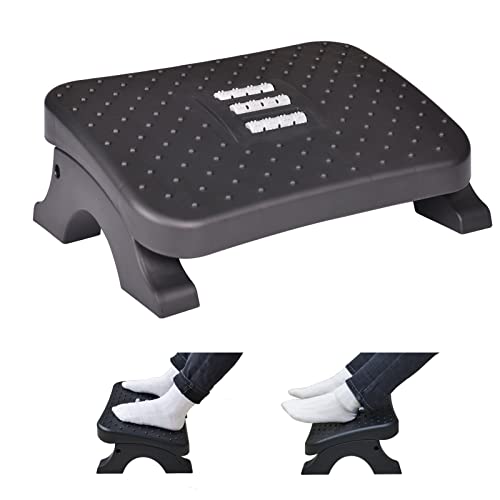
Under Desk Footrest,Ergonomic Footrest with Massage Rollers for Home Office
- Ergonomic Under Desk Footrest: Large foot area surface measuring…
- Sturdy and Resistant: First-class thicker PP material frames,…
- Massage Surface and Roller: Textured surfaces with massage and…
As an affiliate, we earn on qualifying purchases.
As an affiliate, we earn on qualifying purchases.