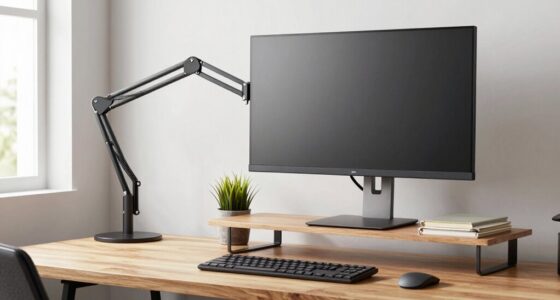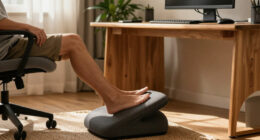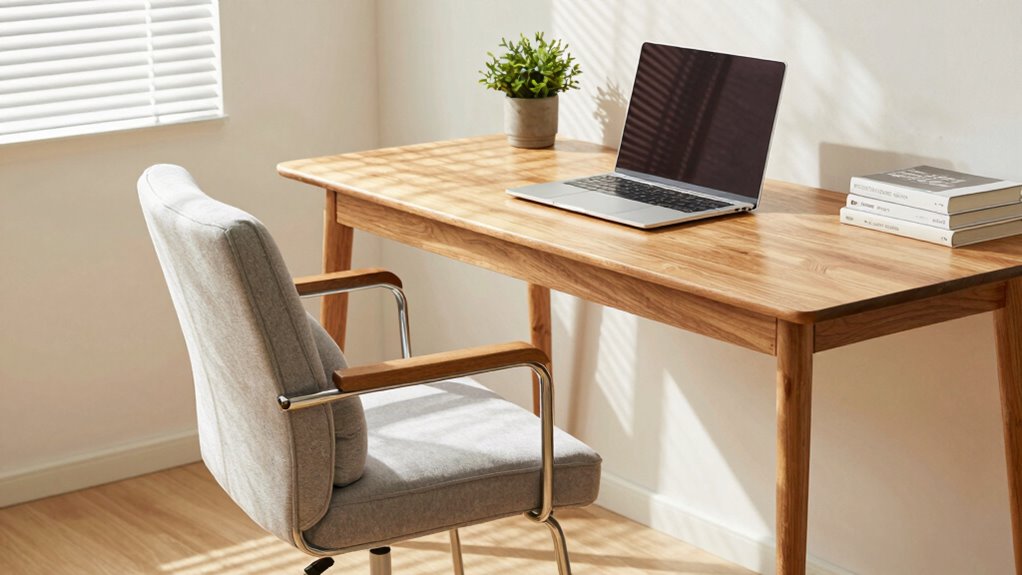

You can create an ergonomic workspace with furniture you already own by making simple adjustments. Raise your desk using books or cushions so your elbows stay at a comfortable 90°, and use rolled towels or cushions for lower back support. Elevate your monitor to eye level to reduce neck strain, and guarantee your feet are flat on the ground. Small tweaks like these can improve comfort and posture—continue exploring for more easy, budget-friendly tips to optimize your setup.

Get comfort and recovery gear delivered free with Prime
- Fast, free delivery on millions of items
- Prime Video, Amazon Music and more included
- Member-only deals all year
Key Takeaways
- Use books or cushions to elevate your desk or monitor to proper height, reducing neck and shoulder strain.
- Add rolled towels or small cushions for lumbar support, promoting proper spinal alignment.
- Adjust your chair height so feet are flat on the ground and knees are at a 90° angle for better posture.
- Elevate your laptop with books or stands and use an external keyboard and mouse for ergonomic viewing and typing.
- Rearrange existing furniture to maintain neutral wrist, elbow, and monitor positioning, minimizing repetitive strain.

Setting up an ergonomic workspace doesn’t always mean buying new furniture; you can optimize your existing pieces for better comfort and posture. You can even repurpose items you already own to achieve a healthier setup, making adjustments that suit your body’s needs without additional expense. The key is to focus on adjusting your current furniture to meet your body’s needs. Start with your desk height—this is crucial for maintaining good posture and reducing strain. Your desk should be at a height where your elbows are bent at about a 90-degree angle when your hands rest on the surface. If your desk is too high, you might find yourself shrugging your shoulders or reaching up, which causes tension. If it’s too low, you’ll be leaning forward, which puts stress on your back and neck. To fix this, consider stacking books under your desk or chair to raise it to a comfortable level. Alternatively, use a cushion if you need to elevate your chair or your sitting position. The goal is to keep your forearms parallel to the floor and your wrists in a neutral position while typing or using a mouse.
Next, look at lumbar support. Proper support for your lower back is essential, especially if your chair doesn’t have built-in lumbar support. If your chair lacks this feature, try rolling up a towel or using a small cushion that fits snugly against your lower back. This encourages a natural curve in your spine and prevents slouching. When sitting, your hips should be pushed back into the chair so that your lower back is supported, reducing fatigue over long periods. Make sure your back is fully supported and that you’re not leaning forward or slouching. If your chair height allows, adjust it so your feet are flat on the ground and your knees are roughly at a 90-degree angle. If your feet don’t reach the floor, use a footrest, a stack of books, or a sturdy box to provide stable support. Additionally, incorporating ergonomic principles can help guide your adjustments for maximum comfort. Being aware of postural alignment can also help you maintain better ergonomics throughout the day. Developing an awareness of body positioning, including paying attention to your muscle tension, can lead to more sustainable habits and reduce discomfort over time.
Finally, pay attention to the positioning of your monitor or laptop. Your screen should be at eye level to prevent neck strain. You can elevate your laptop with a stack of books or a stand, and use an external keyboard and mouse if needed. Being mindful of ergonomic setup can greatly improve your overall comfort and productivity. When your workspace is properly adjusted, even your existing furniture can support a healthier, more comfortable work routine. Small tweaks like these not only improve your posture but also help prevent discomfort and long-term injury, making your current setup both functional and ergonomic.
Products Worth Considering

Withings BPM Connect Wi-Fi and Bluetooth Blood Pressure Monitor

BowFlex SelectTech 840 Adjustable Kettlebell

BowFlex Results Series 552 SelectTech Adjustable Dumbbell
As an affiliate, we earn on qualifying purchases.
Frequently Asked Questions
How Can I Adjust My Existing Furniture for Better Ergonomics?
You can improve your ergonomics by rearranging your furniture to support better posture. Adjust your chair height so your feet rest flat on the floor and your knees are at a 90-degree angle. Keep your monitor at eye level to avoid neck strain. Practice posture awareness daily, ensuring your back is supported and shoulders are relaxed. Small furniture adjustments make a big difference for comfort and reducing strain during long hours.
Are There Affordable Accessories to Improve My Current Setup?
Think of ergonomic enhancements as the finishing touches on a masterpiece. Affordable accessories like adjustable keyboard stands, lumbar support cushions, and monitor risers can transform your existing setup without breaking the bank. These budget-friendly upgrades help you maintain proper posture, reduce strain, and boost comfort. With a few simple additions, you’ll create a workspace that’s both functional and supportive, making your daily tasks feel less like work and more like a breeze.
How Do I Identify Poor Ergonomic Design in My Furniture?
To spot poor ergonomic design in your furniture, look for discomfort or strain during use, like stiff movement or back pain. Check if the material durability holds up over time—worn-out or flimsy parts can cause issues. Also, verify the aesthetic appeal doesn’t compromise comfort; uncomfortable furniture often looks appealing but isn’t supportive. Adjust or replace pieces that don’t support proper posture, prioritizing both durability and comfort for a healthier workspace.
Can My Existing Furniture Support Proper Posture for Long Hours?
Can your existing furniture support proper posture for long hours? Think of your setup as a trusted steed—if it’s unstable or uncomfortable, it’s time for adjustments. Check chair stability; it shouldn’t wobble or tilt. Make certain your desk height allows your elbows to rest at a 90-degree angle. If these aren’t right, you might strain your back or neck. Making small tweaks can turn your furniture into an ergonomic ally.
What Are Quick Fixes to Enhance Comfort With What I Already Own?
To instantly boost your comfort, start by adjusting your lighting to reduce glare and eye strain. Next, reposition your keyboard so your elbows stay close to your sides and your wrists remain straight. You can elevate your monitor or use books to raise your screen to eye level. These quick fixes make a noticeable difference, helping you maintain better posture and work more comfortably with the furniture you already have.
Conclusion
By repurposing furniture you already own, you create an ergonomic setup that’s both affordable and personalized. It’s easy to overlook how familiar pieces can be adjusted for comfort, turning everyday items into supportive tools. Sometimes, the simplest solutions—like a cushion or a different chair angle—can make a world of difference. In embracing what you have, you discover that comfort isn’t about buying new furniture, but about rethinking what’s already within your reach.