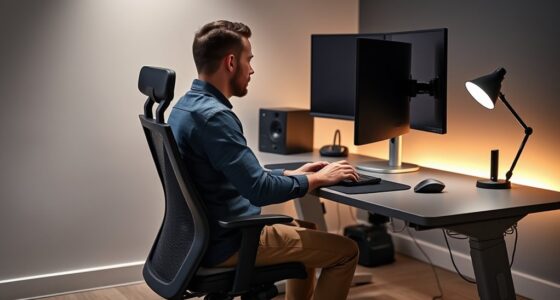
To maximize productivity with multiple monitors, set them up ergonomically by positioning your primary display directly in front at eye level and placing secondary screens slightly angled inward. Keep monitors at an arm’s length distance and adjust their height so the top is level with your eyes. Use adjustable stands or mounts to fine-tune placement, ensuring your neck stays straight and relaxed. Proper setup helps prevent strain and boosts efficiency—if you want to learn more, here’s how to perfect your workspace.
Key Takeaways
- Position primary monitor directly in front at eye level, with secondary monitors angled inward for natural viewing.
- Keep monitors at an arm’s length distance to reduce eye strain and encourage a neutral neck position.
- Use adjustable monitor stands or mounts to align screens at the same height and minimize head tilting.
- Arrange multiple screens to avoid excessive turning or twisting of the neck during extended work sessions.
- Maintain a neutral, relaxed posture with monitors and keyboard positioned to support ergonomic hand and wrist alignment.
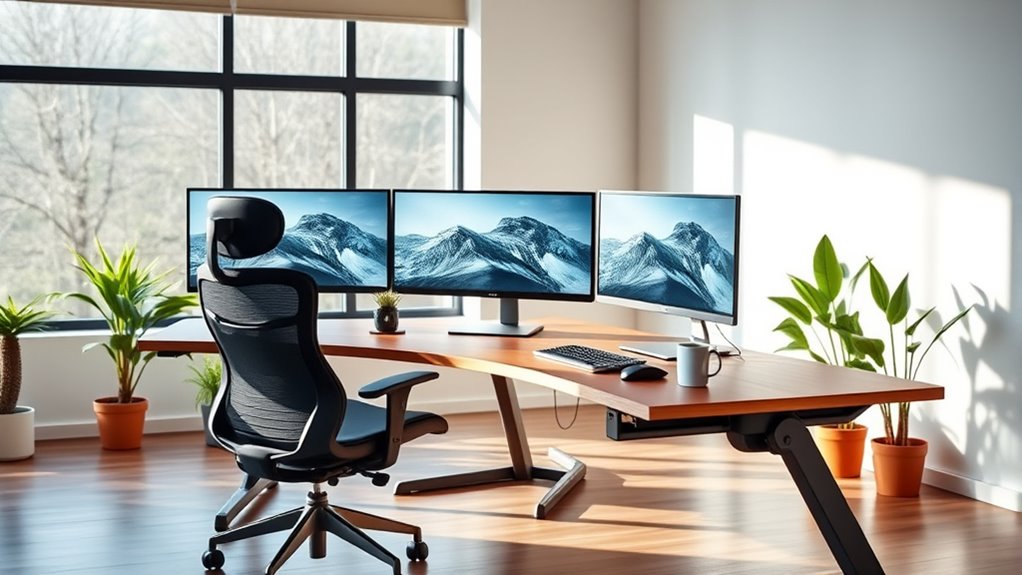
Creating an ergonomic setup is essential for programmers who spend hours at their desks. When it comes to optimizing your workspace for comfort and productivity, paying attention to keyboard ergonomics and monitor placement is a must. These elements directly impact your posture, reduce strain, and help prevent long-term injuries like repetitive strain injuries (RSI) or neck pain.
Start with your keyboard ergonomics. A proper keyboard setup ensures your wrists stay in a neutral position, minimizing stress on your tendons and muscles. Choose an ergonomic keyboard designed to reduce wrist extension and ulnar deviation, or consider a split keyboard that allows your hands to rest naturally. Keep your keyboard at a height where your elbows are bent at about 90 degrees and your forearms are parallel to the floor. Avoid typing with your wrists cocked upward or downward, as this can cause discomfort over time. Using a wrist rest can provide additional support, but make sure it doesn’t elevate your wrists too much. Remember, the goal is to maintain a relaxed, natural hand position to prevent fatigue and injury. Proper posture awareness can significantly enhance your ergonomic setup and reduce discomfort during long coding sessions.
Monitor placement is equally vital. Your monitors should be positioned directly in front of you, about an arm’s length away. The top of your screen should be roughly at eye level, so you don’t have to tilt your head up or down. This helps keep your neck in a neutral position and minimizes strain. If you’re working with multiple monitors, arrange them side by side with the primary monitor directly in front of you, and the secondary screens angled slightly inward. This setup reduces excessive neck turning and promotes a more natural viewing angle. Additionally, ensure your monitors are at the same height to prevent uneven neck strain. Using adjustable monitor stands or mounts can help fine-tune their position for maximum comfort.
Frequently Asked Questions
How Many Monitors Are Ideal for Programming Tasks?
You should aim for three monitors to maximize productivity and efficiency. With this setup, you can keep your code, documentation, and debugging tools open simultaneously. Make sure to calibrate each monitor for accurate colors and comfortable viewing angles. Organize your desk to reduce clutter, ensuring smooth flow between screens. Proper monitor calibration and desk organization help prevent strain, making your multi-monitor setup both effective and ergonomic for long coding sessions.
What Is the Best Monitor Size for Coding?
They say, “Size matters,” and in coding, the best monitor size is around 24 to 27 inches. You want a monitor resolution of at least 1080p for clear text, and the monitor height should be adjusted so your eyes are level with the top of the screen. This setup reduces strain, boosts productivity, and makes reading code more comfortable. Choose a size that fits your workspace and allows for comfortable viewing.
How Do I Prevent Eye Strain With Multiple Screens?
To prevent eye strain with multiple screens, you should use blue light filtering glasses or software to reduce eye fatigue. Adjust your monitor glare by positioning screens to avoid reflections and using anti-glare screens if needed. Keep screens at eye level and maintain proper distance. Regularly take breaks following the 20-20-20 rule—look 20 feet away for 20 seconds—to protect your eyes from strain.
Can Multi-Monitor Setups Improve Coding Speed?
Like a maestro conducting a symphony, your multi-monitor setup dramatically boosts your coding speed by expanding your visual workspace. You can view multiple files, tools, or references simultaneously, minimizing switching time and boosting multitasking efficiency. This streamlined environment helps you focus better and work faster, especially on complex projects. Ultimately, multi-monitor setups turn your workspace into a well-orchestrated hub, making coding more efficient and less frustrating.
What’s the Best Way to Arrange Monitors for Ergonomics?
You should position your monitors so the top edges are at or just below eye level, reducing neck strain. Keep your monitors directly in front of you, about an arm’s length away. Sit in an ergonomic chair setup that supports your back and keeps your feet flat. Place your keyboard so it’s level with your elbows and close enough to avoid reaching, and align your mouse nearby for comfort and efficiency.
Conclusion
By optimizing your ergonomic setup with multiple monitors, you can boost productivity and reduce strain. Studies show that programmers with dual monitors experience up to 30% faster coding speeds and fewer errors. So, investing in a comfortable, well-arranged workspace isn’t just about comfort—it’s about working smarter. Take the time to set up your environment properly, and you’ll notice the difference in both your efficiency and well-being. Your future self will thank you!