
To ergonomically use a laptop on a desk, position the screen so the top is at eye level, raising it if needed with a stand or books. Keep your keyboard and mouse within easy reach to avoid stretching, and maintain straight wrists while typing. Sit back supportively in your chair with feet flat on the floor and hips slightly higher than knees. Proper setup enhances comfort and reduces strain, and exploring more tips can help you create the best workspace.

Get comfort and recovery gear delivered free — and shop member deals
- Fast, free delivery on millions of items
- Access to Prime Big Deal Days deals on October 6–7
- Prime Video, Amazon Music and more included
Key Takeaways
- Raise your laptop with a stand or books so the screen is at eye level to prevent neck strain.
- Use an external keyboard and mouse to maintain proper wrist and arm positioning.
- Keep your wrists straight and avoid bending them while typing to reduce strain.
- Sit back in your chair with good lumbar support, feet flat on the floor, and monitor directly in front.
- Adjust your workspace so your monitor is at an arm’s length, promoting a natural and relaxed posture.
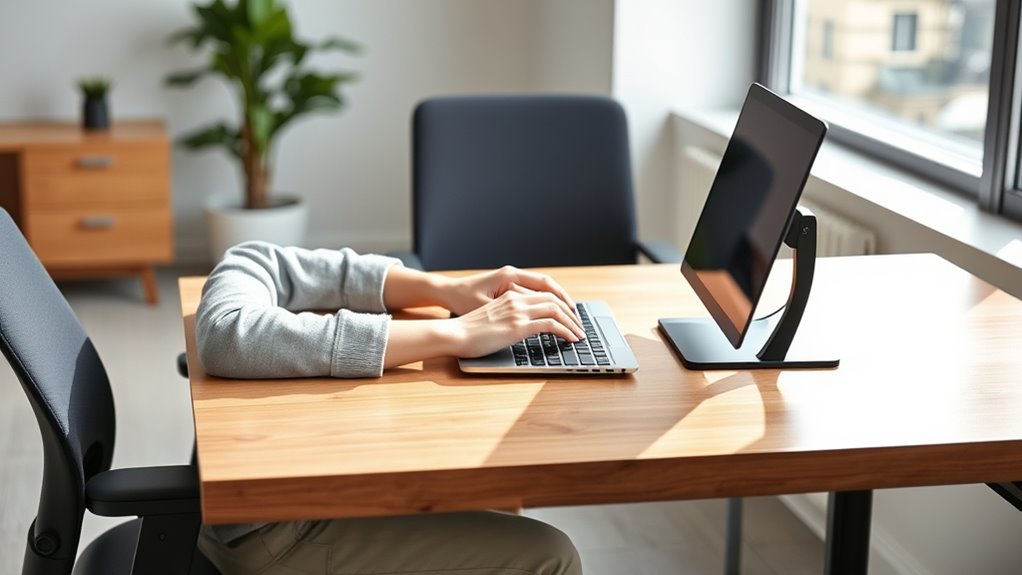
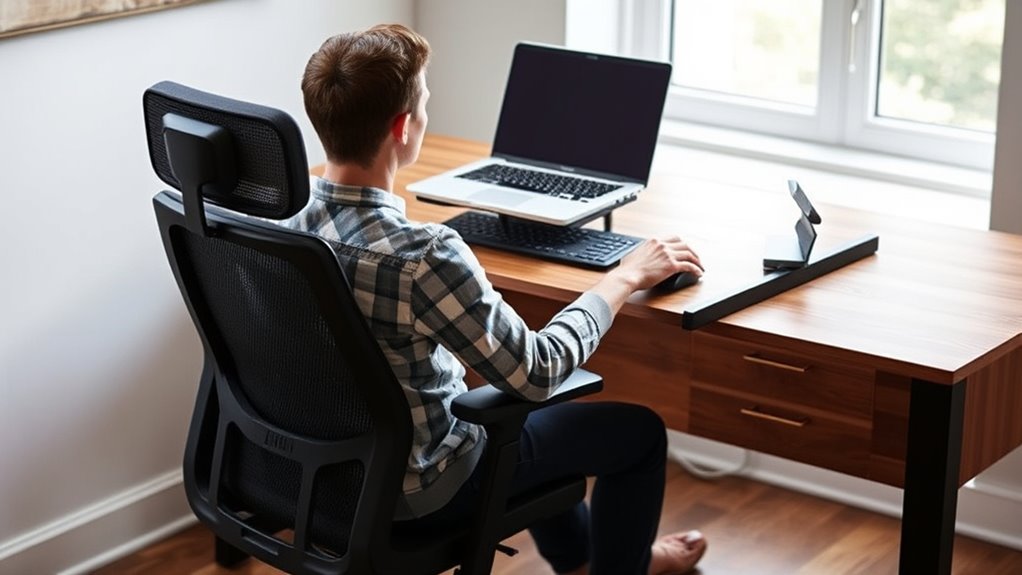
Using your laptop ergonomically is essential to prevent strain and long-term discomfort. One of the most important aspects is setting up your workspace so your keyboard placement and monitor height promote good posture. When your keyboard is positioned correctly, you reduce the risk of wrist strain and repetitive stress injuries. Ideally, your keyboard should be placed so that your elbows are close to your body and form about a 90-degree angle. This means you shouldn’t have to reach forward or stretch your arms awkwardly. If your laptop’s built-in keyboard feels too high or low, consider using an external keyboard and mouse, allowing you to position them independently for maximum comfort.
Proper ergonomic setup reduces wrist strain and promotes comfort during long hours of laptop use.
Monitor height is equally vital because it directly impacts your neck and eye comfort. Your laptop screen should be at eye level or just slightly below to prevent neck strain. To achieve this, use a laptop stand or stack some books underneath your device until the screen aligns with your horizontal line of sight. When the monitor is too low, you tend to tilt your head downward, which can cause neck pain over time. Conversely, raising the monitor keeps your head in a neutral position, helping to avoid unnecessary tension in your neck and shoulders.
Additionally, proper monitor placement encourages you to sit back in your chair with your back supported. Your eyes should be about an arm’s length from the screen, with the top of the display roughly at eye level. This setup minimizes eye strain and helps you maintain a natural, relaxed posture. Avoid craning your neck forward or looking down at the screen for extended periods, as this can lead to discomfort and long-term musculoskeletal issues.
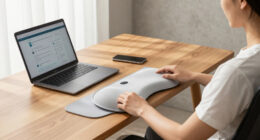
To reinforce good ergonomic habits, keep your wrists straight while typing, avoiding any bending or twisting. Use a wrist rest if needed, but ensure it doesn’t elevate your wrists too much. When arranging your workspace, ensure your desk height allows your feet to rest flat on the floor and your thighs to be parallel to the ground. Adjust your chair height accordingly so your hips are slightly higher than your knees. Incorporating ergonomic principles into your setup can further enhance comfort and prevent injury over time.
Frequently Asked Questions
How Can I Reduce Eye Strain While Working on a Laptop?
To reduce eye strain while working on your laptop, start by adjusting the screen brightness to match your surroundings, avoiding glare. Use blue light filters or enable night mode to cut down on blue light exposure, especially in low-light settings. Take regular breaks following the 20-20-20 rule—look at something 20 feet away for 20 seconds. These steps can help keep your eyes comfortable and reduce fatigue.
What Are the Best Ergonomic Accessories for Laptop Use?
You should invest in a laptop stand to elevate your screen to eye level, reducing neck strain. Pair it with an ergonomic keyboard to keep your wrists comfortable and prevent fatigue. An ergonomic mouse can also improve your overall posture. These accessories help create a more comfortable, health-conscious workspace, making it easier to work long hours without discomfort or injury.
How Often Should I Take Breaks During Extended Laptop Sessions?
Take a break every 25 to 30 minutes with the Pomodoro Technique, allowing your eyes and body to rest. During breaks, stretch, stand, or walk to ward off fatigue. Remember hydration tips—drink water regularly to stay alert and avoid dehydration. Maintaining this mindful rhythm enhances focus, prevents strain, and sustains your stamina during extended laptop sessions, ensuring you stay comfortable, concentrated, and cared for throughout your work or study marathon.
Can Ergonomic Adjustments Improve Productivity and Focus?
Ergonomic adjustments can substantially boost your productivity and focus by promoting posture improvement and workspace organization. When your workspace is well-organized and your posture is supported, you reduce discomfort and fatigue, allowing you to concentrate better. Adjust your chair, monitor height, and keyboard placement to maintain proper alignment. These small changes create a comfortable environment, helping you stay focused and work more efficiently throughout your extended laptop sessions.
Are There Specific Chair Recommendations for Ergonomic Laptop Work?
Yes, you should look for chairs with good lumbar support and adjustable features. An ergonomic office chair or task chair often provides the right balance of comfort and support. Guarantee it has adjustable height, tilt, and lumbar support so you can customize it to your body. This helps maintain proper posture, reduces strain, and keeps you comfortable during long laptop sessions.
Conclusion
By following these ergonomic tips, you can reduce strain and boost comfort while working on your laptop. Remember, maintaining proper posture can decrease the risk of musculoskeletal issues—studies show that ergonomic setups can improve productivity by up to 25%. So, take a moment to adjust your workspace and prioritize your health. Small changes make a big difference in preventing discomfort and ensuring you stay comfortable and focused during long work sessions.
Fall Picks
fall essentials
As an affiliate, we earn on qualifying purchases.