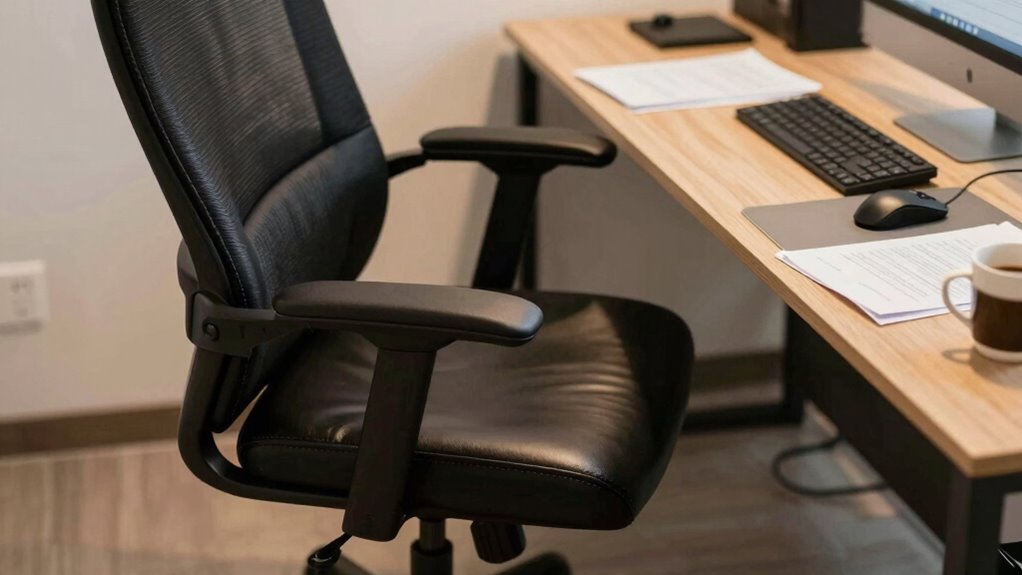
If you spend most of your day using a mouse, your chair should be adjusted to support proper posture. Keep your feet flat on the ground and your knees at a 90-degree angle. Position your hips slightly higher than your knees and make certain your chair offers good lumbar support. Place your mouse and keyboard within arm’s reach to avoid overextension. Small adjustments can make a big difference; stick around to learn how to optimize your setup further.
Key Takeaways
- Adjust chair height so your feet are flat and knees are at a 90° angle, reducing lower back strain during mouse-heavy tasks.
- Position your mouse close to your body and at the same height as your keyboard to minimize reaching and shoulder discomfort.
- Use ergonomic accessories like wrist rests to maintain a neutral wrist position during extended mouse use.
- Ensure your monitor is at eye level to prevent neck craning, especially when frequently switching between keyboard and mouse.
- Take regular breaks to stretch wrists, shoulders, and neck, preventing tension buildup from prolonged mouse activity.
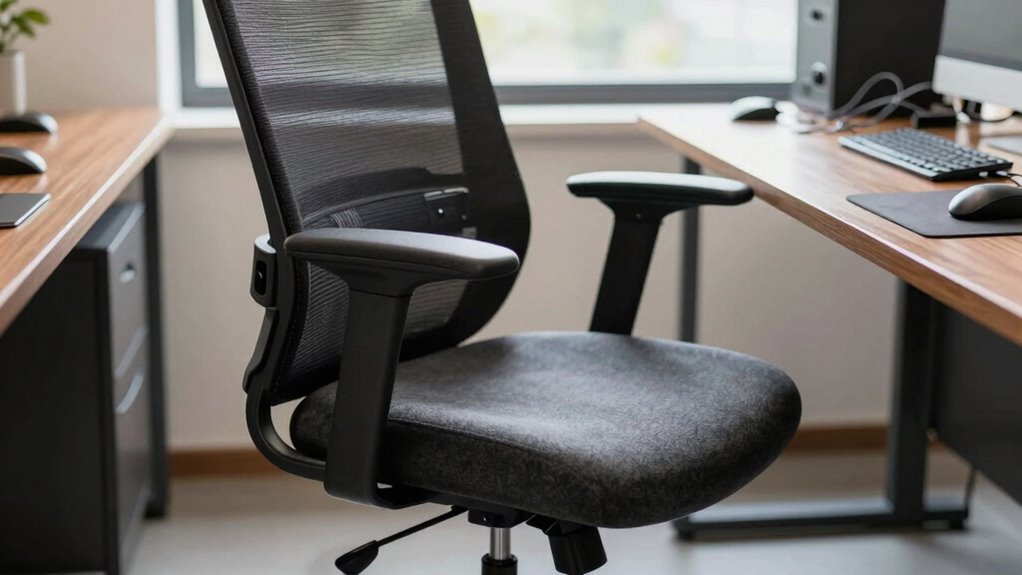
If your job involves extensive mouse use, simply sitting in the same chair setup as everyone else can lead to discomfort and even long-term injury. When your work revolves around constant clicking and scrolling, your chair and workspace need to support your specific needs. Making ergonomic adjustments is essential to prevent strain on your wrist, shoulder, and neck. Adjust your chair height so that your feet are flat on the ground and your knees are roughly at a 90-degree angle. This promotes proper circulation and reduces pressure on your lower back. Additionally, position your chair so that your hips are level with or slightly higher than your knees, which helps maintain a natural sitting posture.
Workspace organization plays a critical role in optimizing comfort and efficiency. Keep your mouse and keyboard within easy reach, avoiding overextension that can strain your shoulder and arm muscles. Your mouse should be close enough that you don’t have to reach forward or sideways, which can cause unnecessary tension. Consider adding a mouse pad with wrist support to keep your wrist in a neutral position. Sometimes, small changes like adjusting the height of your monitor can make a significant difference in reducing neck strain, especially if you find yourself craning forward to see your screen clearly. Incorporating ergonomic principles into your setup can further enhance comfort and prevent injury. Paying attention to ergonomic design features can help you choose tools and furniture that support your health during extended work sessions. Additionally, understanding ergonomic research can guide you in making more informed adjustments tailored to your needs.
If you spend hours at your desk, it’s wise to incorporate frequent breaks and stretching into your routine. Even simple wrist rolls, shoulder shrugs, and neck stretches can alleviate built-up tension. Organize your workspace to promote movement—keep frequently used items within arm’s reach and avoid clutter that forces awkward postures. You might also explore ergonomic accessories such as a vertical mouse or a split keyboard to further reduce strain.

MROCO Ergonomic Mouse Pad with Gel Wrist Rest, Smooth Wrist Support Surface, Non-Slip PU Base for Pain Relief, Comfortable Mousepad for Computer, Laptop, Office & Home, 9.4 x 8.1 in, Black
Comfortable Gel Cushioning: The ergonomic wrist rest contains soft gel to provide soothing comfort and effective support, helping…
As an affiliate, we earn on qualifying purchases.
As an affiliate, we earn on qualifying purchases.
Frequently Asked Questions
How Often Should I Adjust My Chair During Long Work Sessions?
You should adjust your chair at least every 30 to 60 minutes during long work sessions. This helps with posture correction and prevents strain. Make sure your keyboard placement stays comfortable, so your arms remain relaxed and your wrists aren’t strained. Regular adjustments keep your alignment correct, reducing fatigue and discomfort. Pay attention to your body signals and change your position frequently to stay comfortable and maintain productivity.
What Are Signs My Chair Setup Is Causing Discomfort?
Did you know that 80% of people experience discomfort from poor chair setups? If you notice persistent neck pain, tingling in your arms, or lower back ache, your chair setup might be to blame. Look for signs like slouching or pressure points. Prioritize posture correction and add cushion support where needed. These adjustments can considerably reduce discomfort and improve your overall comfort during long work sessions.
Can Ergonomic Chair Features Improve Productivity for Mouse-Heavy Tasks?
Yes, ergonomic chair features can boost your productivity during mouse-heavy tasks. Look for ergonomic accessories like wrist support to reduce strain, and adjustable armrests to keep your arms comfortable. An ergonomic chair with proper lumbar support helps maintain good posture, preventing fatigue. By customizing your setup with these features, you’ll work more efficiently, stay comfortable longer, and reduce the risk of discomfort or injury during extended mouse use.
Are There Specific Chair Types Recommended for Extensive Mouse Use?
For extensive mouse use, opt for ergonomic chairs with adjustable armrests and strong lumbar support. These features help reduce strain on your shoulders and lower back, keeping you comfortable during long hours. Look for chairs that allow you to customize armrest height and angle, ensuring your arms stay relaxed. Prioritizing these features helps prevent fatigue and enhances your productivity, making your workspace more efficient and comfortable.
How Does Chair Height Affect Mouse Ergonomics?
Think of your chair height like a bridge, connecting comfort with efficiency. When you adjust it properly, your arm support aligns with your mouse, reducing strain, and your lumbar adjustment guarantees proper back support. If your chair is too high or low, it disrupts this harmony, causing awkward arm angles and discomfort. Proper height keeps your wrists straight and shoulders relaxed, making mouse use smoother and preventing fatigue over long hours.

TRALT Office Chair – Ergonomic Desk Chair with Adjustable Lumbar Support, Mesh Computer Chair, Executive Chairs for Home Office Comfortable Lumbar Support (Black)
Ergonomic Office Chair: Experience unparalleled support with our ergonomic office chair, designed to provide comprehensive assistance for your…
As an affiliate, we earn on qualifying purchases.
As an affiliate, we earn on qualifying purchases.
Conclusion
Imagine your workspace as a ship steering through choppy waters—you wouldn’t keep the same sail for calm or stormy seas. Just like adjusting sails, your chair needs tweaks based on your workload. If you spend hours on the mouse, customizing your chair isn’t just comfort; it’s your ship’s stability. A quick change can prevent discomfort from turning into a storm of pain, helping you sail smoothly through your workday.

WALI Computer Monitor Stand for Desk, Adjustable Laptop Riser, Desk Monitor Stand Underneath Storage for Office, Home, School Supplies (STT003), 1 Pack, Black
Design: The monitor stand for the desk has a large 14.6 x 9.3 inches metal shelf that fits…
As an affiliate, we earn on qualifying purchases.
As an affiliate, we earn on qualifying purchases.

Gimars Upgrade Enlarge Silky and Superfine Fabric Gel Memory Foam Keyboard Wrist Rest Set, Ergonomic Keyboard Mouse Wrist Support for Typing Pain Relief, Comfort for Office, Gaming, Computer, Black
【1.2"ULTRA THICK MEMORY FOAM】 Upgraded memory foam is softer, more comfortable, and supportive, with a slow rebound. The…
As an affiliate, we earn on qualifying purchases.
As an affiliate, we earn on qualifying purchases.