
To make your laptop-only workspace ergonomic, start by choosing a comfortable laptop with adjustable features and a clear display. Elevate your device using a stand or books so the top of the screen is at eye level. Adjust your chair to support your lower back, with feet flat and knees at a 90-degree angle. Keep your desk at a height that allows your forearms to be parallel to the ground. Small tweaks now can greatly improve your comfort and productivity—learn more to optimize your setup.
Key Takeaways
- Use a laptop stand or stack books to elevate the screen to eye level, reducing neck strain.
- Choose an ergonomic laptop with a comfortable keyboard and adjustable features for proper setup.
- Position the laptop directly in front of you at an arm’s length, maintaining a neutral viewing angle.
- Adjust your chair so your feet rest flat on the floor and your knees are at a 90-degree angle.
- Keep your desk height and arm position such that forearms are parallel to the ground, promoting good wrist and posture alignment.
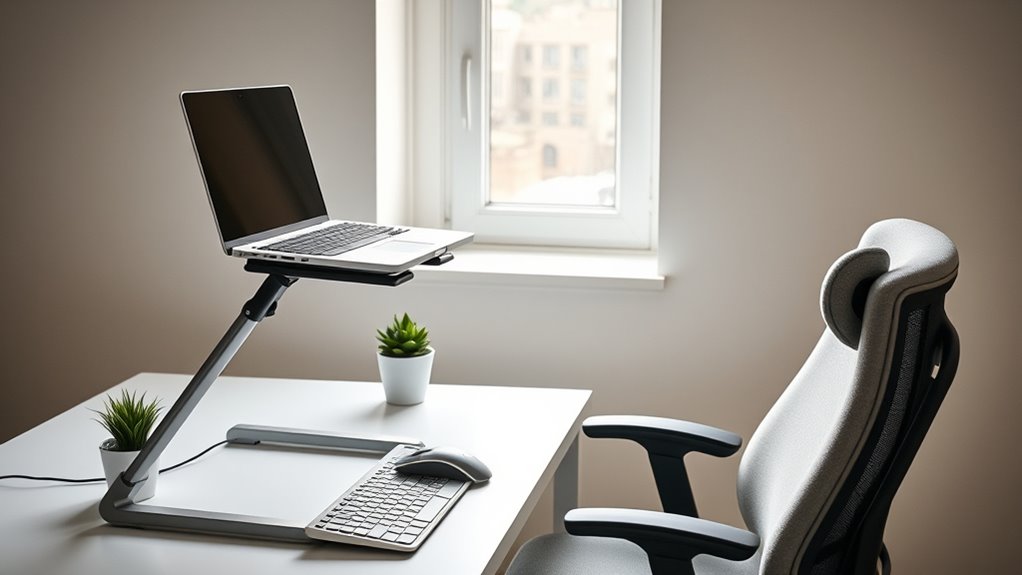
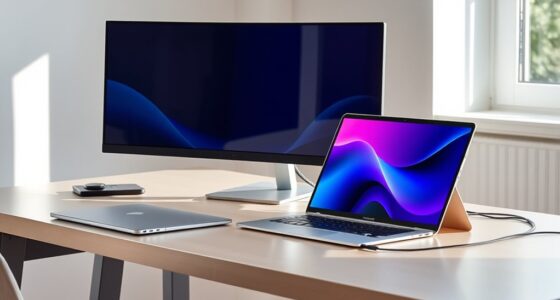
Creating an ergonomic workspace starts with choosing the right laptop, as it plays a crucial role in reducing strain and improving comfort during long work hours. Once you select a device with a comfortable keyboard, a clear display, and adjustable features, you can focus on optimizing your setup. Proper monitor placement is essential, even if you’re only using your laptop. To prevent neck and eye strain, position your laptop so that the top of the screen is at or slightly below eye level. You might need to use a laptop stand or stack some books underneath to elevate it. This way, you won’t have to tilt your head up or down, which can cause discomfort over time. Keep the monitor directly in front of you, about an arm’s length away, to minimize eye fatigue and encourage good posture.
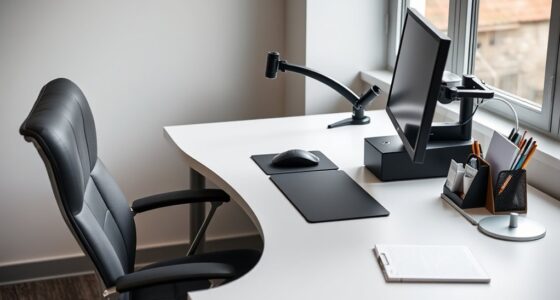
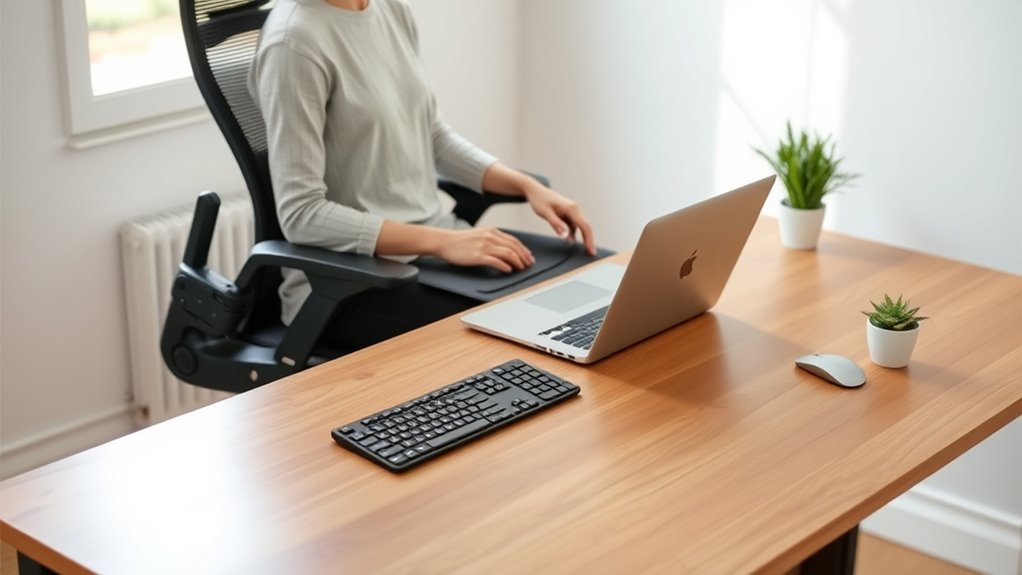
In addition to monitor placement, chair adjustment is crucial for creating a comfortable, ergonomic workspace. Your chair should support your lower back adequately, so adjust the height to ensure your feet rest flat on the floor or on a footrest. Your knees should be at a 90-degree angle, and your hips should be level with or slightly above your knees. When your chair height is correct, your thighs are parallel to the ground, reducing pressure on your lower back. Make sure the chair’s backrest supports your natural spinal curve, encouraging an upright posture. Adjust the lumbar support if available, or use a cushion if needed. Your arms should rest comfortably on the desk or keyboard, with elbows close to your body and at about a 90 to 110-degree angle. This prevents shoulder strain and keeps your wrists in a neutral position.
Combine these adjustments with careful monitor placement, and you’ll establish a setup that minimizes discomfort. Keep your desk at a height where your forearms are parallel to the ground when typing, avoiding the need to hunch or reach forward. This helps maintain good wrist alignment, reducing fatigue and preventing repetitive strain injuries. Regularly check and fine-tune your chair and monitor position to adapt to your posture and comfort needs. Remember, even in a laptop-only workspace, small adjustments make a significant difference. Staying conscious of your posture, positioning your monitor correctly, and adjusting your chair properly will keep you comfortable and productive during long work sessions. Taking these steps ensures your workspace supports your health, allowing you to work efficiently without unnecessary strain. Recognizing the importance of workspace ergonomics can help prevent long-term musculoskeletal problems and boost overall comfort.
Frequently Asked Questions
How Can I Prevent Eye Strain When Using a Laptop Exclusively?
To prevent eye strain when using your laptop exclusively, start by wearing blue light glasses to reduce eye fatigue. Take regular breaks to practice eye relaxation exercises, like blinking frequently or focusing on distant objects. Adjust your screen brightness to match ambient lighting, and make sure your workspace is well-lit. Keeping these habits in mind helps protect your eyes and keeps you comfortable during long laptop sessions.
What Are the Best Accessories to Enhance Ergonomic Comfort?
You should invest in laptop accessories like an adjustable stand, ergonomic keyboard, and mouse to boost comfort. These enhancements elevate your screen to eye level, reducing neck strain, while a supportive wrist rest minimizes fatigue. Look for ergonomic accessories designed for long-term use, ensuring your workspace promotes good posture and prevents discomfort. Combining these tools helps create a more ergonomic environment, making your laptop work more comfortable and efficient.
How Do I Ensure Proper Posture Without a Traditional Desk Setup?
Ever wondered how to maintain good posture without a traditional desk? You should position your keyboard at elbow height to avoid strain and use wrist support to keep your wrists neutral. Sit upright with your back supported, and keep your screen at eye level. Do you stretch regularly? Incorporating movement helps prevent discomfort. Adjust your setup as needed, ensuring your workspace promotes comfort and reduces fatigue throughout your workday.
Can a Standing Desk Be Adapted for a Laptop-Only Workspace?
Yes, you can adapt a standing desk for your laptop-only workspace. Use an adjustable standing desk to set the right height, keeping your screen at eye level. Enhance ergonomics with accessories like a laptop stand, an external keyboard, and a mouse. These help maintain proper posture, reduce strain, and improve comfort during long work sessions, making your workspace healthier and more efficient.
What Are Common Mistakes to Avoid in Ergonomic Laptop Use?
Avoid common mistakes in ergonomic laptop use by ensuring your workspace minimizes distractions and promotes good laptop ergonomics. Don’t slouch or crane your neck; keep your screen at eye level. Resist working in cluttered areas, which cause distractions and poor posture. Use an external keyboard and mouse if possible, and sit with your feet flat on the floor. Regularly adjust your setup to maintain comfort and prevent strain.
Conclusion
Remember, creating an ergonomic laptop workspace isn’t just about comfort—it’s about your well-being and productivity. As you adjust your setup, you might find that small changes unexpectedly boost your focus and reduce fatigue. Sometimes, the simplest tweaks—like repositioning your screen or adding a supportive chair—can make all the difference. In the end, making your workspace ergonomic isn’t just a choice; it’s a coincidence that leads to a healthier, more efficient you.