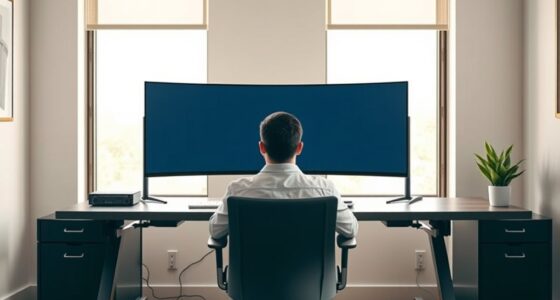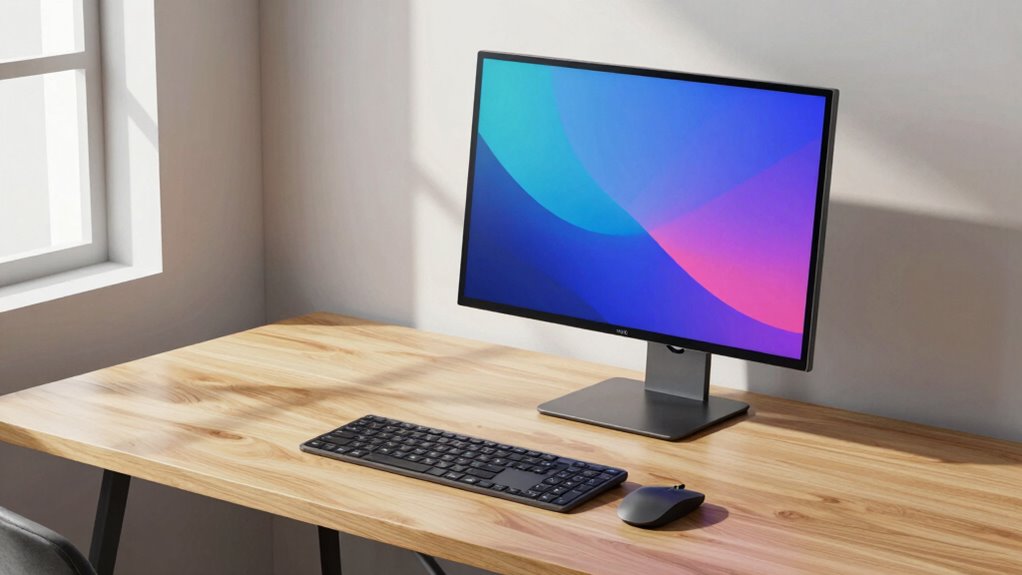

To set up a laptop and one monitor effectively, place your monitor at eye level and about an arm’s length away to reduce eye and neck strain. Adjust your chair for proper back support, keeping feet flat. Keep cables organized and close to avoid clutter. Use your laptop screen for secondary tasks and run your primary work on the monitor. A well-arranged workspace boosts focus and comfort—stick around to discover more tips for optimizing your setup.

Get comfort and recovery gear delivered free with Prime
- Fast, free delivery on millions of items
- Prime Video, Amazon Music and more included
- Member-only deals all year
Key Takeaways
- Position the monitor at eye level to reduce neck strain and improve viewing comfort.
- Keep the monitor and laptop close to minimize cable clutter and facilitate easy access.
- Use a stand or riser for the laptop to align screens and maximize workspace efficiency.
- Organize cables neatly to prevent tangling and maintain a clean, distraction-free environment.
- Adjust chair height and monitor distance to ensure ergonomic posture and sustained focus.
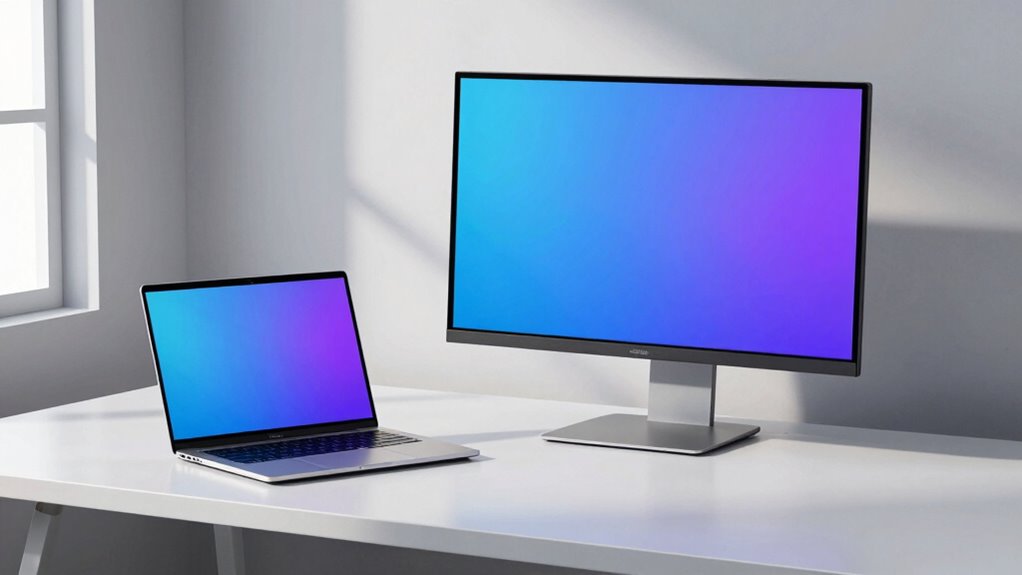
Setting up a laptop with one monitor can considerably boost your productivity and streamline your workflow. When you arrange your workspace thoughtfully, you create an environment that keeps you focused and comfortable. The key is to prioritize ergonomic positioning—placing your monitor at eye level to prevent neck strain and ensuring your keyboard and mouse are positioned to keep your wrists straight. Use a stand or riser for your laptop if needed, so your screen aligns naturally with your line of sight. This setup helps reduce fatigue during long work sessions and keeps your posture healthy. Additionally, implementing security scanning practices ensures your setup remains protected from vulnerabilities, especially when integrating multiple devices. Cable management plays an essential role in maintaining an organized, clutter-free workspace. When cables are tangled or strewn across your desk, they can distract you and even create safety hazards. Invest in cable clips, sleeves, or ties that keep cords neatly bundled and out of the way. Position your monitor and laptop close enough so that cables don’t stretch or tug, which could cause damage or disconnections. Proper cable management not only enhances visual clarity but also makes it easier to troubleshoot or reposition your devices when needed. A tidy setup minimizes distractions and lets you focus on your tasks without constantly adjusting or untangling cords. Once your monitor is at eye level and your cables are neatly arranged, focus on establishing a seamless workflow. Keep your primary window on the monitor, with secondary applications or reference materials on your laptop screen. This arrangement allows you to switch quickly between tasks without constantly resizing or rearranging windows. It’s a simple way to increase efficiency and reduce the time you spend toggling between screens. Ergonomic positioning extends beyond just height and arrangement. Think about your seating and desk height to ensure your elbows are at a 90-degree angle and your feet rest flat on the floor. Your monitor should be about an arm’s length away, which helps reduce eye strain and encourages comfortable viewing. Adjust your chair height so your back is supported, and your shoulders stay relaxed. This holistic approach ensures that your entire workspace supports your health and productivity, especially by considering projector technology that can enhance your visual experience when working or relaxing at home. Incorporating ergonomic accessories, such as adjustable keyboard stands or footrests, can further optimize your setup for long-term comfort. Paying attention to workspace organization can also contribute to maintaining focus and efficiency throughout your workday. Additionally, reducing digital distractions by turning off notifications can help you stay more engaged with your tasks and improve overall workflow.
As an affiliate, we earn on qualifying purchases.
Frequently Asked Questions
How Do I Adjust Brightness for Both Screens Simultaneously?
To adjust brightness for both screens simultaneously, start with screen calibration tools in your display settings. Many laptops and monitors allow you to synchronize display brightness through software, ensuring consistent output. Use your operating system’s display settings to enable display synchronization, which automatically adjusts both screens together. This way, you maintain uniform brightness, improving your viewing experience and reducing eye strain across your laptop and monitor.
Can I Connect a Second Monitor Wirelessly?
Yes, you can connect a second monitor wirelessly for your dual monitor setup. Many laptops support wireless connectivity options like Miracast or Wi-Fi Display, allowing you to mirror or extend your screen without cables. To do this, make certain your monitor supports wireless connections or use a compatible wireless display adapter. This setup gives you a clutter-free workspace and flexibility in arranging your dual monitor setup seamlessly.
What Are the Best Ergonomic Practices for This Setup?
You can achieve an ergonomic setup with a laptop and one monitor by ensuring your ergonomic chair supports good posture and your keyboard placement keeps your wrists straight. Even if wireless, it’s essential to position your monitor at eye level to prevent neck strain. Adjust your chair height so your feet are flat on the ground, and keep your workspace organized to maintain comfort and reduce fatigue during long work hours.
How Do I Prevent Screen Flickering or Lag?
To prevent screen flickering or lag, start by calibrating your display to guarantee accurate color and brightness. Check your display’s refresh rate in settings—aim for at least 60Hz for smoother visuals. Update your graphics drivers regularly, and use quality cables to avoid connection issues. Adjusting these settings helps stabilize your screen, reduces flickering, and makes sure your monitor runs smoothly with minimal lag during your work or entertainment.
Is This Setup Suitable for Gaming or Video Editing?
This setup can be suitable for gaming and video editing if your laptop has strong specs. For gaming performance, a high-refresh-rate monitor is essential to reduce lag and improve responsiveness. For video editing workflow, guarantee your laptop’s GPU and processor handle large files smoothly. While one monitor is manageable, adding a second display can boost productivity. Overall, it works well if your hardware is capable, but upgrading might be necessary for intensive tasks.
As an affiliate, we earn on qualifying purchases.
Conclusion
With this setup, you’ll find that 85% of remote workers feel more productive and focused. Arranging your laptop and monitor like this keeps your workspace clean and your workflow smooth. You don’t need a ton of gear to stay efficient—just a smart layout. So, give this setup a try, and see how a simple change can boost your daily work experience. Sometimes, less really is more!
As an affiliate, we earn on qualifying purchases.
As an affiliate, we earn on qualifying purchases.
Halloween Picks
halloween
As an affiliate, we earn on qualifying purchases.