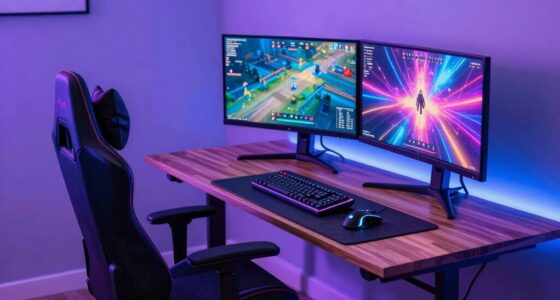
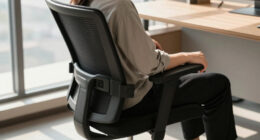
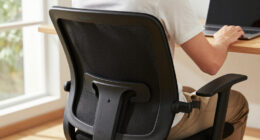
To create an ergonomic setup for video editing and content creation, adjust your monitor to eye level and keep it about an arm’s length away to reduce strain. Use an ergonomic chair with proper lumbar support and set your workspace so your keyboard and mouse are at elbow height. Guarantee good lighting and minimize glare to prevent eye fatigue. Proper posture and tool placement are key—keep comfy and avoid discomfort as you work. Discover more tips for a healthy setup ahead.
Key Takeaways
- Use an adjustable monitor positioned at eye level and an ergonomic chair with lumbar support to maintain proper posture.
- Keep the keyboard and mouse at elbow height with a 90° bend to prevent strain during editing sessions.
- Ensure workspace lighting is sufficient and free of glare to reduce eye fatigue and visual discomfort.
- Arrange frequently used tools within easy reach to minimize stretching and awkward movements.
- Combine ergonomic furniture and proper positioning to support natural body alignment and reduce musculoskeletal issues.
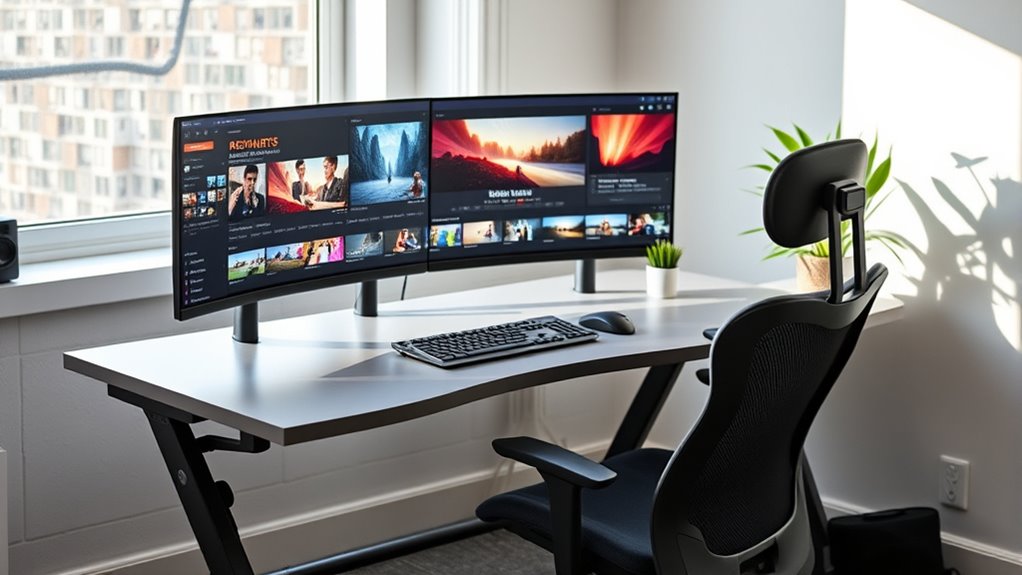
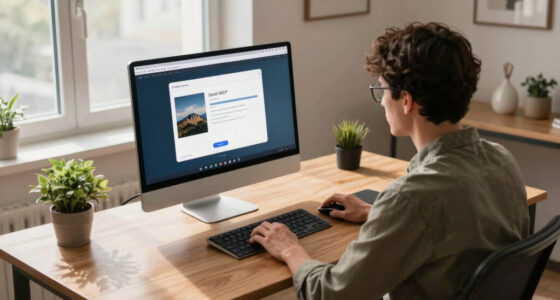
Creating an ergonomic setup for video editing is essential to prevent discomfort and boost your productivity. When you’re spending hours in front of your screen, having the right equipment can make all the difference. One of the most important aspects is choosing an adjustable monitor. An adjustable monitor allows you to customize the height, tilt, and position to match your eye level, reducing strain on your neck and shoulders. When your monitor is at the correct height, you avoid craning your neck or slouching, which can lead to persistent discomfort or even long-term musculoskeletal issues. Make sure the top of your monitor is roughly at your eye level and about an arm’s length away. This positioning keeps your head in a neutral position, helping you stay comfortable during those long editing sessions.
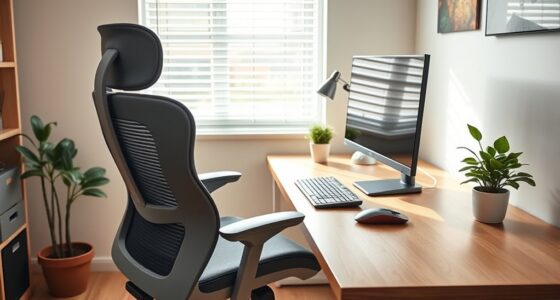
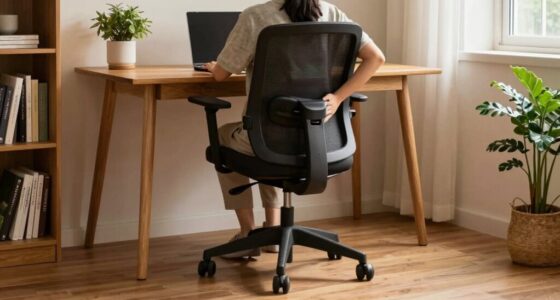
Alongside an adjustable monitor, investing in an ergonomic chair is equally crucial. An ergonomic chair provides proper lumbar support, encouraging good posture and reducing pressure on your lower back. You want a chair with adjustable features, including seat height, armrests, and backrest tilt, so you can tailor it to your body. When your feet are flat on the floor and your knees are at a 90-degree angle, you promote better circulation and prevent fatigue. The armrests should support your arms without forcing your shoulders upward, which can cause tension. Proper chair positioning keeps your spine aligned and minimizes the risk of developing back pain over time. Combining an ergonomic chair with an adjustable monitor creates a workspace that supports your body’s natural posture and minimizes strain.
Positioning your workspace correctly is also key. Place your keyboard and mouse at a height where your elbows are close to your body and bent at a 90-degree angle. This reduces strain on your wrists and shoulders. If your desk is too high or too low, it can lead to awkward postures that cause discomfort. Consider using a keyboard tray or adjustable desk to fine-tune your setup. Keep frequently used tools within easy reach to avoid unnecessary stretching or twisting, which can lead to strain over time. Good lighting also plays a role; ensure your workspace is well-lit to prevent eye strain, but avoid glare on your monitor. Adjust your monitor brightness and contrast for comfortable viewing. Additionally, monitor placement is vital for reducing eye fatigue and maintaining proper posture during long editing sessions.

BoYata Monitor Stand, Adjustable Height Metal Desktop Riser, Black
- Adjustable Height: Twist knob for height customization
- Ergonomic Design: Promotes comfortable eye and neck level
- High Weight Capacity: Supports up to 33.06 lbs with stability
As an affiliate, we earn on qualifying purchases.
As an affiliate, we earn on qualifying purchases.
Frequently Asked Questions
How Can I Prevent Eye Strain During Long Editing Sessions?
To prevent eye strain during long editing sessions, you should keep your screen at a comfortable distance, ideally about arm’s length, to reduce eye fatigue. Use blue light filters or glasses to minimize eye damage from prolonged exposure. Take regular breaks following the 20-20-20 rule—look 20 feet away for 20 seconds every 20 minutes. Adjust your screen brightness to match ambient lighting for added comfort.
What Are the Best Chair Adjustments for Prolonged Editing Comfort?
To maximize comfort during long editing sessions, adjust your ergonomic chair properly. Set the height so your feet rest flat on the ground, and your knees are at a 90-degree angle. Use the adjustable lumbar support to maintain proper lower back support, preventing strain. Make certain the chair’s backrest supports your natural curve, and sit close enough to your desk to avoid leaning forward. These adjustments help reduce fatigue and enhance your overall comfort.
How Should I Organize Cables to Maintain an Ergonomic Workspace?
Like a skilled architect, you should organize your cables with cable management tools and ergonomic accessories, ensuring a clean workspace. Use cable clips and sleeves to bundle cords neatly along your desk and monitor arms, reducing clutter and strain. Position power strips within easy reach to prevent stretching or twisting. This thoughtful setup not only enhances efficiency but also promotes better posture, making your editing environment more comfortable and productive.
What Lighting Options Reduce Glare on Editing Monitors?
To reduce glare on your editing monitors, you should choose lighting solutions that minimize reflections, like soft, diffused light sources positioned away from your screen. Avoid direct overhead or window light that causes monitor glare. Use adjustable desk lamps with warm bulbs and place them at angles that prevent light from bouncing off your screen. Consider matte screen protectors or anti-glare filters to further enhance visibility and reduce eye strain.
How Often Should I Take Breaks to Avoid Repetitive Strain Injuries?
You should take a break every 30 to 60 minutes to prevent repetitive strain injuries. While it might seem inconvenient, ergonomic accessories and workspace personalization make it easier to stay comfortable during long editing sessions. Use these breaks to stretch or adjust your ergonomic setup, helping you stay productive and avoid discomfort. Regular breaks promote better health and make certain your workspace remains supportive, even during intense editing marathons.

Marsail Ergonomic Office Chair: Office Desk Chair with High Back Mesh and Adjustable Lumbar Support Rolling Work Swivel Task Chairs with Wheel 3D Armrests and Headrest
- Fully Adjustable Headrest: 2D adjustable for personalized support
- Reclining Backrest: Adjusts from 90° to 120°
- 3D Adjustable Armrests: Customizable for comfort
As an affiliate, we earn on qualifying purchases.
As an affiliate, we earn on qualifying purchases.
Conclusion
By fine-tuning your workspace with thoughtful ergonomic choices, you’ll gently encourage comfort and efficiency during those long editing sessions. When your setup is just right, you’ll find it easier to stay focused and creative without feeling overwhelmed or strained. Remember, small adjustments can make a subtle but meaningful difference in your overall well-being. So, keep nurturing your workspace, and watch how seamlessly your editing flow becomes smoother and more enjoyable.

HUANUO Under Desk Keyboard Tray, 360 Degree Adjustable Mouse Platform
- Large Size: 25” x 9.84” full-size keyboard tray
- Versatile Fit: Fits all keyboard, mouse, and accessories
- Wrist Rest Included: Enhances wrist comfort during use
As an affiliate, we earn on qualifying purchases.
As an affiliate, we earn on qualifying purchases.

AOC 2.4GHz Wireless Ergonomic Vertical Mouse, Bluetooth, Rechargeable, Gray
- Ergonomic Vertical Design: Reduces wrist strain with natural handshake position
- Adjustable DPI Settings: Up to 4800 DPI for precise control
- Long Battery Life: Up to 200 hours on a single charge
As an affiliate, we earn on qualifying purchases.
As an affiliate, we earn on qualifying purchases.