Setting up dual monitors takes more planning than most buyers realize. You need to contemplate desk size, adjusting your workspace layout for accessibility, and adding ergonomic accessories like monitor stands and anti-glare screens. Proper cable management and lighting also play a role in creating a safe, comfortable environment. These steps help prevent strain and clutter, making your setup more efficient. Stick around to learn how to optimize your dual monitor workspace for better comfort and productivity.
Key Takeaways
- Dual monitors require strategic placement to prevent glare, promote ergonomics, and ensure easy access to all screens.
- Proper cable management is essential to avoid clutter and maintain airflow, especially with multiple monitor connections.
- Workspace layout must accommodate additional monitors, ensuring sufficient surface area and ergonomic positioning.
- Lighting adjustments are necessary to minimize reflections and eye strain with two screens.
- Planning should include adjustable mounts and ergonomic accessories for optimal comfort and productivity.

Setting up dual monitors might seem straightforward, but without proper desk planning, your workspace can quickly become cluttered or uncomfortable. When you add a second screen, you’re not just increasing your display area—you’re also introducing more cables, accessories, and potential ergonomic concerns. To create an efficient, comfortable setup, you need to think beyond just placing monitors side by side. Using ergonomic accessories is essential to prevent strain and maintain good posture. Adjustable monitor stands or mounts allow you to position screens at eye level, reducing neck and eye fatigue. An ergonomic keyboard and mouse can also make a significant difference, especially if you’re working for long hours. These accessories support healthy wrist and hand positions and help prevent repetitive strain injuries.
Proper desk planning and ergonomic accessories are key for a comfortable, clutter-free dual monitor workspace.
Cable management is another critical aspect often overlooked during initial setup. When cables are messy and tangled, they not only look unprofessional but also create hazards that can lead to accidental disconnections or damage. Investing in cable organizers, clips, or sleeves helps keep cords orderly and hidden away. Proper cable routing behind the desk or along the edge minimizes clutter and makes it easier to adjust or add devices later. Additionally, using power strips with surge protection ensures your setup is safe from electrical issues and provides enough outlets for all your devices. Effective cable management can also improve airflow and prevent overheating of electronic components. Moreover, considering the contrast ratio of your monitors can greatly impact visual clarity and reduce eye strain during long working sessions. Paying attention to workspace ergonomics is equally important to ensure a comfortable and sustainable environment. When planning your workspace, selecting a desk with sufficient surface area is crucial to accommodate all your equipment comfortably, which can also influence your overall productivity.
Your desk size and shape also play a role in how you plan your dual monitor setup. You need enough surface area to comfortably accommodate both screens, your keyboard, mouse, and ergonomic accessories without feeling cramped. If space is limited, consider wall-mounted monitor arms that free up desk space and allow for flexible positioning. Think about the workflow and how you’ll access frequently used items—keeping essential accessories within arm’s reach reduces unnecessary movement and boosts productivity. Additionally, incorporating ergonomic principles into your workspace design can further enhance comfort and reduce strain during long hours of work.
Lighting is another factor that impacts your dual monitor workspace. Proper lighting reduces glare on screens and minimizes eye strain. Position your monitors perpendicular to windows, or use adjustable desk lamps with diffused light to create a comfortable environment. Consider anti-glare screen protectors if ambient lighting causes reflections.
In the end, setting up dual monitors isn’t just about adding a second screen. It requires deliberate planning—integrating ergonomic accessories, managing cables effectively, and optimizing your workspace layout. Taking these steps ensures your setup remains comfortable, organized, and conducive to productivity, making the extra effort well worth it.

HUANUO FlowLift™ Dual Monitor Stand, Fully Adjustable Gaming Monitor Desk Mount for 13–32″ Computer Screens, Full Motion VESA 75×75/100×100 with C-Clamp & Grommet Base, Each Arm Holds 4.4 to 19.8 lbs
Compatible with Wide Screens – To ensure compatibility with the dual monitor mount, your each monitor must meet…
As an affiliate, we earn on qualifying purchases.
As an affiliate, we earn on qualifying purchases.
Frequently Asked Questions
How Do I Choose the Best Monitor Sizes for Dual Setup?
To choose the best monitor sizes for a dual setup, consider your workspace and how you’ll use each screen. Balance monitor calibration and screen brightness to reduce eye strain, ensuring consistency across displays. Opt for sizes that complement each other—usually 24-27 inches for productivity or larger for immersive tasks. Measure your desk space and positioning to prevent clutter, making sure both monitors fit comfortably and enhance your workflow.
What Cable Management Solutions Are Recommended for Dual Monitors?
For effective cable management, use cable organizers like clips or sleeves to keep cords neat and prevent tangling. Invest in monitor arms with built-in cable channels to facilitate cord concealment and reduce clutter on your desk. Velcro straps or zip ties also work well for bundling excess cables. These solutions help you maintain a clean workspace while ensuring easy access and flexibility for your dual monitor setup.
How Can I Optimize Ergonomic Positioning With Two Monitors?
To optimize ergonomic positioning with two monitors, start by adjusting each monitor’s height so the top of the screens are at eye level. Use ergonomic armrests to support your arms while typing or clicking, reducing strain. Confirm both monitors are aligned directly in front of you to prevent neck twisting. Regularly shift positions, and take breaks to maintain comfort and reduce fatigue during long work sessions.
What Desk Types Are Ideal for Supporting Dual Monitors?
Imagine your ideal workspace — sturdy, flexible, and sleek. An L-shaped or adjustable height desk made from durable materials like wood or metal provides the perfect foundation for dual monitors. Incorporate monitor mounting options to free up desk space and improve positioning. These desk types support ergonomic setups, allowing you to seamlessly align your screens at eye level, reduce strain, and create an efficient workspace tailored for dual monitor use.
How Do I Prevent Glare and Reflections on Dual Screens?
To prevent glare and reflections on dual screens, you should adjust your screen brightness to match your environment, reducing eye strain. Position your monitors away from direct light sources, like windows and overhead lights, to minimize glare. Use glare reduction accessories like matte screen filters or anti-reflective coatings if needed. Proper placement and brightness management help guarantee clear visibility, making your dual monitor setup more comfortable and productive.
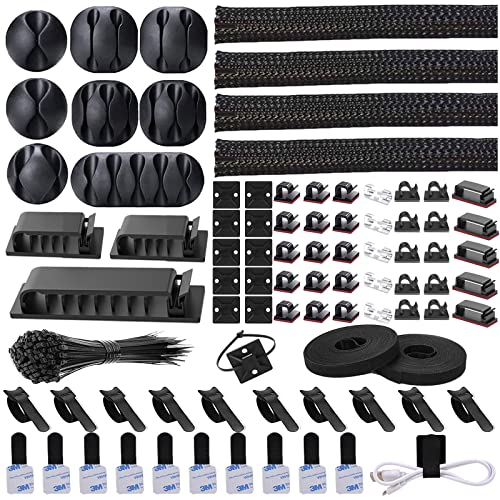
N NOROCME 192 PCS Cable Management Kit 4 Wire Organizer Sleeve,11 Cable Holder,35Cord Clips 10+2 Roll Cable Organizer Straps and 100 Fastening Cable Ties for Computer TV Under Desk, black,clear
Cable Management Kit: 4pcs Cable Sleeves( 20 in L x 0.4 in w), 20pcs reusable wire ties,35Cable Clips…
As an affiliate, we earn on qualifying purchases.
As an affiliate, we earn on qualifying purchases.
Conclusion
You might assume setting up dual monitors is straightforward, but the truth is, it demands more desk planning than most expect. Proper space, strategic placement, and considering your workflow can make or break your setup’s effectiveness. Don’t just buy and place; investigate your needs and test your layout. When you do, you’ll discover that a well-planned desk transforms your productivity, proving that good planning truly pays off. So, take the time—you’ll thank yourself later.

Wireless Keyboard and Mouse Combo, 2.4G Full Size Wave Keys Ergonomic Keyboard with Wrist Rest and 3-Level DPI Adjustable Wireless Ergonomic Mouse for Windows, Mac OS Desktop/Laptop/PC(Black)
【Wave Ergonomic Wireless Keyboard and Mouse Combo】The wireless keyboard features a wave key and wrist rest design that…
As an affiliate, we earn on qualifying purchases.
As an affiliate, we earn on qualifying purchases.

MOUNT PRO Single Monitor Wall Mount for 13 to 32 Inch Computer Screens, Height Adjustable Wall Mount Monitor Arm Holds Up to 19.8lbs, Full Motion Wall Bracket, VESA Mount 75×75, 100×100, Black
Full Motion Adjustments – Adjustable monitor wall mount arm offers +90° to -90° tilts, 180° swivel, and 360°…
As an affiliate, we earn on qualifying purchases.
As an affiliate, we earn on qualifying purchases.