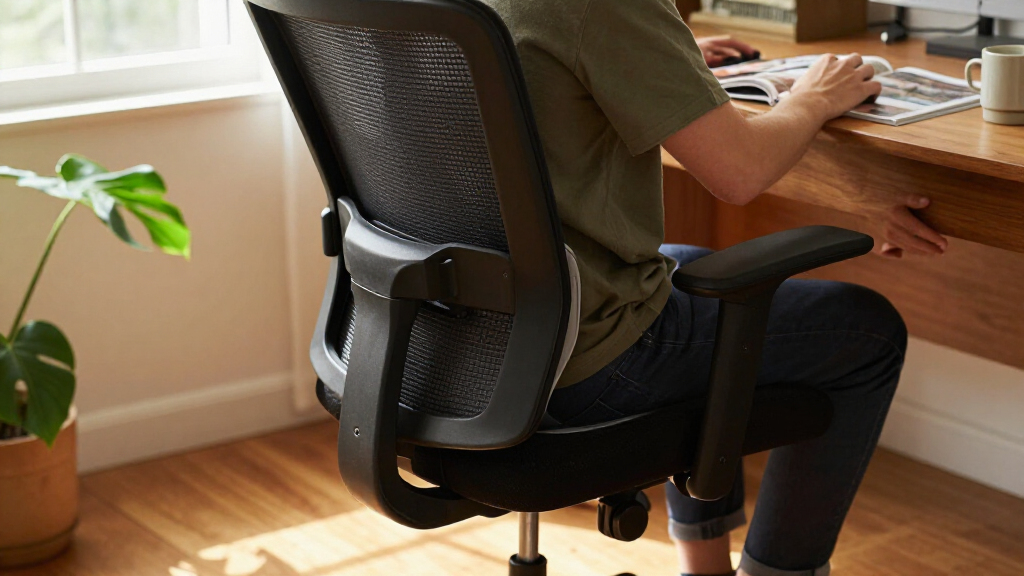
Use this guide to choose an office chair that fits your body, then set its height, back support, armrests, and recline for desk work. It is for anyone buying a chair or improving the fit of one they already have. Allow 30-60 minutes to compare chair features, adjust the settings, and test them at your desk.

Get comfort and recovery gear delivered free with Prime
- Fast, free delivery on millions of items
- Prime Video, Amazon Music and more included
- Member-only deals all year

ELABEST X100 Ergonomic Mesh Office Chair with Footrest
- ✔ Lumbar support: 3D adjustable; 1.6-inch depth, 2-inch height, 15° rotation
- ✔ Armrests: 5D adjustable and flip-up
- ✔ Headrest: 3D adjustable; 28 cm

Monhey Ergonomic Mesh Office Chair with Lumbar Support, Adjustable Height and Flip-Up Arms, Khaki
- ✔ Brand and model: Monhey 6969SB
- ✔ Color: Khaki
- ✔ Back material: Breathable mesh

CYKOV Ergonomic Mesh Office Chair with Footrest
- ✔ Brand and model: CYKOV CY59B
- ✔ Back material: Breathable mesh
- ✔ Recline: 90°–135°
Difficulty: Beginner | Time: 30-60 minutes
What You’ll Need
Tools & Materials:
- Your desk and usual work setup
- A tape measure or ruler
- A stable chair with adjustable height and back support
- A few minutes to test the chair while seated
Knowledge:
- Basic familiarity with your desk height and the tasks you do while seated
Wear the shoes you normally wear at your desk. If you are shopping, bring your desk measurements and check the seller’s return policy; chair fit is hard to judge from product descriptions alone. A chair can support a comfortable working position, but it cannot replace movement breaks or medical advice for persistent pain.
ELABEST X100 Ergonomic Mesh Office Chair with Footrest
The X100 earns the top spot because its adjustment range is the most developed of the three. Its 3D lumbar support shifts in height and depth and rotates, while the 5D flip-up armrests offer several ways to position the arms or clear space beside a desk. That gives us more opportunity to tune the chair around a working posture than the Monhey, whose listed adjustments are more basic.For breaks, the X100 includes an extendable footrest and a three-stage reclining mechanism. This makes it more versatile than a conventional desk-focused chair, although the CYKOV reclines farther, to 135 degrees, and also includes a footrest. The X100’s advantage is its more detailed set of posture adjustments, along with a stated seat-height range and BIFMA certification. Its tradeoff is choice: the many controls may take time to set up, and a large adjustment list does not guarantee a comfortable fit for every person. We would choose it when tailoring support matters more than quick, simple setup.
Pros:
- 3D adjustable lumbar support with height, depth, and rotation settings
- 5D adjustable flip-up armrests and 3D adjustable headrest
- Extendable footrest and three-stage reclining mechanism
- BIFMA certification, 300-pound capacity, and stated seat-height range
Cons:
- Numerous adjustment options may take time to configure
- The 300-pound listed capacity is lower than the CYKOV’s higher title and description claims, though those figures conflict
Best for: People who want to fine-tune lumbar, headrest, and arm positions for a home office or mixed work-and-gaming setup.
Not ideal for: Buyers who prefer a simple chair with few controls or who do not expect to use a footrest and multiple adjustments.
Bottom line: We recommend the X100 for buyers who will use its extensive adjustments to shape a more personalized ergonomic setup.
“We recommend the X100 for buyers who will use its extensive adjustments to shape a more personalized ergonomic setup.”
Monhey Ergonomic Mesh Office Chair with Lumbar Support, Adjustable Height and Flip-Up Arms, Khaki
The Monhey suits buyers who want core ergonomic features without the X100’s many adjustment points. It combines a breathable mesh back with adjustable lumbar support, a padded seat, and height adjustment. Flip-up arms can make it easier to move the chair close to a desk or tuck it away, a practical advantage in a shared or compact workspace.Its recline locks between 90 and 125 degrees, so it can shift from upright work to a modest lean. Compared with the CYKOV and ELABEST, it is less oriented toward relaxing: there is no listed footrest or adjustable headrest. That keeps the design more focused, but buyers who want to stretch out during breaks may prefer either footrest-equipped alternative. The main specification issue is capacity: the supplied information gives both 300 and 330 pounds. We would verify that detail with the seller before relying on it when capacity is a deciding factor.
Pros:
- Adjustable lumbar support and breathable mesh back
- Recline locks between 90° and 125°
- Flip-up arms and adjustable seat height
- Padded seat, swivel base, and assembly instructions included
Cons:
- Capacity is listed as both 300 and 330 pounds
- No footrest or adjustable headrest is listed
- Maximum recline is less than the CYKOV’s stated 135°
Best for: Buyers seeking a mesh desk chair with adjustable lumbar support, flip-up arms, and a restrained set of features.
Not ideal for: People who want a footrest, headrest, deep recline, or a clearly stated weight capacity.
Bottom line: We’d choose the Monhey for a more straightforward work chair, provided its conflicting capacity figure is confirmed if relevant.
“We’d choose the Monhey for a more straightforward work chair, provided its conflicting capacity figure is confirmed if relevant.”
CYKOV Ergonomic Mesh Office Chair with Footrest
The CYKOV makes the strongest case for buyers who want their chair to support both desk time and longer breaks. Its retractable footrest and 90°–135° recline offer more room to lean back than the Monhey, whose recline stops at 125 degrees and has no listed footrest. An adjustable headrest and two-way lumbar adjustment add options for positioning the upper back and lower back.That relaxation focus comes with a tradeoff: compared with the ELABEST, the listed lumbar and arm adjustments are less extensive, so it may offer fewer ways to fine-tune posture. Its mesh back is intended to promote airflow, and the chair includes a clothes hanger and a five-year structural warranty. However, the supplied capacity figures conflict: the title and description say 350 pounds, while specifications say 300. We would confirm the applicable limit before choosing this chair on capacity grounds.
Pros:
- Retractable footrest and recline range up to 135°
- Adjustable headrest and two-way lumbar support
- Breathable mesh back and adjustable armrests
- Five-year structural warranty and included clothes hanger
Cons:
- Capacity conflicts: title and description say 350 pounds, specifications say 300
- Listed lumbar adjustment is less extensive than the ELABEST’s 3D system
- Its footrest and deeper recline may be unnecessary for buyers focused only on upright desk work
Best for: People who want a mesh office chair with a retractable footrest and a deeper recline for work, gaming, or breaks.
Not ideal for: Buyers who prioritize extensive, clearly detailed ergonomic adjustments or need a consistent capacity specification.
Bottom line: We recommend the CYKOV for buyers who value reclining and a footrest, after confirming the capacity specification with the seller.
“We recommend the CYKOV for buyers who value reclining and a footrest, after confirming the capacity specification with the seller.”
As an Amazon Associate we earn from qualifying purchases.
Before You Start
Clear space around your desk so you can sit with your feet flat and move the chair freely. If possible, test a chair for several minutes rather than judging it from a brief showroom sit. Adjust one setting at a time and reassess; changing several settings together makes it harder to tell what improved the fit.
Step-by-Step Instructions
Step 1: Measure your desk and workspace
Measure the floor-to-underside height of your desk and note whether its height can be adjusted. Check the space available under it, including any drawer or crossbar that could block your knees. Measure the width where the chair will sit and confirm the chair can roll or turn without hitting nearby furniture.
Tip: A footrest can help if the chair needs to be raised to match a fixed-height desk but your feet no longer reach the floor.
Check: You have the desk height, under-desk clearance, and available chair space written down.
Step 2: Match chair features to your needs
Choose a chair with seat-height adjustment and back support that can be positioned to meet your lower back. Look for a seat depth that lets you sit back while leaving a small gap between the seat edge and the backs of your knees. Check that the seat is wide enough for you and that the armrests can be lowered or moved if they prevent you from getting close to the desk.
Tip: If you cannot test before buying, check the adjustment ranges and dimensions against your measurements, and confirm the return terms before ordering.
Check: The chair can fit beneath or alongside your desk, and its stated dimensions and adjustment range suit your workspace and body.
Step 3: Set the seat height
Sit back in the chair and place both feet flat on the floor. Raise or lower the seat until your thighs are roughly level or slope slightly downward, with your knees close to hip height. Keep your shoulders relaxed. If you must raise the chair for the desk and your feet become unsupported, add a stable footrest.
Tip: Do not let your feet dangle or rest only on your toes; that can put pressure on your thighs.
Check: Your feet have stable support, and the seat edge does not press sharply into the backs of your legs.
Step 4: Set the seat depth
Sit fully back against the backrest. Slide the seat pan forward or backward, if adjustable, until there is a small space—about two or three fingers—between the front edge and the backs of your knees. Keep your feet supported while you make the adjustment.
Tip: If the seat is too deep and cannot be adjusted, a small cushion behind your lower back may help you sit farther forward, provided it does not push you out of a comfortable position.
Check: You can use the backrest while keeping a small gap behind your knees, without sliding forward to escape seat pressure.
Step 5: Position the backrest and lower-back support
Move the backrest so it supports your back while you sit against it. Adjust the lumbar support, if present, until it rests in the inward curve of your lower back. Set the recline tension so you can lean back without the chair tipping suddenly, then use a comfortable slight recline for tasks that allow it.
Tip: The support should feel steady, not like a hard object forcing your back into an exaggerated arch.
Check: Your lower back feels supported, and you can lean back smoothly while keeping your feet supported.
Step 6: Adjust the armrests and desk position
Lower or raise the armrests until your shoulders stay relaxed and your elbows rest near your sides when your hands are on the keyboard. Move or remove armrests that keep the chair from approaching the desk. Position the keyboard and mouse within easy reach so you do not have to lean forward or raise your shoulders.
Tip: If armrests collide with the desk, lower them or set them aside if the chair allows it; do not perch at the front of the seat to work around them.
Check: Your shoulders remain relaxed, your elbows are close to your body, and you can reach your work without leaning forward.
Step 7: Check your screen and working posture
Place the monitor directly in front of you, at a distance that lets you read without leaning toward it. Raise or lower the screen so your head can stay balanced over your shoulders while you look at it. Sit back with your feet supported, and check that the desk, keyboard, and mouse let you keep your wrists comfortable rather than sharply bent.
Tip: A laptop used for long sessions may need a separate keyboard and mouse so you can raise the screen without raising your hands and shoulders.
Check: You can see the screen and reach your input devices while sitting back, with relaxed shoulders and a comfortable head position.
Step 8: Test the setup during real work
Work in the adjusted position for 10-15 minutes, then check for pressure behind your knees, unsupported feet, back discomfort, or tension in your shoulders. Change one setting at a time if you notice a problem. Stand up or walk briefly between work periods; a well-adjusted chair does not make it necessary to stay seated continuously.
Tip: Give small adjustments a short trial, but stop using a setting that causes sharp pain, numbness, or worsening symptoms.
Check: You can complete a short work session without needing to perch, reach, or hold your body rigidly to use the desk.
Common Mistakes to Avoid
- Raising the seat to reach the desk while leaving the feet unsupported. — Keep both feet supported; lower the seat if possible or use a stable footrest when desk height requires a higher seat.
- Choosing a seat that is too deep or sitting forward to avoid pressure behind the knees. — Adjust seat depth so a small gap remains behind the knees while your back rests against the backrest.
- Setting the lumbar support too high or too firmly. — Position it in the lower-back curve and reduce the pressure if it feels like it is forcing your posture.
- Using armrests that push the shoulders upward or stop the chair reaching the desk. — Lower, move, or remove armrests as available, and keep your shoulders relaxed while typing.
Troubleshooting
Problem: Your feet do not reach the floor after adjusting the chair to the desk.
Solution: Lower the seat if your knees and desk position still allow it. Otherwise, use a stable footrest that supports both feet and does not slide.
Problem: The seat edge presses into the backs of your knees.
Solution: Move the seat pan backward or choose a chair with a shorter seat depth. Sit fully back and check that a small gap remains behind your knees.
Problem: The backrest feels uncomfortable or the lumbar support pushes too hard.
Solution: Reduce the lumbar support pressure or move it slightly, then test again. If the chair cannot be adjusted to a comfortable position, consider a different chair fit.
Problem: You still lean forward to read or use the keyboard.
Solution: Move the monitor and input devices closer, raise the screen if needed, and check that armrests are not blocking the chair from the desk. For long laptop sessions, add an external keyboard and mouse.
What Success Looks Like
Your completed setup lets you sit back with your lower back supported, feet stable, and a small gap behind your knees. Your shoulders stay relaxed, your elbows remain near your sides, and the screen and input devices are reachable without leaning. You can change position and take movement breaks. If pain persists or worsens despite adjustments, seek advice from a qualified health professional.
Next Steps
Recheck the fit whenever you change desks, footwear, or chair settings. After several days of use, make small adjustments based on where you feel pressure or strain. Keep the chair’s moving parts clear and follow its care instructions. Build brief standing or walking breaks into your work routine, and consult a health professional for persistent pain or numbness.
Frequently Asked Questions
How high should an office chair be?
Set it so both feet are supported and your thighs are roughly level or slope slightly downward. Your knees should be near hip height, and the seat edge should not dig into the backs of your legs.
Should I sit at a 90-degree angle all day?
No single angle works for every person or task. Use a comfortable position with back support, and change position during the day rather than holding one posture continuously.
Do I need a footrest?
Use one if your feet are not supported after you set the chair to work with the desk. Choose a stable surface that supports both feet without sliding.
How long should I test a new chair?
Check the fit in a short seated trial, then test it during several ordinary work sessions if possible. Follow the seller’s return window, since comfort over time may differ from a brief showroom test.
Halloween Picks
halloween
As an affiliate, we earn on qualifying purchases.