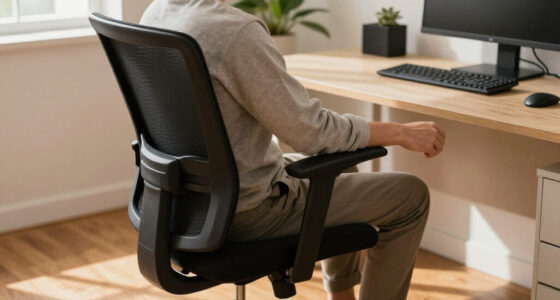

To find the best chair position for typing and computer work, adjust your chair height so your feet are flat and knees form a 90-degree angle. Keep your hips level with or slightly higher than your knees and support your lower back with lumbar support. Position your monitor directly in front at eye level and keep your wrists straight. Maintain relaxed shoulders and elbows at 90–110 degrees. Keep practicing these tips for long-term comfort and better posture.

Get comfort and recovery gear delivered free with Prime
- Fast, free delivery on millions of items
- Prime Video, Amazon Music and more included
- Member-only deals all year
Key Takeaways
- Adjust chair height so feet are flat, knees at 90 degrees, and hips level or slightly higher for optimal posture.
- Use lumbar support to maintain the natural curve of the lower back and keep shoulders relaxed.
- Position monitor directly in front at eye level, with the top at or below eye height, to reduce neck strain.
- Keep keyboard and mouse close, with wrists straight and forearms parallel to the ground for comfortable typing.
- Take regular breaks to stand, stretch, and change positions, preventing muscle tension and promoting ergonomic health.

Finding the best chair position for typing is essential to prevent discomfort and maintain productivity. When you focus on ergonomic adjustments, you create a workspace that supports your body’s natural alignment, reducing strain and fatigue. Proper positioning isn’t just about comfort; it’s about safeguarding your health over long hours of computer work. To achieve this, start by adjusting your chair height so your feet rest flat on the ground, with your knees bent at roughly a 90-degree angle. Your hips should be level with your knees or slightly higher, promoting good posture correction and minimizing lower back stress. When your chair height is right, your torso will naturally sit upright, reducing slouching and helping you stay alert.
Adjust chair height so feet are flat, knees at 90°, and hips level to promote good posture and reduce back strain.
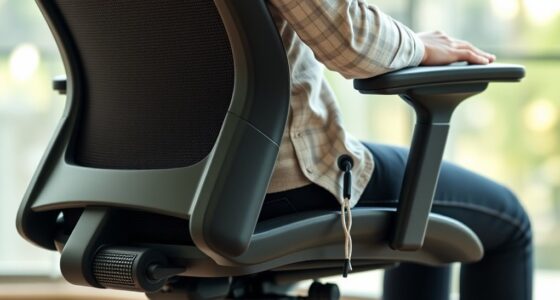
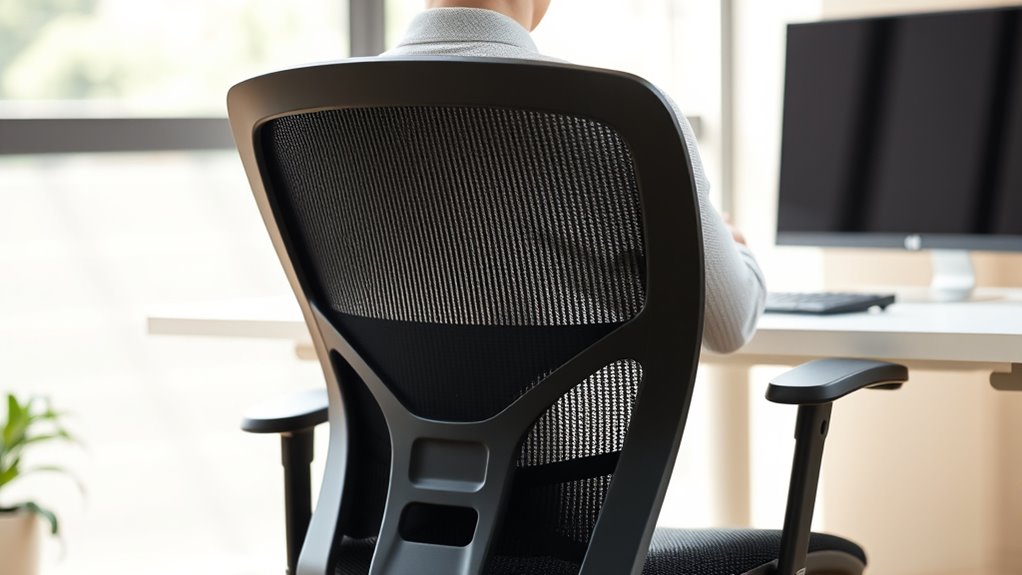
Next, pay attention to your back support. Your chair should have lumbar support that fits the natural curve of your lower back. This support encourages posture correction by preventing you from slumping forward or arching excessively. Adjust the lumbar support so it fills the small of your back comfortably, promoting an upright yet relaxed spine position. Your shoulders should relax, not lift or hunch, which means your armrests, if you use them, should be set so your shoulders remain relaxed and your elbows close to your sides at about a 90 to 110-degree angle. This reduces shoulder tension and encourages a neutral wrist position, which is crucial for ergonomic adjustments. Additionally, choosing a Kia Tuning inspired setup can enhance your overall workspace ergonomics by incorporating adjustable features for optimal comfort.
Your monitor placement also plays a notable role in ergonomic positioning. Position your screen directly in front of you, about an arm’s length away, with the top of the monitor at or slightly below eye level. This setup helps you maintain a neutral neck position, preventing strain and promoting overall posture correction. Keep your keyboard and mouse close enough that you don’t have to reach forward or stretch excessively. Your wrists should remain straight and level with your forearms to avoid undue pressure and potential repetitive strain injuries.
Lastly, remember to take regular breaks. Sitting in the correct chair position for extended periods can still lead to tension build-up. Stand, stretch, and change positions frequently to keep your muscles active and your posture correct. By making these ergonomic adjustments and focusing on posture correction, you’ll find that your comfort, efficiency, and overall health improve markedly. Proper chair positioning isn’t a one-time fix; it’s a continuous practice that supports your well-being during long hours of typing and computer work.
ergonomic adjustable office chair
As an affiliate, we earn on qualifying purchases.
As an affiliate, we earn on qualifying purchases.
Frequently Asked Questions
How Often Should I Adjust My Chair During Work?
You should adjust your chair every 30 to 60 minutes to maintain proper posture correction and prevent discomfort. Regular adjustments, combined with ergonomic accessories like lumbar supports and footrests, help keep your spine aligned and reduce strain. Make these small changes frequently to stay comfortable and focused, ensuring your workspace remains ergonomic and supportive throughout your workday. Consistent repositioning is key to avoiding long-term injuries.
What Type of Chair Offers the Best Lumbar Support?
You should choose ergonomic chairs that offer excellent lumbar support to keep your lower back properly aligned. Look for chairs with adjustable lumbar support, so you can customize the fit for your spine’s natural curve. Good lumbar support reduces strain and discomfort during long work sessions. Prioritize chairs with firm, supportive padding and adjustable height, ensuring your lower back remains supported and your posture stays healthy throughout your workday.
Is Standing While Working Better Than Sitting?
Standing while working can be like riding a wave—energizing but tiring if overdone. Using a standing desk promotes ergonomic posture, reducing strain and boosting alertness. However, switching between sitting and standing is key, so you don’t wear yourself out. Keep your monitor at eye level, your wrists straight, and take breaks. This balance helps you stay comfortable, focused, and healthy throughout your workday.
How Do I Prevent Wrist Strain While Typing?
To prevent wrist strain while typing, use wrist cushions to support your wrists and keep them in a neutral position. Make sure your keyboard is ergonomic, with a design that promotes natural wrist alignment. Adjust your chair height so your forearms are parallel to the floor, and take frequent breaks. These steps help reduce pressure on your wrists, keeping you comfortable and preventing strain over time.
What Accessories Can Improve Ergonomic Comfort?
To improve ergonomic comfort, you should consider ergonomic accessories like adjustable keyboard trays, wrist rests, and monitor stands. These tools help optimize your workstation setup by reducing strain and encouraging proper posture. Adding a footrest or an ergonomic mouse can also make a difference. By customizing your workstation with these accessories, you create a more supportive environment that minimizes discomfort and boosts productivity during long typing or computer sessions.
lumbar support cushion for office chair
As an affiliate, we earn on qualifying purchases.
As an affiliate, we earn on qualifying purchases.
Conclusion
Finding the right chair position isn’t just about comfort—it’s about caring for your well-being. When you sit properly, you gently nurture your body, helping it feel supported and appreciated. Small adjustments can make a big difference, turning your workspace into a haven of ease. Remember, a mindful approach to your posture shows kindness to yourself, making each workday a little brighter. Embrace these habits, and let your comfort softly remind you of your worth.
monitor stand for ergonomic setup
As an affiliate, we earn on qualifying purchases.
As an affiliate, we earn on qualifying purchases.
ergonomic keyboard and mouse set
As an affiliate, we earn on qualifying purchases.
As an affiliate, we earn on qualifying purchases.
Halloween Picks
halloween
As an affiliate, we earn on qualifying purchases.