To avoid tech neck during video calls, set your webcam at eye level or slightly above to keep your neck in a neutral position. Use a stable surface or adjustable mount to position your camera correctly. Improve comfort by maintaining good posture—sit up straight with shoulders relaxed. Proper lighting and uncluttered backgrounds also boost confidence and focus. Small setup tweaks can make a big difference in your comfort and professionalism—continue to explore how to perfect your setup.
Key Takeaways
- Position your webcam at eye level to prevent neck strain and promote natural posture during video calls.
- Use an adjustable mount or stable surface to keep the camera aligned with your eyes.
- Maintain good posture by sitting upright with your head directly facing the camera.
- Avoid placing the webcam too low or high, which can cause discomfort and poor visual engagement.
- Adjust lighting and background to create a comfortable environment, reducing the need to lean or strain your neck.

Have you ever wondered how the angle of a webcam can dramatically change your video quality? The truth is, your webcam’s position isn’t just about framing; it directly impacts how you appear on camera and how comfortable you are during long calls. One of the most overlooked factors is your lighting setup. Proper lighting ensures your face is clearly visible and reduces shadows that can make your appearance look uneven or unprofessional. Aim for natural light whenever possible, positioning yourself facing a window. If natural light isn’t available, use soft, diffused lights placed in front of you to evenly illuminate your face. Avoid harsh backlighting or placing lights behind you, which can create silhouettes and diminish image clarity. Additionally, consider the background clutter behind you. A tidy, uncluttered space not only looks more professional but also helps focus attention on you rather than distracting objects. When choosing your webcam angle, keep in mind that a slightly elevated position—placing the camera at or just above eye level—creates a more flattering and engaging view. This angle also prevents you from looking down or up at the screen, which can cause neck strain over time. If your camera is too low, you might find yourself constantly looking down at your screen, leading to poor posture and potential tech neck issues. Conversely, a camera placed too high can make you appear disconnected or unapproachable. The ideal angle is one where the camera is aligned with your eyes, giving a natural, direct line of sight to your viewers. To achieve this, prop your webcam on a stable surface at eye level or use an adjustable mount. Remember, the positioning of your webcam influences your posture. Sitting up straight with your head aligned with the camera reduces neck strain and encourages better habits during extended video calls. Keep in mind that the angle can also affect how much of your background is visible. A well-placed camera captures a professional environment without exposing distracting clutter or mess. This not only boosts your credibility but also minimizes the need to constantly adjust your background. In essence, paying attention to your lighting setup and background clutter, along with the camera angle, plays a vital role in avoiding tech neck and ensuring your video calls look polished. Proper space utilization and mindful setup can significantly improve your comfort and presentation. When you position your webcam thoughtfully, you promote better posture, reduce strain, and present yourself confidently. Your image becomes clearer, your workspace looks more organized, and your overall experience on video calls becomes much more comfortable. So take a moment to experiment with your setup—small adjustments can make a big difference in how you appear and feel during those important virtual meetings.

30 Inch Webcam Stand Camera Mount, Upgraded Thick Base Flexible Gooseneck Camera Stand Desk Webcam Mount Clamp for Logitech Webcams C930e C930 C920 C922x C922 Brio 4K C925e C615, Gopro Hero 8 7 6 5 4
【Upgrade Thick Clamping Base】We have upgraded the clamp base. It is thicker and more durable. The clamping base…
As an affiliate, we earn on qualifying purchases.
As an affiliate, we earn on qualifying purchases.
Frequently Asked Questions
How Often Should I Take Breaks During Long Video Calls?
You should take a break every 20 to 30 minutes during long video calls to reduce eye strain and promote good posture correction. Use this time to look away from your screen, stretch, and reset your neck and shoulders. Regular breaks help prevent discomfort and fatigue, keeping you alert and comfortable throughout your calls. Remember, small pauses make a big difference in maintaining healthy habits while working remotely.
What Are the Best Ergonomic Chair Adjustments for Webcam Positioning?
You can optimize your ergonomic chair by adjusting the lumbar support to maintain proper lower back alignment and prevent slouching. Set your armrest height so your shoulders stay relaxed, avoiding strain while reaching for your keyboard or mouse. Imagine sitting comfortably, with your spine supported and arms at a natural angle. These adjustments help keep your posture healthy, reduce neck strain, and guarantee your webcam angle stays at eye level.
Can Screen Brightness Affect Neck Strain During Video Conferencing?
Yes, screen brightness can affect neck strain during video conferencing. If your screen is too bright, it causes glare and eye strain, prompting you to lean forward or tilt your head to see clearly. Conversely, a screen that’s too dim can make you squint and adopt awkward postures. Adjust your brightness to match your environment, reducing glare and eye strain, which helps you maintain a relaxed, neutral neck position.
Are There Specific Webcam Features That Help Reduce Neck Discomfort?
Your webcam can be a game-changer for comfort; some have features like an adjustable lens and tilt functionality that make a huge difference. These features let you customize the camera angle easily, helping you maintain a natural, neck-friendly posture. By keeping the camera at eye level, you’ll reduce strain and avoid awkward positions. Look for webcams with these features, and you’ll find your neck discomfort dramatically decreases during long calls.
How Can I Set up My Workspace to Prevent Tech Neck?
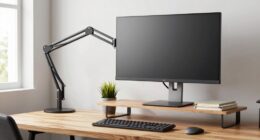
To prevent tech neck, set up your workspace with an ergonomic desk setup. Adjust your monitor height so the top of the screen is at eye level, reducing strain on your neck. Keep your chair at the right height, supporting your back, and sit with your feet flat on the floor. Take regular breaks and stretch to maintain good posture, minimizing discomfort during long hours at your desk.

Webcam Stand for Desk, Flexible Gooseneck Webcam Mount Holder Arm with Phone Holder, Web Cam Stand Computer Camera Desk Mount for Logitech C922 C930e C920S C920 C615 C960 C920x BRIO 4K NexiGo N60
Upgraded Version: Based on the pain points of similar products "Sag slowly and can't keep a position for…
As an affiliate, we earn on qualifying purchases.
As an affiliate, we earn on qualifying purchases.
Conclusion
Think of your webcam angle as the steering wheel of your health dashboard. When you adjust it properly, you steer clear of tech neck and keep your posture in check. Small changes, like raising your camera or sitting upright, can transform your video calls from a potential pain in the neck to a smooth ride. So, take control, fine-tune that angle, and keep your tech journey comfortable and pain-free. Your neck will thank you for it!
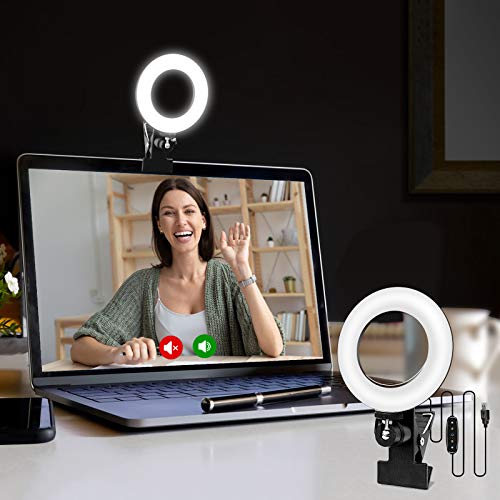
Cyezcor Video Conference Lighting Kit, Ring Light for Monitor Clip On,for Remote Working, Distance Learning,Zoom Call, Self Broadcasting and Live Streaming, Computer Laptop Video Conferencing
【ADJUSTABLE TEMPERATURE AND BRIGHTNESS】Our video conference lights have 3 color temperatures (white light/warm light/natural light) which are 3200k-6800k,…
As an affiliate, we earn on qualifying purchases.
As an affiliate, we earn on qualifying purchases.
30 Inch Webcam Stand Camera Mount, Upgraded Thick Base Flexible Gooseneck Camera Stand Desk Webcam Mount Clamp for Logitech Webcams C930e C930 C920 C922x C922 Brio 4K C925e C615, Gopro Hero 8 7 6 5 4
【Upgrade Thick Clamping Base】We have upgraded the clamp base. It is thicker and more durable. The clamping base…
As an affiliate, we earn on qualifying purchases.
As an affiliate, we earn on qualifying purchases.