Many gamers tend to set their monitor arms too low or too close, which can cause discomfort and affect gaming performance. When your monitor is too low, you might tilt your neck downward, leading to neck strain over time. Sitting too close strains your eyes and makes it harder to see details clearly. Adjusting your monitor to the proper height and distance keeps you comfortable and focused. Stick around to discover how to optimize your setup for better gaming and health.

Get comfort and recovery gear delivered free — and shop member deals
- Fast, free delivery on millions of items
- Access to Prime Big Deal Days deals on October 6–7
- Prime Video, Amazon Music and more included
Key Takeaways
- Many gamers set monitors too low, causing neck tilting and strain, instead of aligning at eye level.
- Sitting too close often results from improper monitor arm adjustments, leading to eye and visual fatigue.
- Lack of ergonomic awareness causes gamers to overlook optimal height and distance, impacting comfort and focus.
- Incorrect monitor positioning can lead to long-term musculoskeletal issues and reduced gaming performance.
- Properly adjusted monitor arms ensure screens are at eye level and an arm’s length away for better ergonomics.
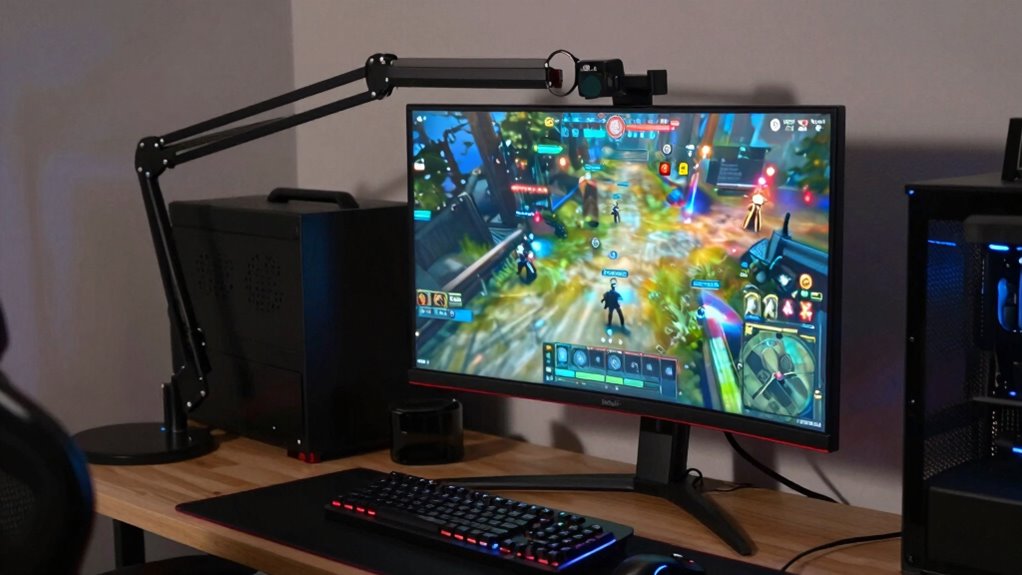
Many gamers unknowingly set their monitor arms too low or too close, which can lead to discomfort and hinder performance. Your monitor’s position plays a vital role in how comfortably and efficiently you game. If your monitor isn’t aligned properly, you might find yourself straining your neck, eyes, or back after just a short session. To avoid this, it’s important to focus on ergonomic adjustments that promote better monitor positioning.
Start by adjusting your monitor’s height so that the top of the screen is roughly at eye level. When you’re seated comfortably, your eyes should naturally look slightly downward at the middle of the screen. If your monitor is too low, you’ll have to tilt your head downward, putting strain on your neck muscles. Conversely, if it’s too high, you may need to tilt your head upward, which can cause discomfort over time. Proper ergonomic adjustments help keep your neck in a neutral position, reducing fatigue and minimizing the risk of long-term issues. Additionally, ensuring your monitor is positioned correctly can help prevent visual strain, which is common when screens are improperly aligned.
Adjust your monitor so the top is at eye level, reducing neck strain and improving comfort during long gaming sessions.
Next, consider the distance between your eyes and the monitor. The ideal monitor positioning usually places the screen about an arm’s length away, around 20 to 30 inches. Sitting too close forces you to squint or lean forward, straining your eyes and compromising your posture. Sitting too far away can cause you to lean forward or squint to see details clearly. Maintaining the correct distance ensures your eyes can comfortably focus on the screen without unnecessary effort. Additionally, ergonomic principles highlight the importance of proper monitor placement to prevent strain and enhance comfort during extended gaming sessions. Setting your monitor at the correct height and distance can make a significant difference in reducing fatigue and improving your overall gaming performance. Adjusting your monitor arms to achieve the correct positioning isn’t just about comfort; it’s about optimizing your gaming performance. When your monitor is correctly positioned, you reduce distractions caused by discomfort or visual strain. Your focus remains on the game, and your reaction times improve because your eyes aren’t constantly adjusting or straining. Proper monitor positioning also helps prevent fatigue during extended gaming sessions, allowing you to stay sharp longer. Ensuring your monitor setup aligns with ergonomic best practices can significantly boost your overall gaming experience. Moreover, being aware of monitor ergonomics can help you make more informed adjustments to support your health during long gaming sessions.
ergonomic monitor arm for gaming
As an affiliate, we earn on qualifying purchases.
As an affiliate, we earn on qualifying purchases.
Frequently Asked Questions
How Can I Adjust My Monitor Arm for Better Ergonomics?
To improve ergonomics, start by adjusting your monitor arm to set the monitor height so that your eyes are level with the top of the screen. Use the arm’s flexibility to position the monitor at a comfortable distance, about an arm’s length away. Make sure the monitor can tilt and swivel easily, allowing you to reduce neck strain and maintain good posture during extended gaming or work sessions.
What Are the Health Risks of Improper Monitor Positioning?
Improper monitor positioning can cause serious health risks like poor posture correction and eye strain. When your monitor is too low or too close, you might hunch or strain your neck, leading to discomfort over time. Additionally, eye strain from improper distance or angle can cause headaches and blurred vision. To avoid these issues, adjust your monitor to eye level, maintain a comfortable distance, and take regular breaks to protect your health.
Which Monitor Arm Is Best for Small Desks?
Think of a compact monitor arm as a secret weapon for small desks. The best pick is one with adjustable compatibility, ensuring it fits your monitor snugly. Look for sleek, clamp-style arms that maximize desk space, keeping your workspace clutter-free. Such arms are like a tailored suit—precise and space-efficient—making them perfect for small desks while offering flexible positioning to reduce strain and improve comfort.
How Do I Prevent My Monitor From Sagging or Slipping?
To prevent your monitor from sagging or slipping, focus on monitor stability and arm durability. Regularly tighten all adjustment screws and check for wear or loose parts. Choose a high-quality monitor arm with strong, durable materials like steel or aluminum, which resist sagging over time. Avoid overloading the arm beyond its weight capacity, and ensure it’s properly mounted to a sturdy surface. This keeps your monitor secure and maintains ideal positioning.
What Are Signs My Monitor Arm Needs Replacement?
If your monitor arm shows signs like persistent sagging, difficulty holding position, or unusual looseness, it’s time for a replacement. These issues indicate reduced monitor arm durability and serve as clear replacement indicators. You might also notice creaking sounds or the arm not supporting the monitor’s weight properly. Addressing these signs promptly guarantees your monitor remains stable and prevents potential damage or accidents.
adjustable monitor stand for desk
As an affiliate, we earn on qualifying purchases.
As an affiliate, we earn on qualifying purchases.
Conclusion
So, next time you’re adjusting your setup, think of it as finding your perfect cozy spot. Slightly raising your monitor or giving it a gentle push back can make all the difference, helping you stay comfortable and sharp during those long gaming sessions. It’s just a small tweak, but one that can turn your gaming space into a true sanctuary. After all, a little attention to detail can transform your experience from good to great.
gaming monitor mount with height adjustment
As an affiliate, we earn on qualifying purchases.
As an affiliate, we earn on qualifying purchases.
monitor arm at eye level for gaming
As an affiliate, we earn on qualifying purchases.
As an affiliate, we earn on qualifying purchases.
Fall Picks
fall essentials
As an affiliate, we earn on qualifying purchases.