For dual monitor arms to work well, your screens should be at eye level, with the tops aligned with your brow to prevent neck strain. Keep them about an arm’s length away for comfort and reduce eye fatigue. Make sure they are adjustable in tilt, swivel, and height to fine-tune your setup. Proper cable management and consistent positioning boost ergonomic benefits and workspace efficiency. Stick around to discover how to optimize your monitor placement even further.
Key Takeaways
- Monitors should be positioned at eye level, with the top aligned with your brow for optimal viewing.
- Keep screens about an arm’s length apart to reduce eye strain and enhance focus.
- Ensure monitors are adjustable in tilt, swivel, and height for personalized ergonomic alignment.
- Proper cable management keeps cords organized, preventing clutter and maintaining a clean workspace.
- Align screens horizontally at the same height to facilitate smooth eye movement and consistent focus.
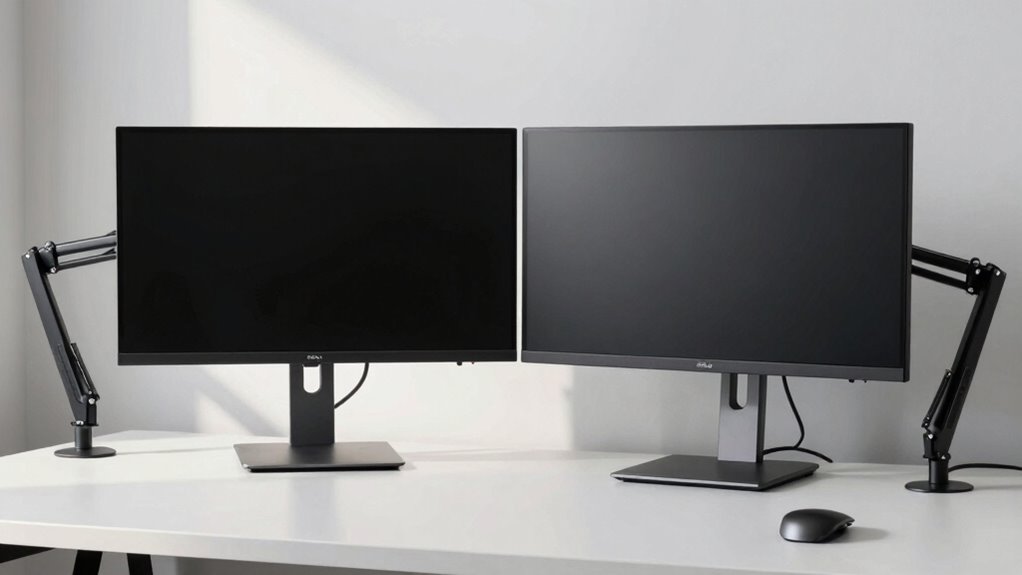
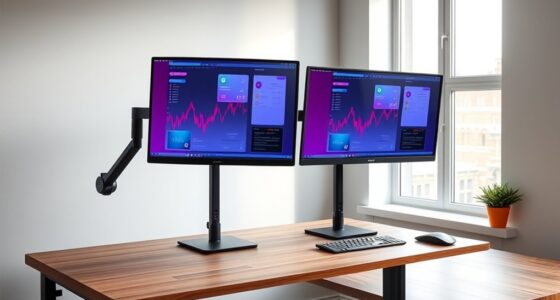
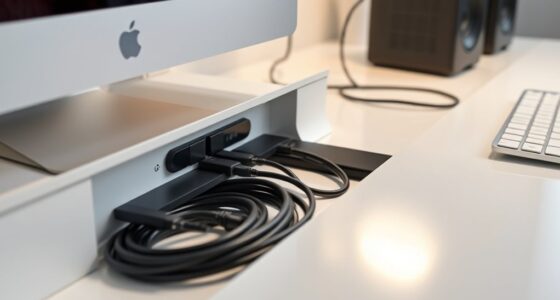
Ever wondered how to optimize your workspace for better comfort and productivity? The key lies in setting up your dual monitor arms correctly, so your screens sit just right. When your monitors are positioned properly, you can maintain an ergonomic posture that reduces strain on your neck, shoulders, and eyes. To achieve this, the monitors should be at eye level, with the top of the screens aligned with your brow. This way, you won’t have to tilt your head up or down, which can cause discomfort over time. The monitors should be about an arm’s length away, so you’re not straining your eyes or leaning forward. Proper placement promotes better focus and helps prevent fatigue, making your work more efficient. Additionally, ensuring the monitors are correctly aligned can improve your overall ergonomic setup, reducing the risk of discomfort during long work sessions. Understanding the importance of proper monitor positioning can help you make adjustments that enhance your comfort even further. When the monitors are placed correctly, it also supports better visual comfort, which is essential for maintaining focus during extended periods of work. Cable management plays a crucial role in this setup. When the monitors sit at the right height and distance, managing cables becomes easier. Use cable clips or sleeves to route cords neatly along the monitor arms and desk, avoiding clutter that can be both distracting and hazardous. Good cable management not only keeps your workspace tidy but also prevents accidental yanks and disconnections, ensuring your setup remains stable and functional. Keeping cables out of sight reduces visual clutter, so your workspace looks clean and professional, which can also improve your mental clarity. The use of Cable management tools can greatly facilitate this process, keeping everything organized and accessible. The positioning of your monitors on dual arms isn’t just about aesthetics; it’s about function. When the screens are aligned horizontally at the same height, your eyes can smoothly transition between them without excessive movement. This minimizes eye strain and helps you work more efficiently across multiple applications or documents. If you need to switch focus, having the monitors at the same height and distance allows for quick, natural shifts, enhancing your overall workflow. Additionally, the ability to easily adjust the monitors’ tilt, swivel, and height means you can fine-tune their position for maximum comfort. Proper nail biology knowledge can even inspire ergonomic design ideas for workspace accessories. Ultimately, dual monitor arms only work well when the screens sit like this — at eye level, with the top edge aligned, and with cables managed neatly out of sight. When you set up your monitors correctly, you create a workspace that’s ergonomic, organized, and conducive to productivity. Taking the time to get the positioning right makes a significant difference in how comfortable and efficient your workday feels. It’s a simple change that pays off by reducing physical strain and keeping your focus sharp.

HUANUO Dual Monitor Stand for 13″–40″, Premium Dual Monitor Mount with USB, Height Adjustable Monitor Stand for 2 Monitors, VESA Mount with Clamp/Grommet Base, Holds 26.4lbs per Arm, HNDS7
Improved Stability for Ultrawide Monitors: The upgraded dual monitor stand combines solid aluminum arms, a larger base, and…
As an affiliate, we earn on qualifying purchases.
As an affiliate, we earn on qualifying purchases.
Frequently Asked Questions
Can Dual Monitor Arms Support Ultra-Wide Screens?
Yes, dual monitor arms can support ultra-wide screens if they have ultra-wide compatibility and meet your monitor’s weight limits. Make sure the arms are designed to handle the size and weight of your ultra-wide monitor, as some models may not support larger screens. Check the arm’s specifications carefully, especially the maximum weight capacity and compatibility with ultra-wide displays, to guarantee secure and stable support.
Are There Weight Limits for Different Monitor Arm Models?
Yes, there are weight limits for different monitor arm models. These limits guarantee ergonomic comfort and proper monitor placement, preventing strain or damage. You should check each model’s specified weight capacity and compare it to your monitor’s weight. Properly supported, your screens stay stable, adjustable, and aligned. Always prioritize these limits to maintain both your workspace’s safety and your overall ergonomic health.
How Do I Prevent Monitor Sway or Wobbling?
To prevent monitor sway or wobbling, focus on monitor stability and proper arm adjustment. Make certain your monitor is securely mounted and the arm’s joints are tightened correctly. Adjust the arm tension to match your monitor’s weight, which improves stability. Regularly check and tighten screws, and avoid sudden movements. Properly balanced and securely adjusted monitor arms reduce sway, providing a steady viewing experience and preventing unnecessary strain on your screens.
Do Dual Monitor Arms Work With Curved Screens?
Ever wonder if dual monitor arms can handle your curved screens? Yes, they can, but it depends on curved monitor compatibility and how well you make monitor stand adjustments. Some arms are designed for flat screens, so check the VESA compatibility and weight limits first. With proper adjustments, you can achieve a stable, ergonomic setup that accommodates your curved monitors, reducing wobble and maximizing comfort.
What’s the Best Way to Cable Manage With Dual Arms?
To cable manage effectively with dual arms, focus on cable organization by using clips or sleeves to keep cords tidy and prevent tangling. Position your power strip close to your workspace, preferably behind or under your desk, to reduce clutter and make plugging in easier. Run cables along the arms or monitor stands, securing them neatly, so your setup looks clean and your cables stay protected and accessible.

HUANUO FlowLift™ Dual Monitor Stand, Fully Adjustable Gaming Monitor Desk Mount for 13–32″ Computer Screens, Full Motion VESA 75×75/100×100 with C-Clamp & Grommet Base, Each Arm Holds 4.4 to 19.8 lbs
Compatible with Wide Screens – To ensure compatibility with the dual monitor mount, your each monitor must meet…
As an affiliate, we earn on qualifying purchases.
As an affiliate, we earn on qualifying purchases.
Conclusion
When your screens sit like this, dual monitor arms truly shine, offering flexibility and ergonomic comfort. But if your setup deviates from this ideal, you might find yourself struggling with stability or awkward angles. Isn’t it worth taking the time to arrange your monitors correctly? By ensuring they’re positioned as suggested, you maximize your workspace’s efficiency and reduce strain. After all, a well-organized setup isn’t just neat — it’s essential for productivity and comfort.

Cable Management Under Desk, 【Up to 15 Cord】【Enhanced Wire Holder】 Cord Organizer, Adjustable Hook and Loop Cable Ties, Home Office Essentials, Cable Hider Clips Under Table, 20 Pair
【Under-Desk Cable Management】Tired of tangled cables under your desk? This cable organizer includes 20 pairs of 120x40mm hook-and-loop…
As an affiliate, we earn on qualifying purchases.
As an affiliate, we earn on qualifying purchases.

ErGear Single Monitor Arm, Fully Adjustable Monitor Mount for 13–34 Inch Screens, Fast Install Computer Monitor Stand with Tool-Free VESA Mount, Cable Management, Holds 19.8 lbs, Max VESA 100x100mm
Ultrawide Compatibility: The ErGear heavy-duty monitor arm is compatible with most 13″–34″ flat or curved monitors up to…
As an affiliate, we earn on qualifying purchases.
As an affiliate, we earn on qualifying purchases.