
TL;DR

Get comfort and recovery gear delivered free with Prime
- Fast, free delivery on millions of items
- Prime Video, Amazon Music and more included
- Member-only deals all year
Ergonomic laptop stands elevate your screen to eye level, reducing neck and shoulder strain. Modern designs offer adjustable, portable, and feature-rich options, making ergonomic setups more accessible. Proper use can improve comfort and long-term health.
Ever feel that ache in your neck after hours hunched over your laptop? That’s because your workspace isn’t set up for comfort. An ergonomic laptop stand isn’t just a fancy accessory—it’s a game changer for your posture and energy levels.
In this article, you’ll learn what makes a stand truly ergonomic, the latest innovations, and how to pick the perfect one for your needs. Get ready to turn your desk into a healthier, more efficient zone.
Choose a stand with adjustable height and tilt to customize your setup and reduce neck strain.
Modern ergonomic stands often include features like cooling fans or wireless charging, adding value and convenience.
Position your laptop so the top of the screen is at or just below eye level, about 2-3 inches above your keyboard.
Portability matters—select a lightweight, foldable stand if you frequently work away from your desk.
Avoid cheap, unstable stands that wobble or lack adjustability; stability and durability are key.
Why an Ergonomic Laptop Stand Is a Game Changer for Your Posture
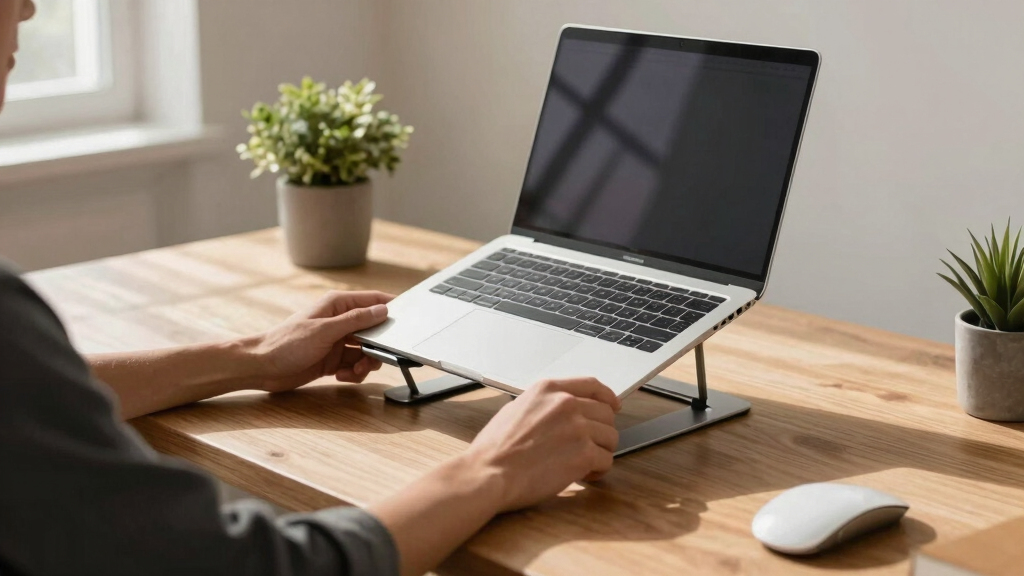
Simple truth: your laptop’s position directly impacts your neck, shoulders, and wrists. An ergonomic stand lifts the screen so your eyes are level with the top, reducing the tendency to crane your neck downward.
Imagine working on a stand that raises your screen 4 inches and tilts it slightly back. Suddenly, your head stays in a neutral position. Your shoulders relax, and your eyes stay comfortable. This is the core benefit of a well-designed stand.
According to studies, elevating screens can cut neck strain by up to 40%. Plus, it helps you avoid long-term issues like repetitive strain injuries.
Choosing the right height and angle isn’t just about comfort; it’s about preventing musculoskeletal problems that can develop over years of poor posture. A stand that’s too high or too low forces your head and neck into unnatural positions, leading to chronic pain. Conversely, an adjustable stand allows you to fine-tune your setup, promoting a natural, relaxed posture that minimizes strain. This small investment in your workspace can significantly reduce the risk of long-term health issues.
Products Worth Considering

Bowflex SelectTech 840 Adjustable Kettlebell

Hyperice Hypervolt Go 3 Portable Percussion Massage Gun with Carry Case

Theragun Relief Massage Gun – 3 Speed, Black
As an affiliate, we earn on qualifying purchases.
How to Pick the Perfect Ergonomic Laptop Stand in 3 Easy Steps
- Assess your needs: Do you need portability? Adjustable height? Built-in cooling? Clarify your priorities because different features serve different workstyles. For example, frequent travelers benefit from lightweight, foldable options, while those working long hours might prioritize stability and adjustability to reduce fatigue.
- Check compatibility: Measure your laptop’s dimensions—most stands support 11-17 inch models. But beyond size, consider the stand’s capability to support your weight and the type of surface it will sit on. Features like adjustable tilt or height allow you to customize your workspace, which is critical for reducing strain and ensuring the stand aligns with your ergonomic needs.
- Read reviews and test: User feedback reveals how a stand performs in real-world conditions—durability, ease of adjustment, stability, and portability. If possible, try out a stand in person to see how it feels during extended use. If shopping online, choose retailers with a good return policy, so you can ensure the stand fits your needs without commitment.
For example, if you often work remotely at cafes or co-working spaces, a lightweight, foldable stand with adjustable height and a sturdy grip helps maintain ergonomic principles on the go. Conversely, a fixed, heavy-duty stand might be better suited for a dedicated home office where portability is less critical.
Compare Top 3 Ergonomic Laptop Stands Side-by-Side
| Feature | Rain Design mStand | Roost Laptop Stand | Nexstand |
|---|---|---|---|
| Material | Aluminum | Aluminum & Plastic | High-quality plastic & metal |
| Adjustability | Fixed height, tilt | Adjustable height & tilt | Fixed height, foldable |
| Portability | Low | High | Very high |
| Weight | 2.5 lbs | 1.5 lbs | 1.3 lbs |
| Price | $70 | $80 | $50 |
Choosing between stands isn’t just about looks or price; it’s about understanding how each feature impacts your ergonomic goals. For example, a fixed-height stand like the mStand offers stability and simplicity, which can be ideal if your work setup doesn’t require frequent adjustments. However, if your tasks vary or you switch between sitting and standing, an adjustable stand like the Roost or Nexstand provides flexibility to fine-tune your posture, reducing strain during long sessions. Stability, weight, and portability all play roles in how well a stand integrates into your daily routine, and understanding these tradeoffs helps you make an informed decision that supports your health.
Latest Innovations That Make Ergonomic Stands Better Than Ever
Modern stands now come packed with features that boost comfort and convenience. Think adjustable arms that lock in just the right angle, or lightweight foldable designs you can carry all day.
Some models incorporate built-in cooling fans to prevent overheating during intense work sessions. Proper cooling is crucial because laptops can generate significant heat, which if not dissipated, can throttle performance and cause hardware issues. Including cooling fans in a stand ensures your device stays at an optimal temperature, prolonging its lifespan and maintaining efficiency.
Others include wireless charging pads, turning your stand into a multi-tasking powerhouse. This integration reduces cable clutter, streamlines your workspace, and allows you to keep multiple devices charged without extra accessories. Eco-friendly materials like recycled aluminum and biodegradable plastics are also making their way into popular models, reflecting a growing emphasis on sustainability. These advancements not only improve functionality but also align ergonomic design with environmental responsibility, making modern stands more versatile, durable, and eco-conscious.
How to Use Your Stand for the Best Ergonomic Results
Using your stand correctly can make all the difference. First, place your laptop so the top of the screen is roughly 2-3 inches above your keyboard. This slight elevation aligns your neck in a neutral position, reducing strain. Adjust the tilt so the screen faces you directly, minimizing glare and awkward neck angles.
Next, set your chair height so your elbows rest at about 90 degrees when typing, supporting your arms and shoulders. Keep your wrists straight, avoiding bending or twisting that could cause discomfort or repetitive strain injuries. Proper positioning extends beyond just the stand—your entire workspace should promote natural, relaxed postures.
Finally, take regular breaks to stretch and change positions. A good rule: follow the 20-20-20 rule—look 20 feet away every 20 minutes for at least 20 seconds. Incorporating movement prevents stiffness and encourages circulation, which are essential for long-term ergonomic health.
Common Pitfalls to Avoid When Choosing or Using a Stand
Beware of stands that look good but lack adjustability. They might settle at a fixed height that doesn’t suit your body, leading to neck or wrist strain. For example, a stand that’s too low forces you to look down, increasing neck tension, while one too high can cause shoulder elevation and fatigue. Not having proper adjustability limits your ability to fine-tune your setup for optimal comfort.
Also, avoid overly cheap models made of flimsy plastic. Stability is key—if your stand wobbles, your laptop might slide or tip, causing frustration or even damage. Wobbly stands can also lead to accidental drops, risking data loss or hardware damage. Investing in a sturdy, well-constructed stand prevents these issues and supports long-term ergonomic health.
Another common mistake? Not setting your screen at the correct height. Even the best stand won’t help if your monitor is too low or too high. Consistently misaligned screens force your neck into unnatural positions, increasing discomfort over time. Always verify that your stand and monitor height promote a natural, relaxed posture, and adjust as needed to maintain ergonomic alignment.
Your Simple Checklist for the Perfect Ergonomic Setup
- Screen at or just below eye level, about 2-3 inches above the keyboard
- Keyboard and mouse at a comfortable height to keep wrists straight
- Chair supporting your lower back, with feet flat on the floor
- Stand sturdy, adjustable, and well-suited to your laptop size
- Take regular breaks—stand, stretch, and move around
Frequently Asked Questions
Why should I use a laptop stand?
A laptop stand elevates your screen to eye level, helping you maintain proper posture. It reduces neck, shoulder, and wrist strain, making long work sessions more comfortable.How do I choose the best ergonomic stand?
Look for adjustable height and tilt, compatibility with your laptop size, durability, and portability. Reading reviews and testing in stores can also help you find the right fit.Are ergonomic laptop stands worth the investment?
Absolutely. They help prevent discomfort and long-term health issues, especially if you work long hours on your laptop. A good stand is an investment in your well-being.Can a stand improve my productivity?
Yes. A comfortable, healthy setup reduces fatigue and distractions, allowing you to focus longer and work more efficiently.What features should I look for in a portable stand?
Lightweight materials, foldable design, adjustable height, and stability. These features make it easy to carry and set up anywhere.Conclusion
Investing in a good ergonomic laptop stand isn’t just about comfort—it’s about protecting your long-term health. Think of it as upgrading your workspace into a personalized health hub. Small adjustments today can save you from discomfort tomorrow.
So, what’s stopping you? Pick a stand that fits your needs, set it up correctly, and start working smarter, not harder. Your neck and shoulders will thank you.