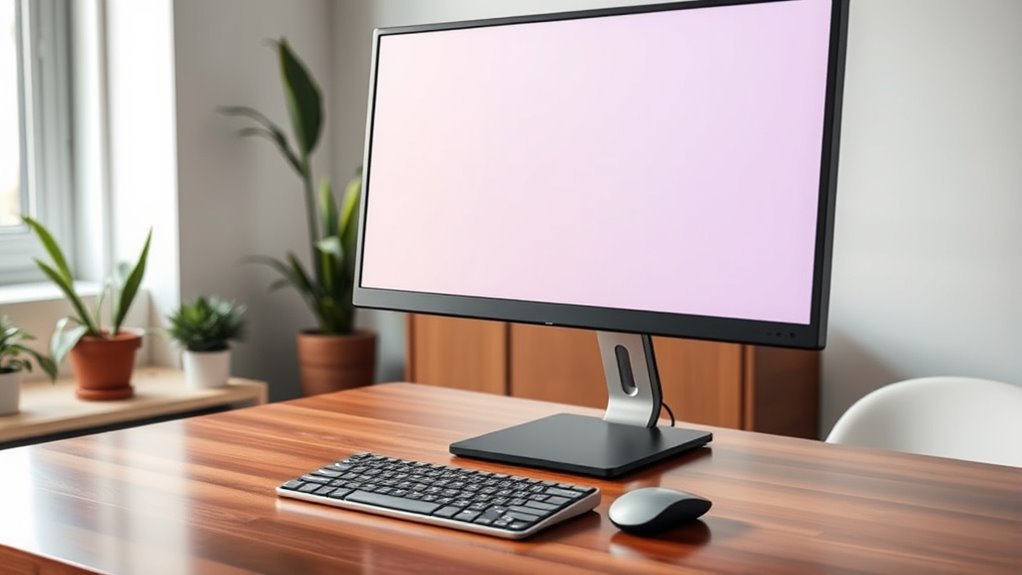

To find the perfect height and distance for your monitor, position the top of the screen at eye level so you won’t strain your neck, and keep it about 20 to 30 inches away—roughly an arm’s length. Adjust the monitor using stands or a monitor arm for best comfort. Pay attention to glare and lighting to reduce eye fatigue. Keep experimenting with your setup; it helps you stay comfortable and productive all day long.
Key Takeaways
- Position the top of your monitor at eye level to promote neutral neck posture.
- Keep the monitor approximately 20-30 inches away from your eyes for optimal comfort.
- Adjust monitor height using stands or arms to ensure the screen’s top is aligned with your eye line.
- Maintain a distance that prevents head tilting or squinting, reducing eye and neck strain.
- Regularly reassess and fine-tune monitor placement as work routines or lighting conditions change.
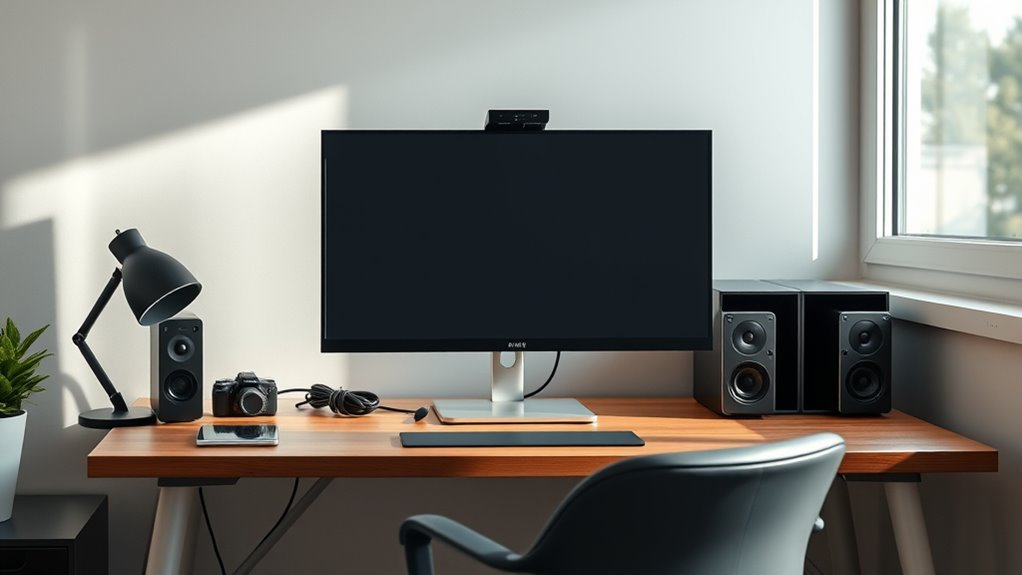
Having a monitor at your desk can considerably boost your productivity and comfort. When setting up your workspace, one of the most important factors is finding the perfect height and distance for your monitor. Doing so helps promote an ergonomic posture, which reduces strain on your neck, shoulders, and eyes. If your monitor is too high or too low, you might find yourself craning your neck or slouching, leading to discomfort over time. Similarly, if it’s too close or too far away, your eyes can become strained, causing headaches and fatigue. To prevent these issues, position your monitor so that the top of the screen is roughly at eye level. This way, you can look straight ahead without tilting your head up or down, maintaining a neutral neck position. You should also ensure that your monitor is about an arm’s length away, typically 20 to 30 inches from your eyes, depending on your screen size and vision. Proper monitor placement is essential for maintaining comfort during long working hours.
Screen glare is another critical aspect to consider when setting up your monitor. Excessive glare from windows or overhead lights can cause you to squint and strain your eyes, making it harder to focus on your work. To minimize screen glare, position your monitor perpendicular to windows whenever possible. If glare persists, consider using an anti-glare screen filter or adjusting the brightness and contrast settings on your monitor. Proper lighting in your workspace can also substantially reduce reflections and glare. Soft, indirect light sources are preferable over harsh, direct lighting, which can create reflections and increase eye fatigue. Keep in mind that a comfortable environment isn’t just about the monitor’s position; it’s about creating a balanced setup that minimizes visual strain and encourages good posture.
Adjusting your monitor to the right height and distance isn’t a one-time task; it’s an ongoing process. As you work, pay attention to how your body feels. If you notice frequent neck or eye pain, it’s a sign that you need to reassess your setup. Keep your monitor clean and free of smudges, which can cause additional glare and reduce clarity. Investing in an adjustable stand or monitor arm can make it easier to fine-tune your setup for maximum comfort and ergonomics. Remember, a well-positioned monitor not only prevents discomfort but also keeps you focused and efficient throughout your workday. By paying close attention to height, distance, and glare, you create a workspace that supports your health and productivity for the long term.
Top picks for "monitor desk find"
Open Amazon search results for this keyword.
As an affiliate, we earn on qualifying purchases.
Frequently Asked Questions
How Does Screen Glare Affect Monitor Positioning?
Screen glare can cause eye strain and reduce your visibility, making it harder to see your monitor clearly. To minimize glare, you should adjust your monitor placement, avoiding direct reflections from windows or lights. Position your screen at a comfortable height and angle, keeping it perpendicular to light sources. This way, you reduce glare and improve your viewing comfort, helping you work more efficiently and protect your eyes.
What Ergonomic Accessories Can Improve Monitor Setup?
Ergonomic accessories can totally revolutionize your monitor setup, making it feel like magic! Use monitor stands or risers to elevate your screen to eye level, reducing neck strain. Adjustable arms allow you to customize your monitor’s position effortlessly, while anti-glare filters cut down on distracting reflections. These tools turn your workspace into a haven of comfort, boosting productivity and preventing pain—making monitor customization your best defense against fatigue!
How Often Should I Adjust My Monitor Height?
You should adjust your monitor height whenever you notice ergonomic posture issues or eye discomfort. Regular checks, ideally every few weeks, help maintain eye comfort and prevent strain. If your neck feels strained or your eyes feel tired, raise or lower your monitor to align the top of the screen with your eye level. Consistent adjustments guarantee you stay comfortable and support good ergonomic posture throughout your workday.
Are There Specific Monitor Sizes Better for Small Desks?
For small desks, opt for compact displays that fit comfortably without crowding your space. You should also consider using adjustable monitor stands, which let you customize height and angle to maintain good posture. These stands help maximize limited space, making your setup more ergonomic and efficient. Smaller monitors paired with adjustable stands ensure you get a comfortable viewing experience without sacrificing valuable desk real estate.
What Are Signs My Monitor Setup Is Causing Strain?
You might notice eye strain or posture issues if your monitor isn’t at eye level or too close. Studies show that prolonged poor ergonomics can cause discomfort in 70% of office workers. Signs include headaches, neck pain, blurred vision, or sore eyes after hours at your desk. If you experience these, adjust your monitor’s height and distance to improve your posture and reduce eye strain, preventing long-term discomfort.
Conclusion
Finding the perfect monitor height and distance is like tuning a delicate instrument—you’ll achieve harmony only when everything aligns just right. When your screen sits at eye level and is close enough to see clearly, it becomes a seamless extension of your workspace, not a distraction. Adjust until it feels natural, and your posture will thank you. With this balance, your desk transforms into a well-orchestrated symphony of comfort and focus, ready to inspire your best work.