To create an ergonomic video conferencing setup, focus on proper lighting, such as placing a ring light or adjustable LED in front of you, and position your monitor at eye level to avoid neck strain. Use a quality microphone for clear audio and arrange your furniture to support good posture with feet flat and hands within reach of the keyboard and mouse. Keep your workspace organized and clutter-free for better focus. If you stay attentive, you’ll discover more tips to enhance your setup.
Key Takeaways
- Position your monitor at eye level using stands or adjustable desks to prevent neck strain.
- Use natural light near windows and add diffused LED or ring lights for even, glare-free illumination.
- Select a high-quality microphone and place it about an inch from your mouth for clear audio.
- Arrange your workspace with essential items within arm’s reach and keep cables organized to reduce distractions.
- Maintain a neutral sitting posture with feet flat, knees at 90 degrees, and ergonomic furniture to promote comfort.

With more people working remotely, setting up an ergonomic video conferencing station is vital for comfort and productivity. A well-designed setup ensures you stay focused and engaged during meetings, while also protecting your health over time. One of the first things to consider is your lighting solutions. Proper lighting reduces eye strain and improves your video image quality. Natural light is ideal, so position your desk near a window if possible, but avoid direct sunlight that causes glare. If natural light isn’t sufficient or consistent, invest in adjustable LED lights or a ring light that provides even, diffused illumination. Aim for a light source that’s slightly in front of you, not behind, to prevent shadows on your face. This setup enhances your appearance on camera and minimizes fatigue caused by harsh or uneven lighting.
Proper lighting improves video quality and reduces eye strain during remote meetings.
Audio optimization is equally vital. Clear sound ensures your message is understood and reduces the need for repetitions, which can be frustrating and time-consuming. Use a good-quality microphone or headset that cancels out background noise and delivers crisp audio. Position the microphone close to your mouth, about an inch away, to capture your voice clearly without picking up breathing sounds or typing noises. Additionally, consider soundproofing your space by adding soft furnishings like rugs, curtains, or acoustic panels. These help absorb echo and external noise, creating a more professional audio environment.
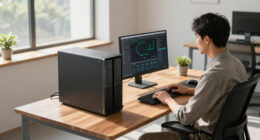
Your seating and desk height are fundamental to ergonomic comfort. Sit with your feet flat on the ground and your knees at a 90-degree angle. Your monitor should be at eye level, so you’re not tilting your head up or down, which can cause neck strain. Use a monitor stand or adjustable desk to achieve the correct height. Keep your keyboard and mouse within easy reach, allowing your arms to stay relaxed and your wrists straight. Maintaining this neutral posture minimizes musculoskeletal issues over time.
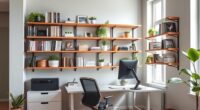
Lastly, organize your workspace to minimize clutter and distractions. Keep essential items within arm’s reach and ensure your cables are neatly managed to avoid tangles or accidental disconnections. When your environment is clean and organized, you’ll find it easier to focus on your meetings and work tasks. Combining proper lighting solutions, audio optimization, ergonomic furniture, and an organized space creates an efficient, comfortable, and professional video conferencing station where you can perform at your best.

BONTEC Monitor Stand for Desk 2 Pack, Ergonomic Metal Monitor Riser
- Pack of Two Monitor Stands: Ideal for dual screens or laptops
- Three Adjustable Heights: Positions at 3.9, 4.7, and 5.5 inches
- Ergonomic Design: Reduces neck, back, and eye strain
As an affiliate, we earn on qualifying purchases.
As an affiliate, we earn on qualifying purchases.
Frequently Asked Questions
How Can I Minimize Eye Strain During Long Video Calls?
To minimize eye strain during long video calls, you should use blue light filters on your screen or wear glasses with blue light protection. Adjust your screen brightness to match your environment, avoiding glare and excessive contrast. Take regular breaks, following the 20-20-20 rule—look at something 20 feet away for 20 seconds. Keeping your workspace well-lit and maintaining proper distance from your screen also helps reduce eye fatigue.
What Are the Best Lighting Tips for Video Conferencing?
Bright, harsh lighting can be distracting, but soft, ambient lighting creates a more professional look. Use adjustable color temperature lighting to match your environment—warmer tones for comfort, cooler for clarity. Position your light source in front of you, not behind, to avoid shadows and glare. Combining natural light with well-placed ambient lamps balances your face’s appearance, reducing eye strain and ensuring you look sharp during every call.
How Do I Choose an Ergonomic Chair for My Setup?
You should choose an ergonomic chair with adjustable lumbar support to suit your back’s curve, reducing strain during long calls. Look for a chair with breathable fabric to keep you comfortable and prevent overheating. Guarantee the seat height is adjustable so your feet rest flat on the floor, and the armrests can be customized for proper arm positioning. These features help maintain good posture and increase your overall comfort during video conferences.
What Are Effective Cable Management Strategies?
Did you know that cluttered cables can reduce workspace efficiency by up to 30%? To improve your setup, focus on cable concealment and cord organization. Use cable clips, sleeves, or under-desk trays to keep cords tidy and out of sight. Label cords for easy identification, and route them along edges or behind furniture. These strategies guarantee a clean, safe, and distraction-free environment for seamless video conferencing.
How Can I Improve Audio Quality in a Small Room?
To improve audio quality in your small room, start by using soundproofing techniques like adding rugs, curtains, or acoustic panels to reduce echo and background noise. Position your microphone correctly—place it close to your mouth and slightly off to the side to avoid plosive sounds. Also, consider using a quality microphone with noise-canceling features and make sure your room is free from echo-inducing surfaces for clearer, more professional sound.
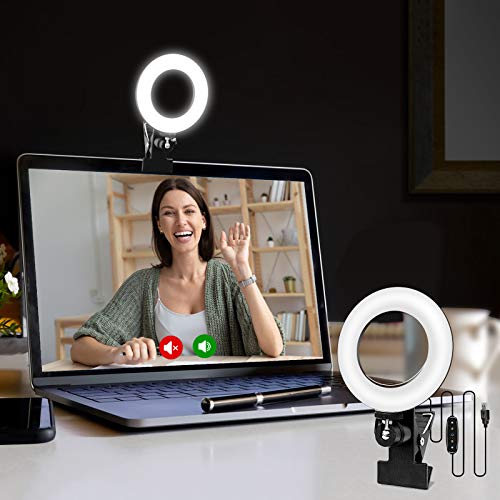
Cyezcor Video Conference Lighting Kit, Ring Light for Monitor Clip On
- Adjustable Color Temperature: 3200K-6800K with 3 modes
- Brightness Levels: 5 adjustable brightness settings
- High-Quality LED Beads: 48 LEDs with 10W brightness
As an affiliate, we earn on qualifying purchases.
As an affiliate, we earn on qualifying purchases.
Conclusion
By setting up your workspace ergonomically, you protect your body and boost your focus. But remember, even the best setup can’t replace mindful breaks and posture awareness. While technology helps us work smarter, it’s your habits that truly make the difference. So, find balance between comfort and mindfulness—because a well-designed space supports more than just your back; it sustains your well-being in the long run.

Logitech H390 Wired Headset PC/Laptop Stereo Headphones – Black
- Digital Stereo Sound: Enhanced digital audio for various uses
- Rotating Noise Canceling Mic: Clear calls with noise reduction
- In-line Controls: Adjust volume and mute easily
As an affiliate, we earn on qualifying purchases.
As an affiliate, we earn on qualifying purchases.

HOLLUDLE Ergonomic Mesh Office Chair – 3D Adjustable Lumbar Support & 3D Armrests, V-Shaped Back, Adjustable Desk Chair for Office & Home, White
- 3D Adjustable Lumbar Support: Customizable for optimal back comfort
- Fully Adjustable Features: Headrest, armrests, and tilt lock adjustable
- Stylish V-Shaped Back Design: Modern silver V-back for aesthetic appeal
As an affiliate, we earn on qualifying purchases.
As an affiliate, we earn on qualifying purchases.