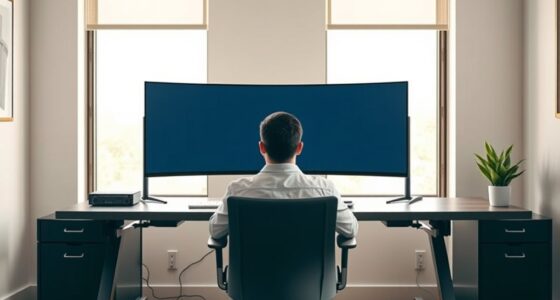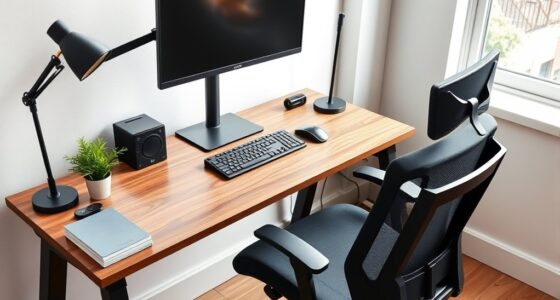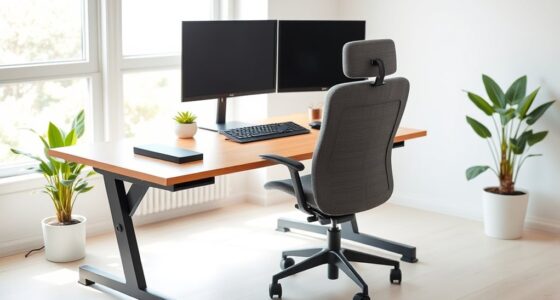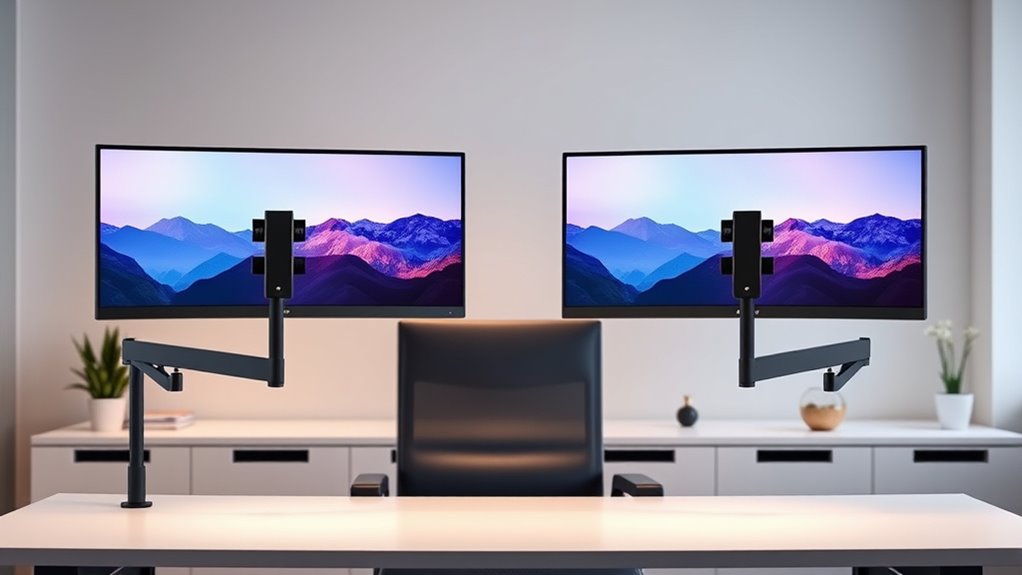

To position dual monitors without straining your neck, adjust their height so the tops are even with your eye level. Place them directly in front of you, about an arm’s length away, and angle them slightly inward. Use adjustable stands or arms for easy customization, and make certain your neck remains in a neutral position. Keep your workspace free of glare and take frequent breaks—this guide offers more tips to keep your neck comfortable during long screen time.
Key Takeaways
- Place monitors at eye level to prevent neck craning and ensure a natural viewing angle.
- Position monitors directly in front of you, minimizing head turning and excessive movement.
- Keep monitors at an arm’s length distance for comfortable viewing without leaning forward.
- Slightly angle monitors inward to face directly at you, reducing neck strain from side-to-side movement.
- Regularly adjust monitor height and orientation to maintain ergonomic posture during extended use.

Have you ever wondered how to position dual monitors for maximum productivity and comfort? Achieving the perfect setup isn’t just about placing screens side by side; it’s about creating an ergonomic workspace that minimizes strain and maximizes efficiency. To do this, start by investing in ergonomic accessories like adjustable monitor stands or arms. These tools allow you to fine-tune the height, tilt, and distance of each monitor, ensuring your neck and eyes stay in a natural, relaxed position. When your monitors are at eye level, you avoid craning your neck up or down, which can lead to discomfort over time.
Position monitors at eye level with adjustable stands for ergonomic comfort and reduced strain.
Next, consider monitor calibration. Proper calibration isn’t solely about color accuracy; it also involves aligning the monitors so that their brightness, contrast, and resolution match seamlessly. When your screens are calibrated correctly, your eyes don’t need to constantly shift focus between mismatched displays, reducing eye fatigue. Use built-in calibration tools or third-party software to achieve a consistent visual experience across both monitors. This consistency helps your eyes transition smoothly from one screen to the other, preventing unnecessary strain.
Positioning your monitors correctly involves more than just height and calibration. Make sure both screens are directly in front of you, with minimal glare or reflections. If your workspace has windows or bright lights, adjust the monitors or add anti-glare filters to reduce eye strain. The monitors should be close enough to your eyes so that you’re not stretching your neck forward or backward, yet far enough to see the entire screen comfortably without leaning in. Typically, the ideal distance is about an arm’s length away.
Additionally, angle the monitors slightly inward, so they face you directly. This reduces the need for head turning and promotes a more natural posture. If you use your dual monitors for extended periods, take regular breaks and perform simple neck stretches to prevent stiffness. Incorporating ergonomic accessories like wrist rests and foot supports can further enhance comfort, reducing overall physical strain. Being mindful of ergonomic principles in your setup can significantly improve long-term comfort and health.
Frequently Asked Questions
What Desk Height Is Ideal for Dual Monitor Setup?
When considering desk height for your dual monitor setup, aim for a level where your elbows are at a 90-degree angle and your wrists stay straight. This helps make certain your monitor positioning is comfortable without straining your neck or shoulders. Your monitors should be at eye level, so adjust your desk height accordingly. Proper desk height promotes better monitor positioning, reducing fatigue and enhancing productivity during long hours at your workstation.
How Can I Reduce Glare on Dual Monitors?
Dealing with glare reduction can feel like a small battle, but proper monitor positioning makes a big difference. Tilt your monitors slightly downward and angle them to avoid reflections from windows or lights. Keep screens at eye level and position your monitors perpendicular to bright sources. Adjusting your lighting and using anti-glare screens or matte filters also helps. These simple steps create a more comfortable viewing experience and protect your eyes from unnecessary strain.
What Ergonomic Accessories Improve Dual Monitor Comfort?
To improve your dual monitor comfort, consider using monitor stands to elevate screens to eye level, reducing neck strain. Ergonomic cushions can provide added support for your wrists and lower back, making long hours more comfortable. These accessories promote better posture and help prevent discomfort. By adjusting your setup with monitor stands and ergonomic cushions, you’ll create a more ergonomic workspace that minimizes strain and maximizes productivity.
Should Monitors Be at Eye Level or Below?
You should aim for monitor alignment with your eyes, so your screens are at eye level positioning. This reduces neck strain and keeps your posture healthy. Avoid placing monitors below eye level, as it forces you to look down, which can cause discomfort over time. Keep your dual monitors directly in front of you, slightly angled if needed, to maintain a natural, comfortable viewing angle and prevent unnecessary neck or eye strain.
How Often Should I Take Breaks to Prevent Neck Strain?
Think of your neck as a delicate garden that needs regular watering. To prevent strain, take a break every 20-30 minutes, stretching and shifting your focus. Use ergonomic wrist supports and adjustable monitor arms to keep your setup in harmony. These small acts act like gentle rain, nurturing your comfort and preventing strain. Consistent breaks guarantee your workspace remains a healthy, balanced environment for your neck and eyes.
Conclusion
By positioning your dual monitors correctly, you can reduce neck strain and boost your productivity. Remember, studies show that poor ergonomics can cause discomfort and long-term health issues, with up to 60% of office workers experiencing neck pain. Taking a few extra minutes to align your screens at eye level and maintain proper distance can make a significant difference. Invest in your comfort today—your neck will thank you tomorrow.